Image to video AI: turn one picture into a video - RefVid
Turn your own photos into videos in minutes · Your first video is free, no watermark
First video free, no card
Yes, one picture is enough. Upload a single image of a person, a product, a pet or a place, pick a template or write one sentence about what happens, and press Generate.
RefVid keeps the subject from your picture, uses it as the place and look, or starts the clip on it, on Kling 4, Kling 3.0 Omni and every other model in the studio. A new account's first 5-second video on Kling 3.0 Omni is free, needs no card and carries no watermark.
1 product photo
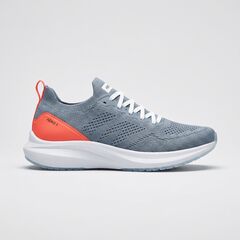
One picture in, one 5-second video out
Three steps. No prompt skills, no 20 photos.
Some tools train a face from 20 or more photos, others want long, careful prompts. RefVid needs a few photos and one line.
- 01
Upload 1–5 photos
A clear front view of the person or product. Add a side view or a close-up of the label if you have one.
- 02
Pick a template or write one line
Start from a ready-made template, or describe the scene in one sentence, such as “she pours coffee in a bright kitchen”.
- 03
Generate
The clip keeps the same face, outfit or label. Make the next scene from the same photos whenever you like.
Start from a template
How image to video AI works on RefVid
- You give RefVid one picture and a few words, and the model makes a new moving shot from them: the camera moves, the subject acts, light and sound change. It is not a zoom or a pan across a still photo. The picture tells the model what has to stay the same; your words tell it what happens.
- Upload the picture in the studio or on a template's start page, then press Generate. The finished clip lands in your library without a watermark, and a clip that fails gives its credits back. Every clip you make from the same saved picture keeps the same subject, so the second and the tenth video look like the first.
Single image to video AI: subject, place or first frame
One picture can do three different jobs, and you choose which. As a subject, it is saved once as a character or product, with its face, shape and label, and goes into every later clip under its name; that is how the shoe at the top of the page and Mia here were made. One photo is enough, and RefVid can draw more angles from it so a side view holds too.
As a picture, it sets the place, the look or the style: a room, a street, a drawing. The model redraws it as a moving scene instead of pasting it, and when the prompt doesn't name it, RefVid tells the model to keep the setting and look of that picture. As a first frame, the clip opens on your exact picture: Kling 4 and Kling 3.0 Omni start on it and can also end on a second one; the other models take it as a reference the clip opens on.
1 front photo
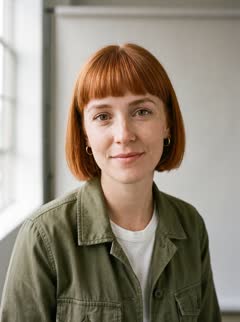
Picture to video AI for a person, a product or a pet
- Most pictures people turn into video are one of three things, and each has templates that write the shot for you. A product photo becomes a 360 turntable, a water splash, a floating ad or an unboxing, with the label kept from the photo. A photo of you becomes a morning routine, a travel vlog or a talking intro with your own face. A pet photo becomes a pet that blinks, tilts its head and looks at you.
- A template opens with its shots, length and shape already set, so the picture is all you add, and you can change any word before you generate. Toys, figures, mascots and drawn characters work the same way: anything with a shape the model can keep.
The prompts behind the two clips, and how to write yours
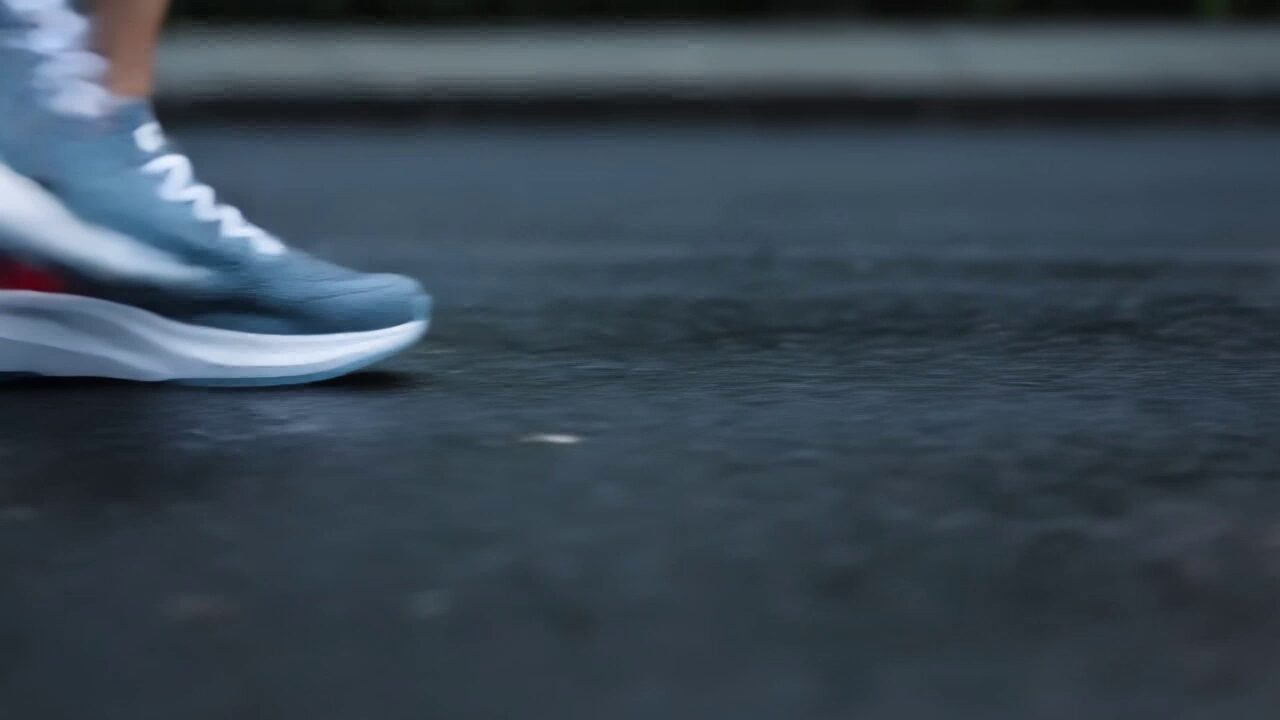
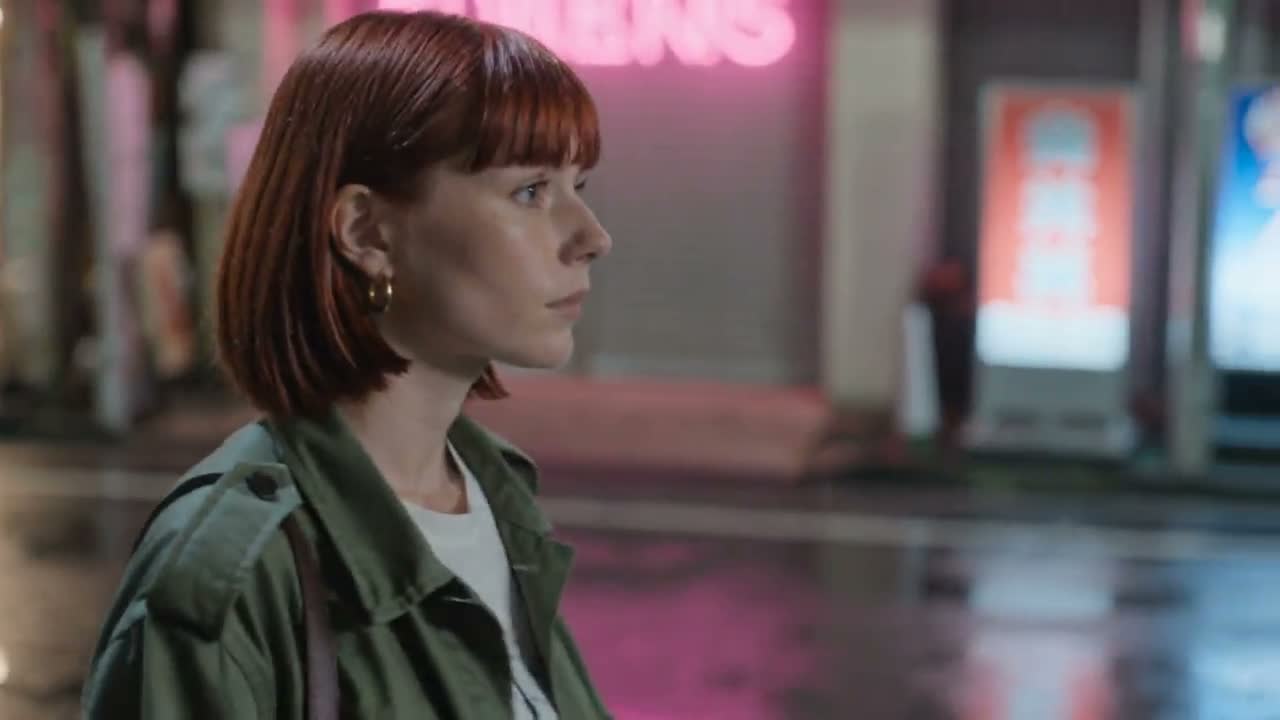
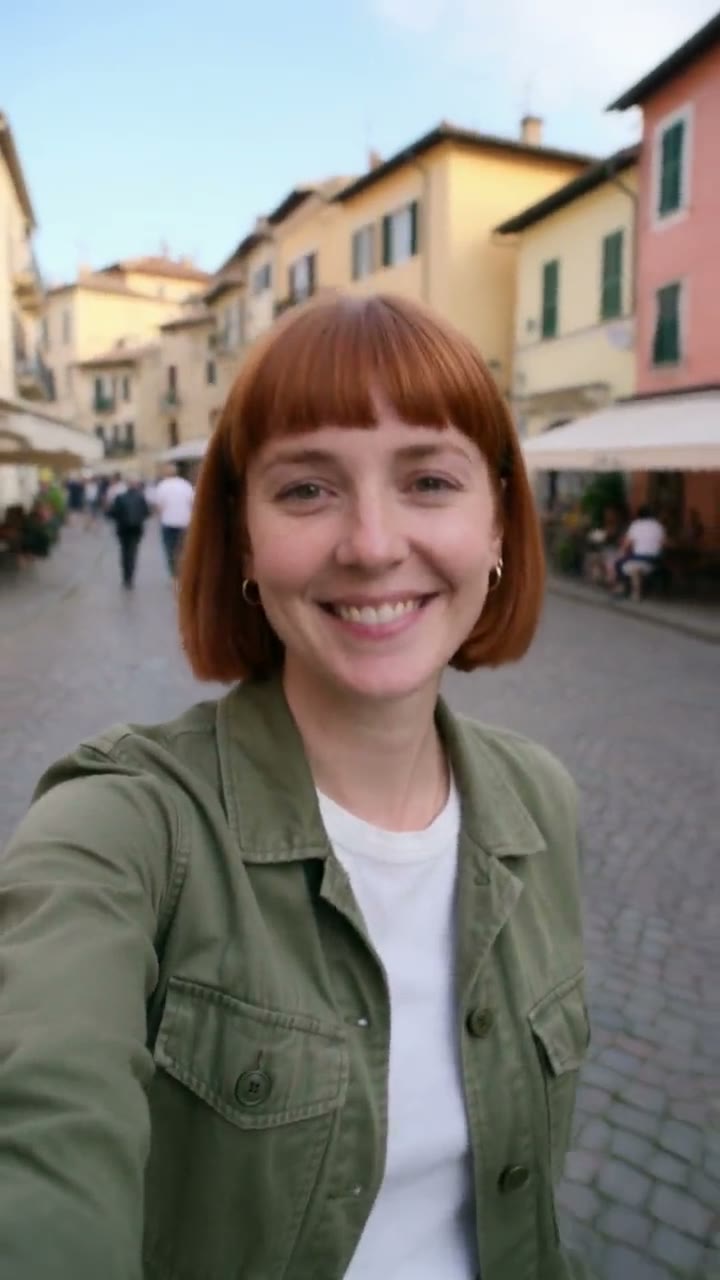
- Shoe, one side-view photo, first sentences of the prompt: "@Element1 rests on a flat wet black rock beside a mountain stream at sunrise, seen from the side as in the photo. The camera dollies slowly along the shoe from heel to toe at shoe height; mist drifts over the water and a few droplets run down the mesh." Mia, one front photo: "@Element1 walks along a leafy autumn street, golden leaves falling around her, then stops, turns to the camera and smiles. Medium shot, the camera tracks with her, vertical phone-video look, warm afternoon light." In the studio you type the subject's name (@Mia); RefVid sends it to the model as @Element1.
- Write where the subject is, what it does, and how the camera moves, in one or two sentences. Don't describe the face or the product; the picture already does, and words that disagree with it pull the clip away from it. Stuck on the words? Improve in the studio turns a short idea into a full shot.
What a clip from one image costs
- A clip costs by model, length, resolution and sound; one picture or several costs the same. A new account gets its first 5-second video on Kling 3.0 Omni free, at 720p and silent, with no card. After the free clip, a single video costs from $2.99, a one-time credit pack from $9.90 and a plan from $10 a month; credits never expire.
- Clips run from 3 seconds up to 30 on Kling 4 and up to 15 on Kling 3.0 Omni, in vertical, wide or square. Credits are held before the clip starts and only taken when it is ready, so a failed clip costs nothing.
Checks before you post
- Pick a sharp picture with the subject large in the frame, even light and nothing covering it; crop away wide empty borders. A photo of a real person needs that person's consent, and photos of minors and public figures are not allowed. Seedance 2.5 refuses photos of real-looking people before the clip runs, so use another model for them.
- Watch the clip at full size before you post it: check hands, small print and the edges of the product. You may use the clips commercially. Label realistic AI video as AI-generated where the platform asks for it.
More templates
Each one opens the studio with the shots, shape and length already set. Add your own product and generate.
More how-to guides
Frequently asked questions
Can I use image to video AI free, without a watermark?
Yes. A new RefVid account makes its first 5-second video on Kling 3.0 Omni free, with no card and no watermark. Clips you pay for carry no watermark either.
How much does RefVid cost after the free video?
A single video costs from $2.99, a one-time credit pack from $9.90 and a plan from $10 a month. Credits never expire, no clip carries a watermark and every clip may be used commercially. That is a fraction of what a shoot with a production team costs.
Can AI turn one image into a video?
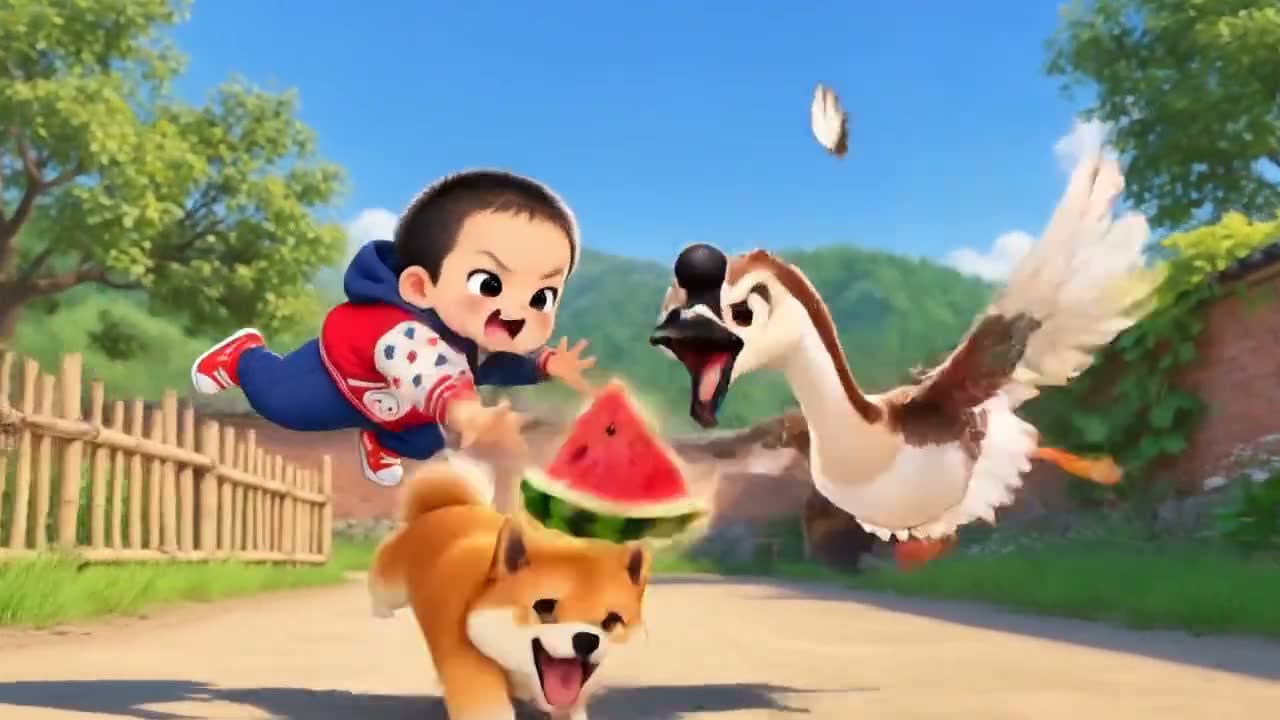
Yes. One picture of a person, a product, a pet or a place is enough for a clip; both clips on this page were made from a single photo each. More photos from other angles help a subject hold from every side, and RefVid can draw them from the one you have.
Does photo to video AI work with a photo from my phone?
Yes. A photo is a picture like any other here, and a sharp phone photo with the subject large in the frame works well; crop away wide empty borders first. It all runs online in your browser, on a phone or a computer, with nothing to install.
Will the video keep the same face or product label as my picture?
When the picture is saved as a subject, yes: the model gets it as the subject's reference, so the face, shape, colours and label stay, in this clip and every later one. Very small print can still blur; check it at full size.
Can the picture be the first frame of the video?
Yes. Choose Start the video on this picture in the picture's menu. Kling 4 and Kling 3.0 Omni open on it and can also end on a second picture; the other models take it as a reference the clip opens on.
Is there image to video AI with no sign up?
RefVid needs a free account so your pictures and clips are saved to you; you sign in with Google or with a code sent to your email, and no card is asked for. Your first clip is free.
What if I have several pictures, not one?
Add them all: one clip takes up to 7 pictures, named @Image1, @Image2 and so on, plus up to 3 saved characters or products, and each shot can use its own picture.