Text to video AI: a clip from your prompt, and the same character when you need it - RefVid
Type what happens and get a video in minutes · Your first video is free, no watermark
First video free, no card
Yes, RefVid makes a video from words alone. You describe who is in the shot, where it happens and what the camera does, and the model draws everything from that description.
It runs on Kling 4, Kling 3.0 Omni and most of the other models in the studio, starts free with no card, and adds no watermark. A prompt invents its subject again in every clip, so when a person or product has to return, add one to five photos and the same prompt keeps it.
Three prompts, no photos
How text to video AI works
- A text-to-video model reads your prompt and generates every frame from it: the people, the place, the light and the camera move. Nothing is animated from a picture. That makes it the quickest way from an idea to a clip, and also the reason the subject changes from one clip to the next.
- Words describe a type, not a person. "A woman in her late twenties with a copper-red bob and freckles" fits thousands of faces, and the model picks one each time it runs. For a single shot, a mood or b-roll, that doesn't matter. For a series, an ad or a story with a recurring face, it does.
Prompt to video AI on RefVid: start from words alone
- Open the studio with no element, write the prompt and press Generate. You pick the model, the length, the shape (16:9, 9:16 or 1:1) and whether the clip has sound. A clip usually takes 2 to 10 minutes and lands in your videos, ready to download without a watermark.
- Lengths depend on the model: 3 to 30 seconds on Kling 4, the default, and up to 15 seconds on Kling 3.0 Omni. The prompt has to carry the whole shot, so it is longer than a prompt written around reference photos.
Kling text to video and the other models
- Kling 4 and Kling 3.0 Omni both have a text-to-video mode, and RefVid uses it whenever you choose Text only. Kling 4 always makes sound and runs up to 30 seconds; Kling 3.0 Omni is the cheaper choice and can make a silent clip.
- Seedance 2.5, Wan 3.0, Gemini Omni Flash, PixVerse C1 and Happy Horse 1.1 also make clips from words alone. Vidu Q4 is the exception: on RefVid it only works with a subject. Running the same prompt on two models is a quick way to see which one suits the scene.
Text to video prompt examples
- A good prompt for words-only video names the subject in concrete detail, gives one action, and says where the camera is and how it moves. Light and lens come last. Leave out anything you don't care about; every extra detail is something the model has to fit into a few seconds.
- Example for a character: "A woman in her late twenties with a copper-red bob haircut and straight bangs, light freckles, wearing an olive-green utility jacket, stands on a windy beach at golden hour. She looks out to sea, then glances at the camera. Slow push-in from a medium shot to a close-up, warm backlight."
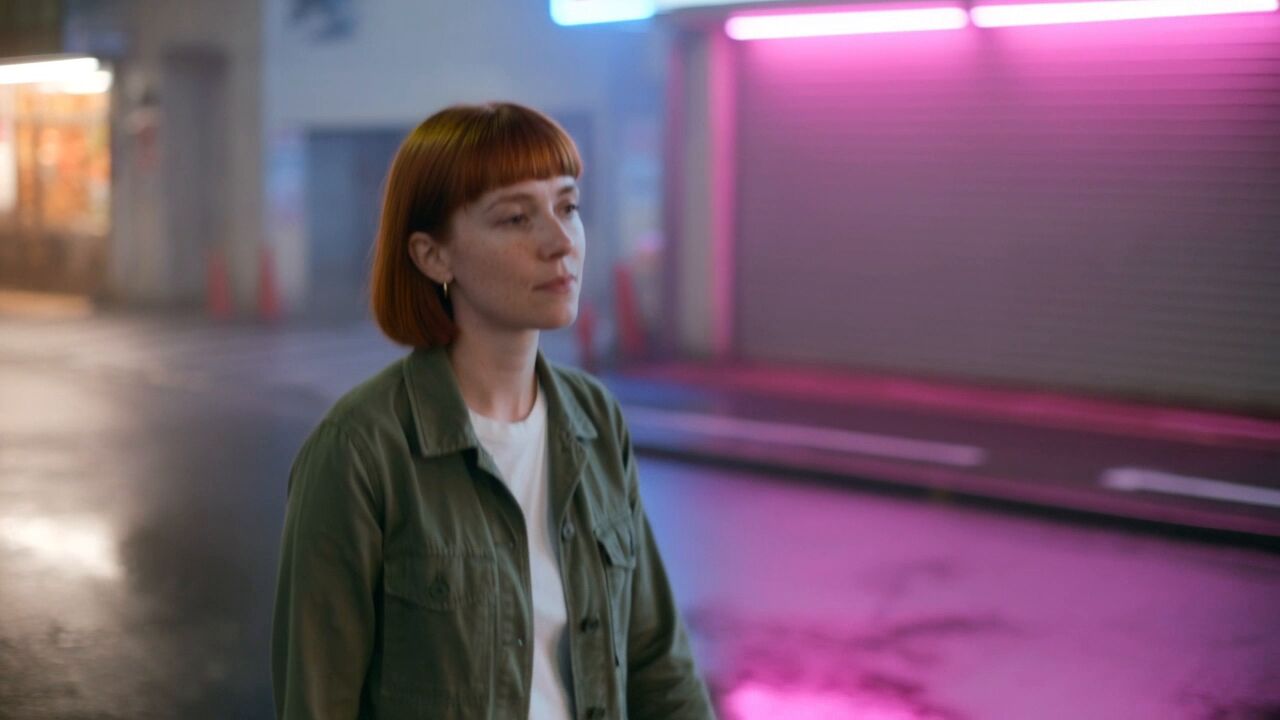
- Example with a tracking camera, the prompt behind the clip at the top of this page: "…walks through a neon-lit Tokyo side street at night in light rain, wet asphalt reflecting pink and blue neon light. The camera tracks alongside her at shoulder height in a smooth lateral dolly as she walks. Cinematic, shallow depth of field."
When the same character has to come back
Add photos. RefVid was built for this: you save a person or product once from 1 to 5 photos, and every prompt you write keeps that face, outfit, logo or label. The prompt then only describes the scene, and the subject comes from the photos, in any place and from angles the photos don't show.
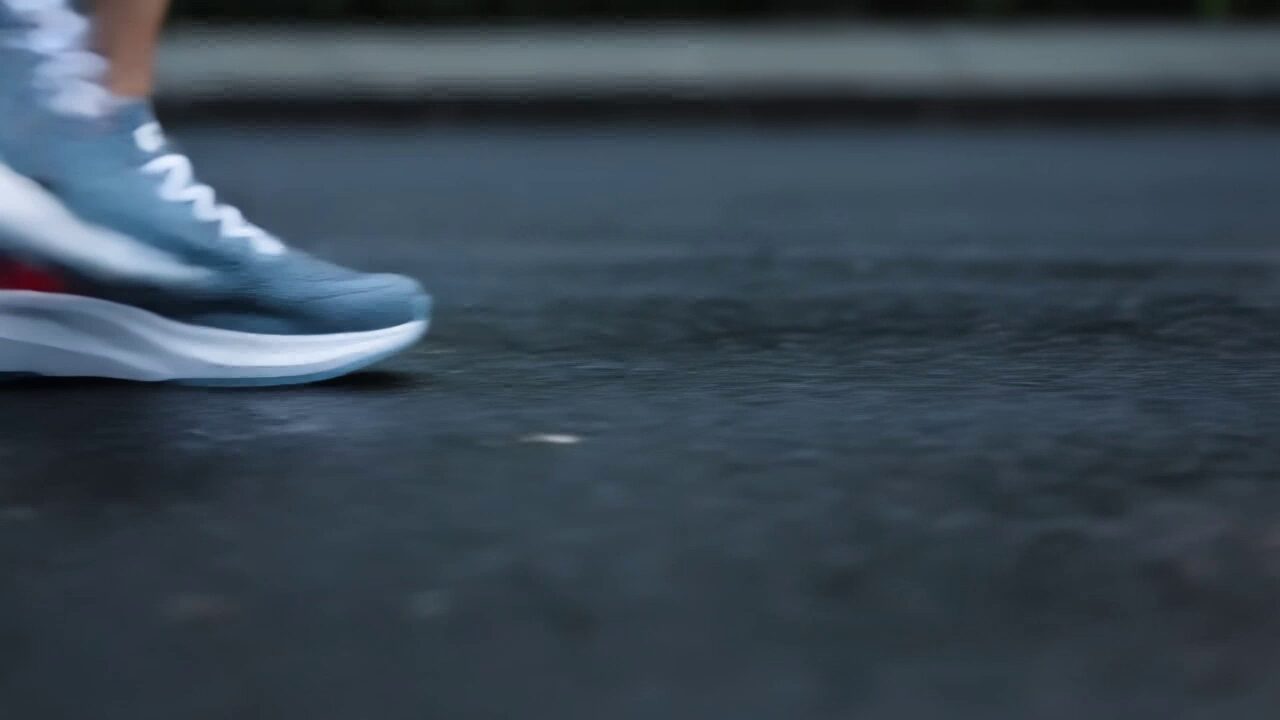
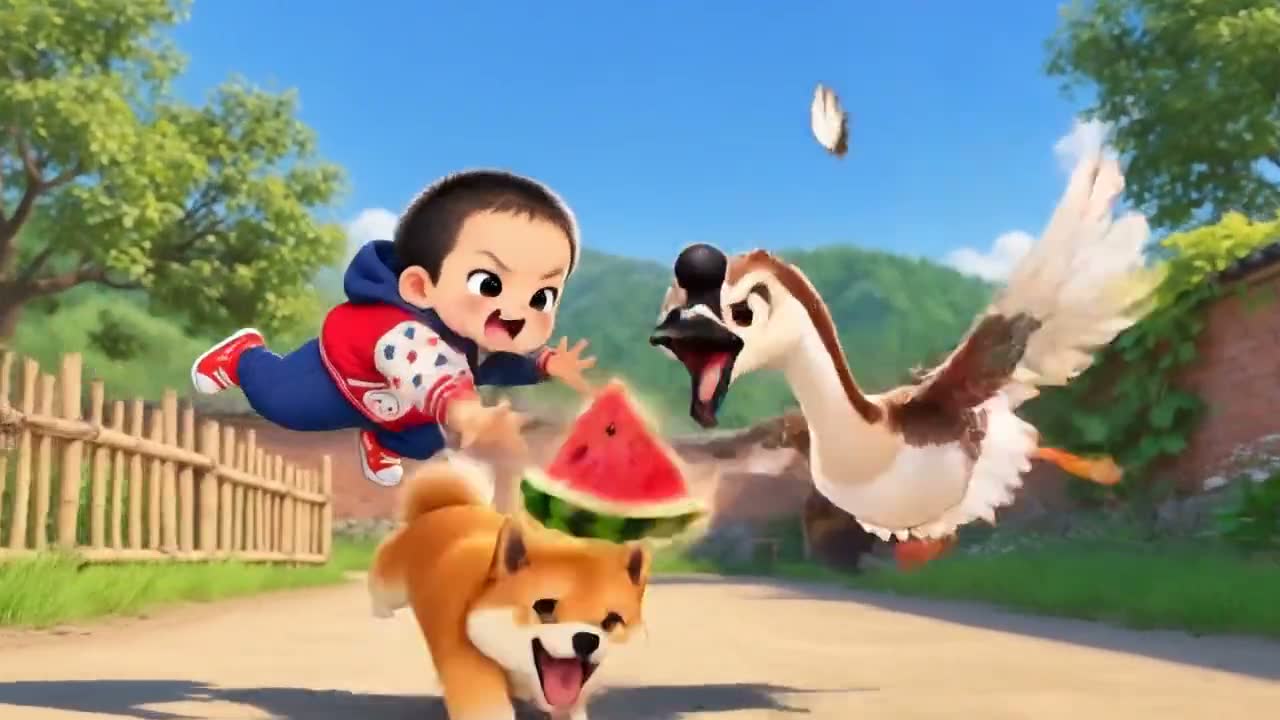
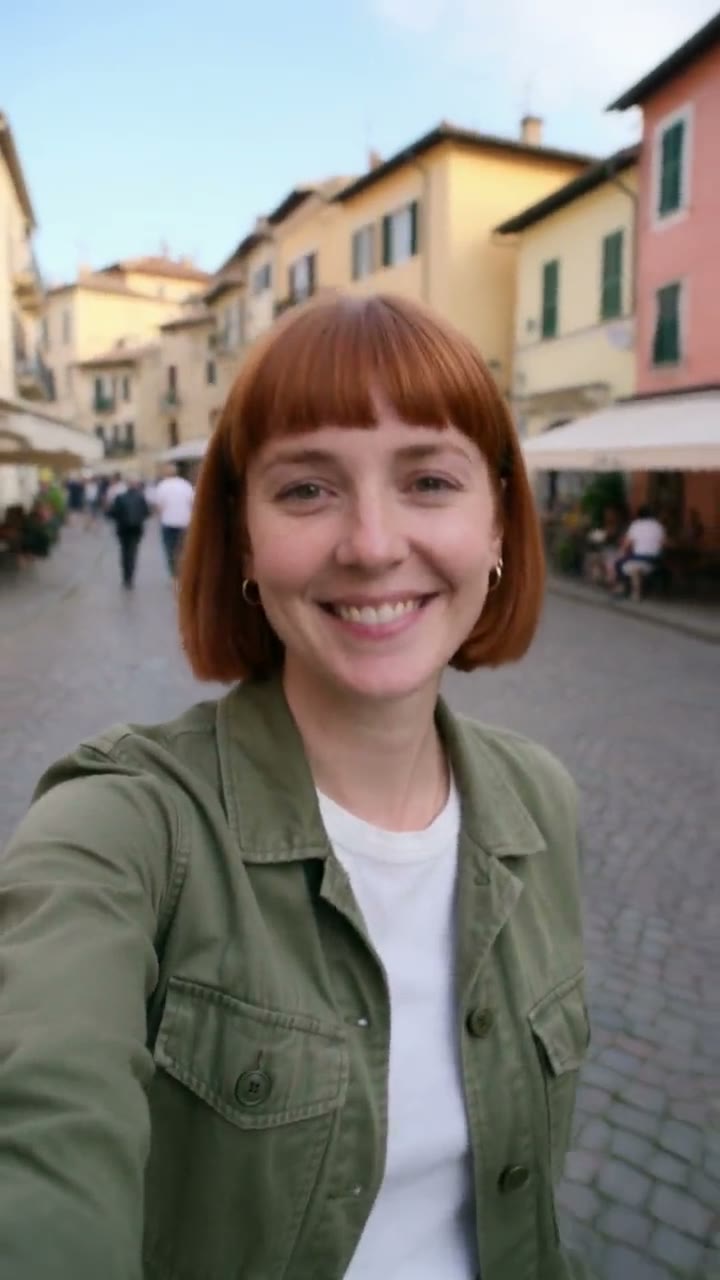
Below, the three scenes from the top of the page again on the same model, this time with four photos of her instead of the description in words. At the top each clip draws a different woman; below, she is one person.
Four reference photos
Free to start, no watermark
- A video from words costs the same credits as one with a subject, and new accounts start free. New accounts get one free 5-second Kling 3.0 Omni video, no card needed. Free credits cover silent clips; sound needs paid credits.
- Every video downloads as the clean file the model made, with no watermark, on the free start and on a paid plan. You need a free account, by Google or email, so your clips are saved in one place.
Check the clip before you use it
- Watch every clip at full size before you post it. Look at hands, faces in motion and any text in the frame, which models still get wrong most often. If one take is off and the next is fine, that is chance: generate again with the same prompt before you rewrite it. Don't present a generated person as a real one.
More how-to guides
Frequently asked questions
Is there a text to video AI free without watermark?
Yes. RefVid starts free with no card, and its videos never carry a watermark, free or paid. The free credits make short silent clips on Kling 3.0 Omni; longer clips and sound use paid credits.
Do I need to sign up to make a video from a prompt?
Yes, a free account by Google or email, with no card. Your clips and prompts are saved there, so you can download them later or reuse a prompt.
Which Kling text to video model should I pick?
Kling 4 for the best quality, clips up to 30 seconds and sound, which it always makes. Kling 3.0 Omni for cheaper clips up to 15 seconds, with or without sound. Both run from the same prompt.
Will the person in my prompt look the same in the next clip?
Usually not. A description fits many faces, and the model picks one each time. To keep a person or product the same across clips, save it from 1 to 5 photos and pick it instead of Text only.
How long can a clip made from a prompt be?
3 to 30 seconds on Kling 4 and up to 15 seconds on Kling 3.0 Omni. Longer stories work better as several shots of 5 to 10 seconds each.
By Louis Chi