How to make AI videos for Instagram that keep one look across your grid - RefVid
Turn your own photos into videos in minutes · Your first video is free, no watermark
First video free, no card
You make an AI video for Instagram by generating a vertical 9:16 clip of a product or person you saved once, keeping it in the centre so the grid's 3:4 crop still shows it, adding music and captions in the Instagram app, and switching on the AI label before you share.
Instagram profiles are judged as a grid, so this guide is built around one consistent look, with real RefVid clips of LUMEN, an AI-made serum bottle, and Mia, an AI-made creator.
Reels settings: 9:16 on screen, 3:4 on the grid
- Generate in 9:16, the full-screen shape of Reels (1080 × 1920 pixels when you post in full HD). Instagram allows Reels of up to three minutes, but build them from clips of 5 to 10 seconds: one idea per clip, joined in the Instagram editor or any other.
- Your profile grid shows each Reel as a 3:4 thumbnail, cut from the middle of the vertical frame. Keep the product, the face and any title text in the centre, and check the cover and its grid crop when you post, so the grid still reads as one look. In RefVid, a clip on Kling 4 can run from 3 to 30 seconds and on Kling 3.0 Omni up to 15.
| Setting | For Instagram Reels | Why |
|---|---|---|
| Aspect ratio | 9:16 | Fills the screen in the Reels feed |
| Grid thumbnail | 3:4 from the centre | Keep the subject and title text in the middle |
| Clip length | 5–10 s | One idea per clip; Reels can run up to three minutes |
| Resolution | 720p to test, 1080p to post | Re-do cheap drafts, upload the sharp final |
Step 1: save the product or face once, keep one look
- People decide whether to follow from the grid, so a brand or creator account needs every Reel to look like it belongs. AI models redraw a label or a face a little differently every time, which breaks that look within a week of posting.
- Upload 1 to 5 clear photos once in RefVid and every clip starts from the same saved subject. For a product, shoot the front, the back and the label up close in plain light; for a person, one straight-on face, one three-quarter angle and one full body. The three Reels above come from the same three photos of LUMEN, and the label reads the same in all of them.
Step 2: Reels people send: a reveal, a texture, a moment
- Instagram has said that sends, people sharing a Reel by direct message, are one of its strongest signals for showing a Reel to people who don't follow you. Beauty shots, reveals and small satisfying details get sent; a slideshow of the product's features does not. Open on the most striking frame and give every shot one clear action.
- The two shots behind the Skincare Texture clip above, with LUMEN as the saved product: "Extreme macro: a single glossy golden drop of serum falls from a glass dropper and lands on a smooth pale stone surface, rippling slowly. Soft daylight, creamy background." and "LUMEN stands on the pale stone next to a sprig of green leaves in soft morning window light, the camera pushing in gently until the label fills the frame."
- Words like macro, slow motion and soft window light give the polished look Instagram is known for; handheld and selfie give a creator's look. A clip takes up to 3 shots, and the model cuts between them for you.
Step 3: creator Reels with a face, and a collab
A person talking to the camera reads as a recommendation, not an ad. Save the presenter and the product as two subjects, and one generation shows them together: up to 3 saved subjects can appear in one clip.
The first shot of the UGC Ad clip below, with Mia as the presenter: "Handheld selfie-style video in a bright bathroom: Mia holds LUMEN up next to the face, smiles at the phone camera and says: 'Okay, this is the one I keep finishing.'" When you post with a real partner, invite them as a collaborator so the Reel appears on both profiles with one shared count of views, likes and comments.
Step 4: music, captions and the AI label in Instagram
- Add music in the Instagram app. Songs from its audio library can only be added on the phone; a Reel posted from a computer keeps the clip's own sound. Kling 4 always generates sound, Kling 3.0 Omni can, and quoted lines in a prompt are spoken. Business accounts get a smaller library of licensed tracks, so a brand picks from that.
- Put a short title in the middle third, away from the caption and username at the bottom and the buttons on the right, and turn on Instagram's auto-generated captions for spoken lines. Then turn on the AI label in the advanced settings before you share. Instagram asks you to label photorealistic video or realistic audio made or changed with AI, and it can add an "AI info" label itself when it detects one.
- Check every frame before posting: AI clips still slip, with an extra finger or a label whose letters change between shots. Redo the shot or cut around it.
Step 5: post with trial reels and a steady pace
- Professional accounts can share a Reel as a trial: Instagram shows it to people who don't follow you first, and you share it to your followers later if it did well. Use trials to test hooks without filling your grid with the ones that failed.
- Upload the clean MP4. Instagram recommends original content and shows fewer Reels that are visibly recycled from other apps, and a RefVid download has no watermark. Post at a pace you can keep for months, with the same subject and look, and when a format is already trending, remake it beat for beat with your own character.
How to make AI Reels for free
- Start with the free clip. Every new RefVid account gets one free 5-second video on Kling 3.0 Omni at 720p, silent, with no card and no watermark. Save your product or face, write one shot with a striking first frame, generate, download the MP4 and add music in the Instagram app. That is a complete first Reel.
- After the free clip you pay per second of video, so test ideas at 720p and 5 seconds, and spend on 1080p and longer clips only for the ones that worked. Current prices and credit amounts are on the pricing page.
More how-to guides

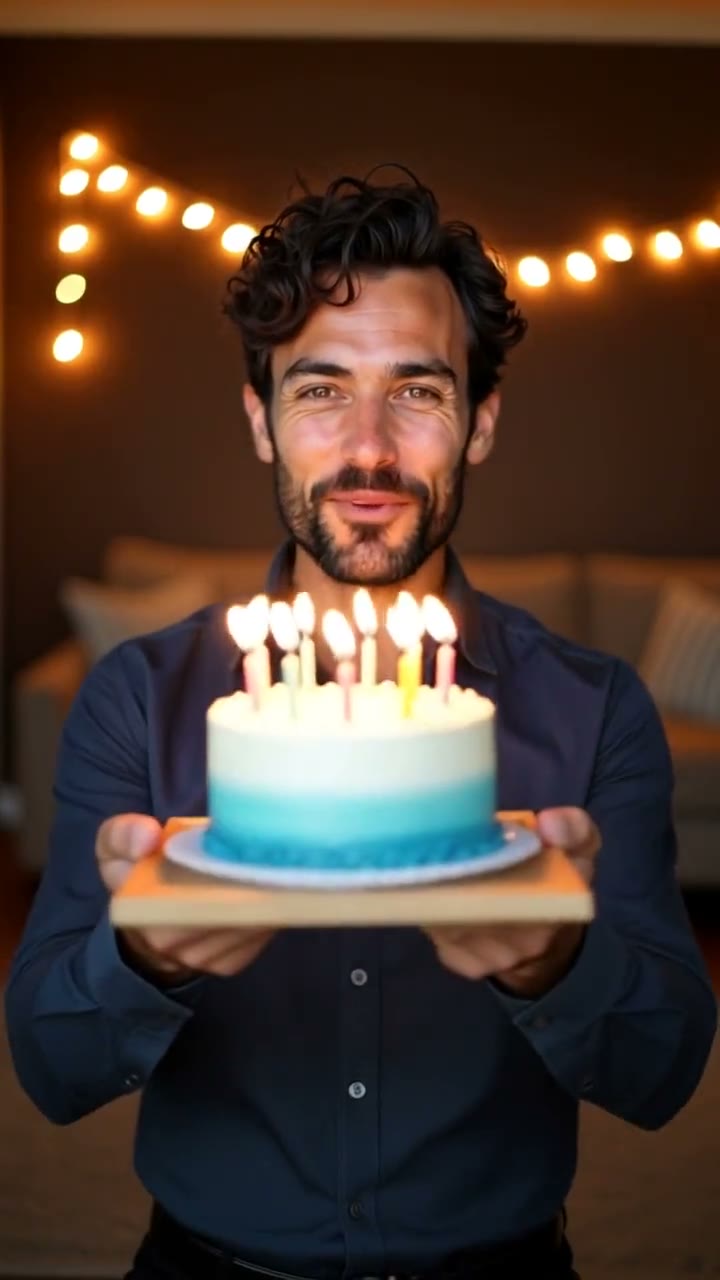
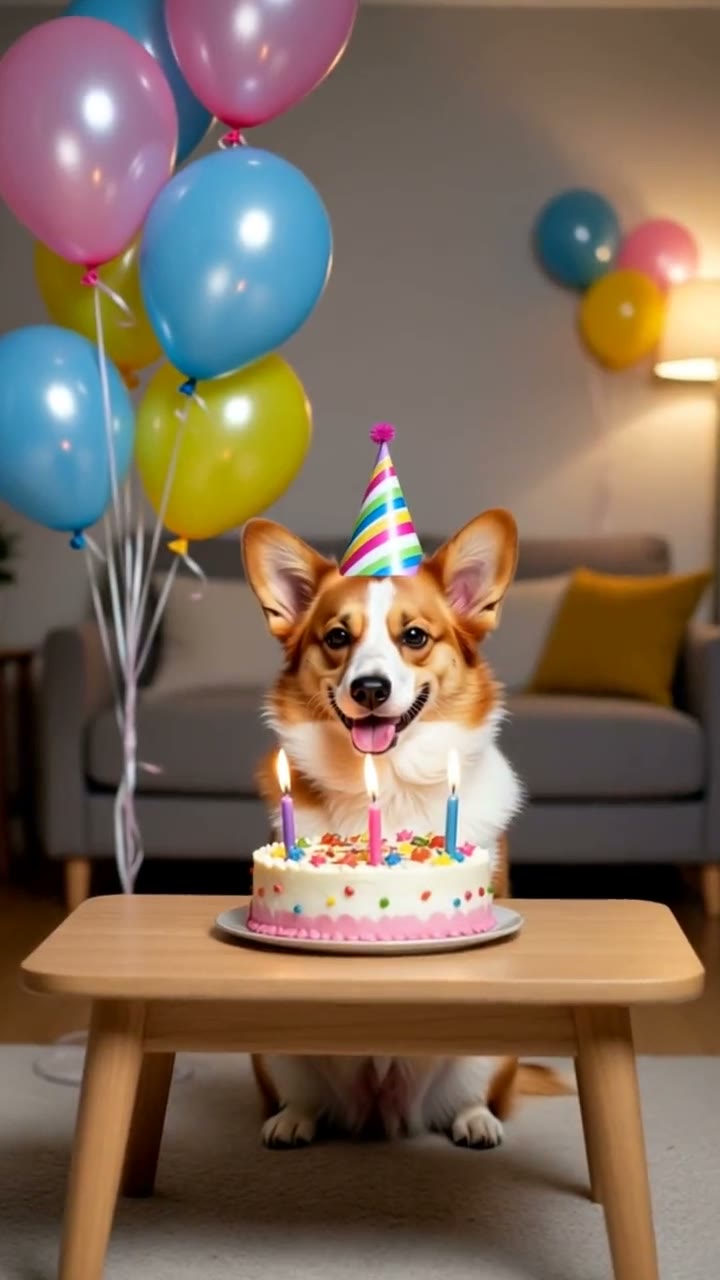
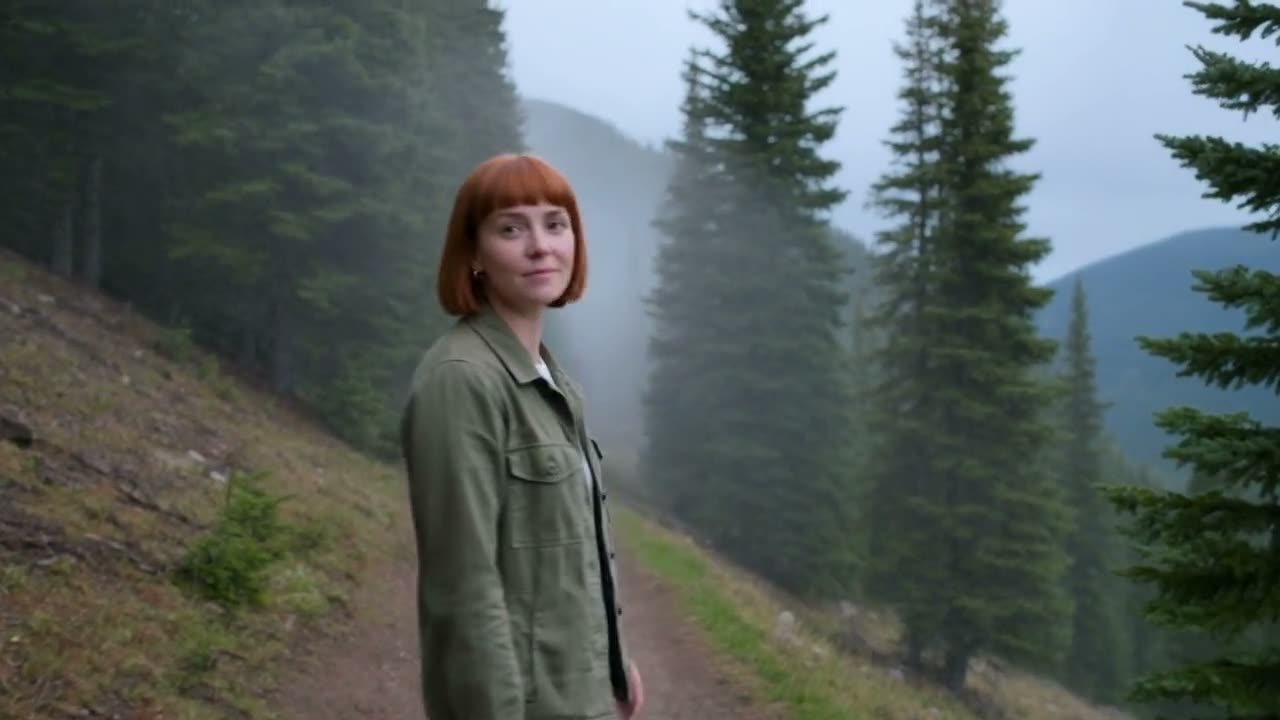
Frequently asked questions
Can I make AI videos for Instagram Reels for free?
Yes, to start. A new RefVid account gets one free 5-second Kling 3.0 Omni video, no card and no watermark. It is silent, so add music in the Instagram app when you post.
What size should an AI video for Instagram be?
9:16, 1080 × 1920 pixels for the final post. Keep the subject in the centre, because the profile grid shows a 3:4 crop from the middle of the frame.
Do I have to label AI videos on Instagram?
Instagram asks you to label photorealistic video or realistic audio that was made or changed with AI, using the AI label setting when you post, and it can add an "AI info" label itself. It is the safe default for any AI clip of a person.
How do I make AI Reels with the same product or face every time?
Save the product or person once from 1 to 5 photos and generate every clip from that saved subject. All the product clips on this page show LUMEN from one set of three photos.
Why can't I add music to a Reel I post from my computer?
Instagram's music library is only in the phone app. Post from your phone to add a song, or post from a computer with the clip's own generated sound.
By Louis Chi