How to make a product video using AI, free - RefVid
Turn your own photos into videos in minutes · Your first video is free, no watermark
First video free, no card
You make an AI product video for free in six steps: pick a product template, add one to five photos of your product, check the prompt, check the settings, press Generate and sign in, then download the MP4. Your first 5-second clip on Kling 3.0 Omni is free, with no watermark and no card.
This guide shows each step on the real page, with clips made from product photos.
3 product photos
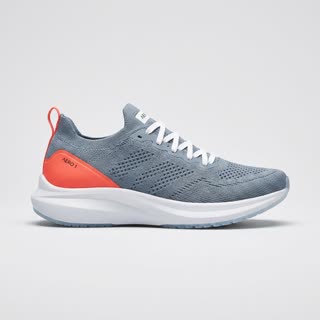
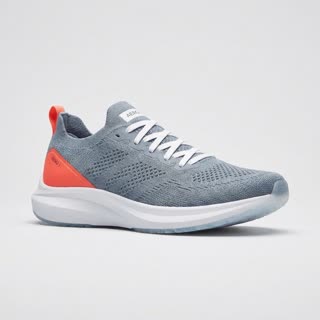
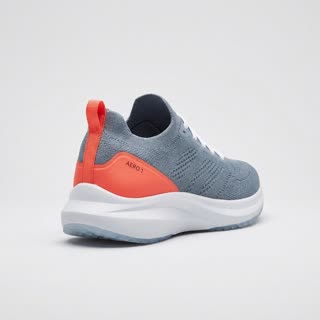
One 5-second product video out
Step 1: open the generator and pick a product template
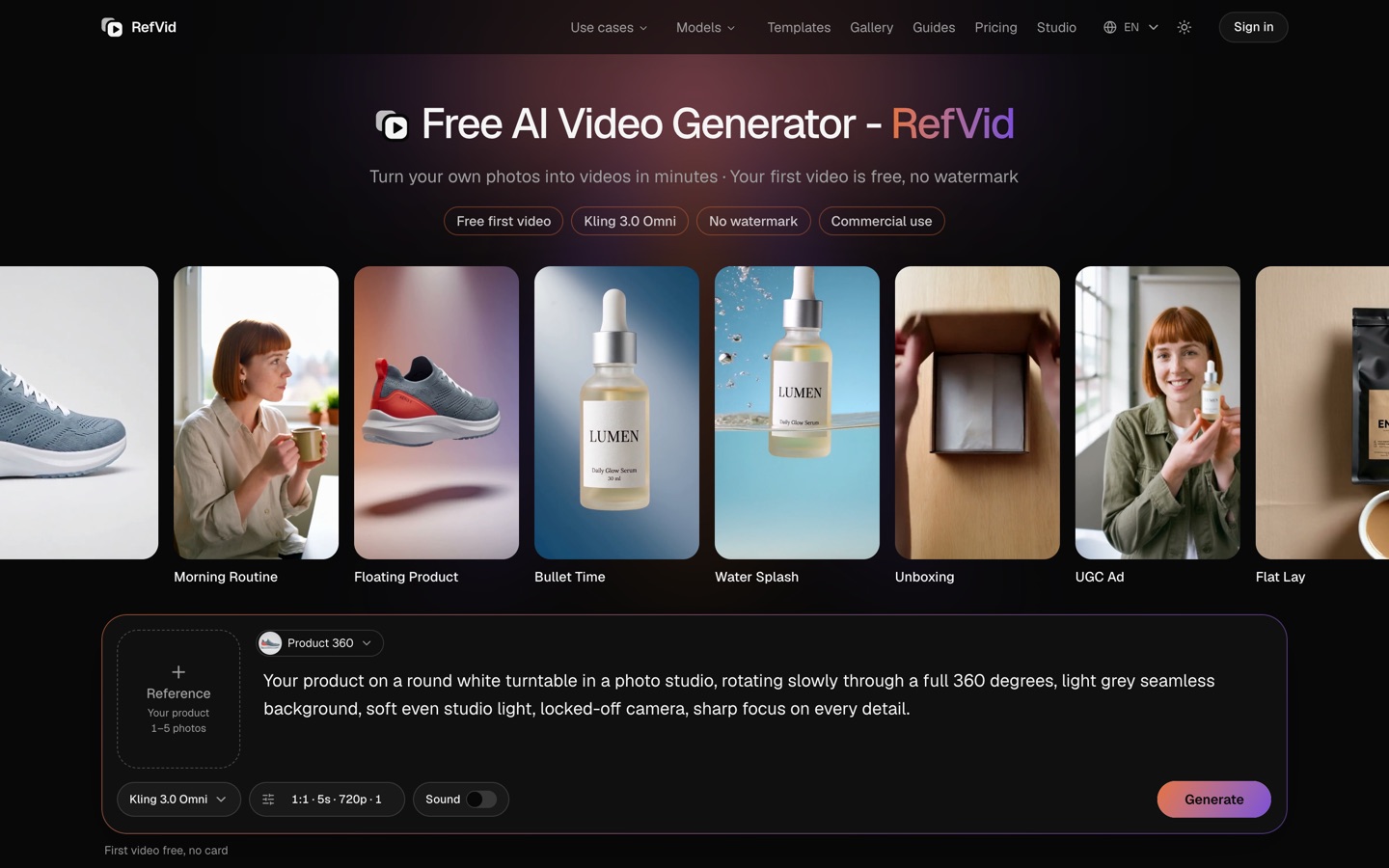
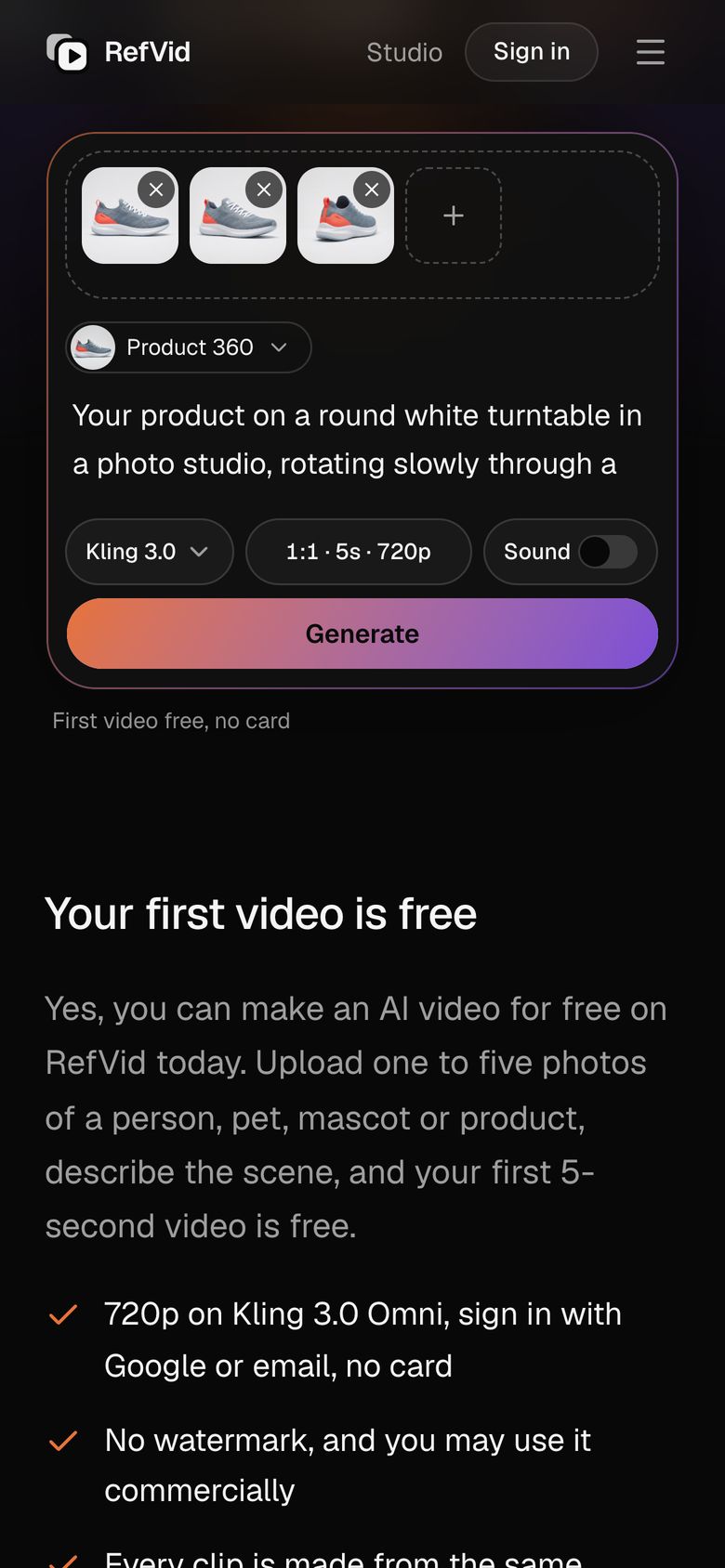
Open the free AI video generator and pick a template from the row under the heading; product templates come first. Press Use on one (on a computer it shows when you point at the clip) and its prompt fills the box below. The same box sits at the top of this guide, already set to Product 360.
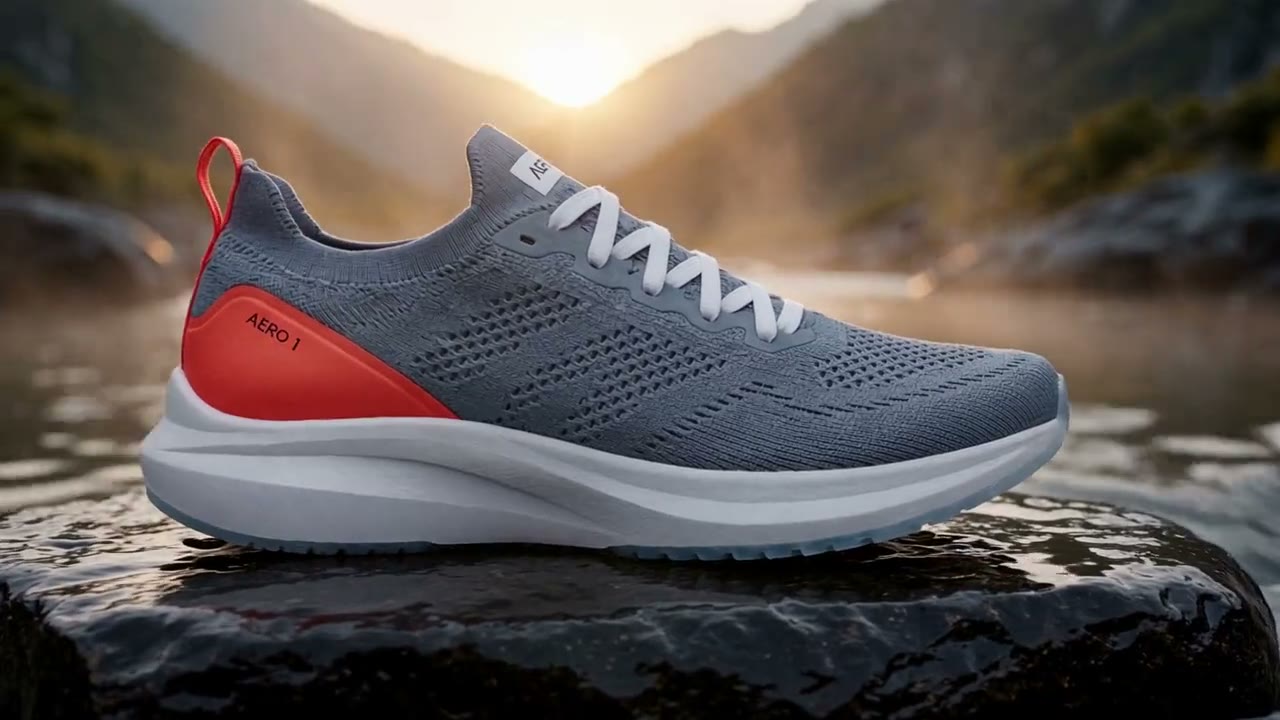
Pick by what the video is for. A 360° turntable or a floating product shows the item itself, for a listing or a product page. A water splash or bullet-time shot is an attention grabber for an ad. A hand holding the product or an unboxing reads as a customer's video, which suits TikTok and Reels.
Step 2: add one to five photos of your product
- Click Reference on the left of the box and add one to five photos of your product. One sharp, well-lit photo is enough to start. Three are better: the front, a three-quarter angle and the label up close, so the model sees the shape from more than one side and can read the text.
- The photos are why the product stays your product. The model gets all of them with the prompt, so the shape, colour and label come from your item instead of being drawn from a description. Use a plain background, crop away wide empty margins, and only upload photos you have the right to use.
Step 3: say what happens in the prompt
- The template fills in a prompt that already works; change it only to fit your product. Five seconds hold one action and one camera move, so describe the scene, the motion and the light, and leave the product's look to the photos. The words "Your product" stand for the item in your photos.
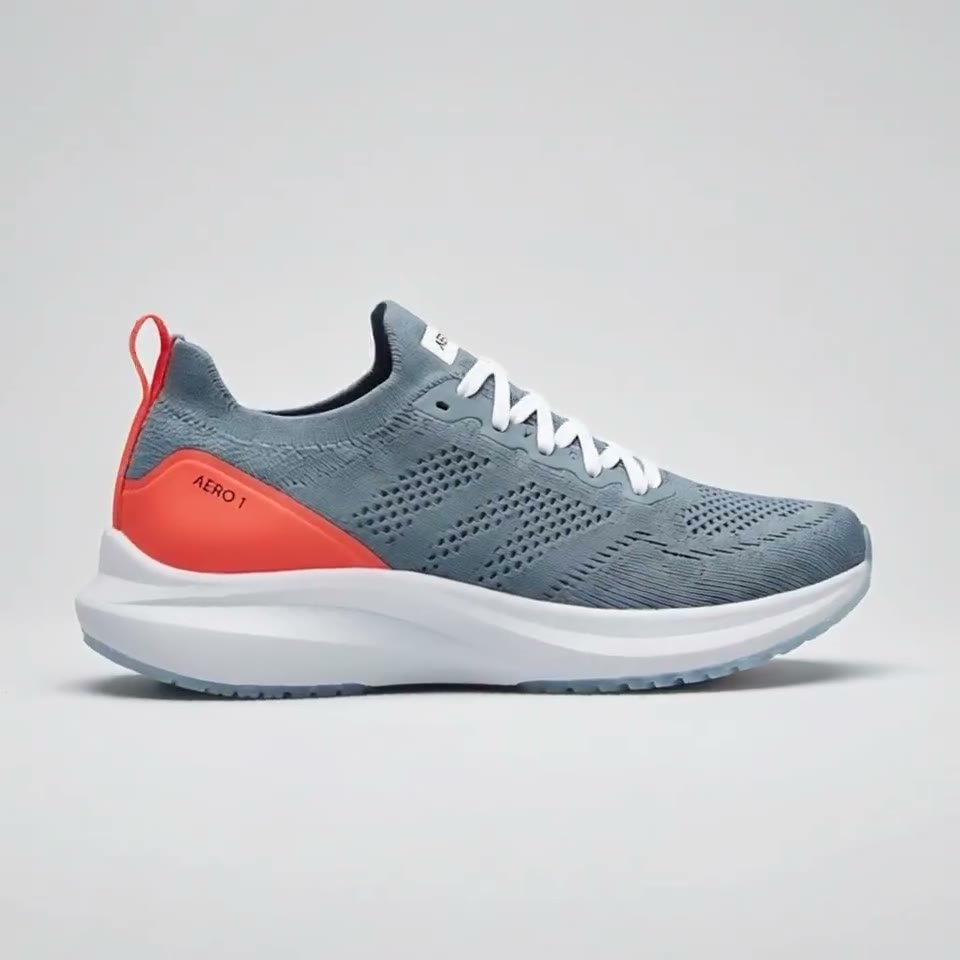
- The prompt already in the box at the top of this page is the one behind the Product 360 clip, and below is the prompt behind a water-splash clip, word for word; both clips were made from three photos of an AI-made product. Copy either, change the setting, and keep one action per clip. If the label matters, say that the label faces the camera at the end.
Water Splash
Kling 3.0 Omni · 3 reference photos · 5 s · 9:16 · silent
- Slow motion: [your product] drops into a tank of crystal-clear water against a soft blue gradient background, a burst of bubbles and droplets exploding around it, then it settles upright with the label facing the camera. Bright studio light, macro detail.
Step 4: check the model, shape, length and sound
- Leave the model on Kling 3.0 Omni and the settings on 5 seconds and 720p for the free clip. The settings pill under the prompt opens shape, length and resolution; the Sound switch sits next to it. The free credits cover that clip silent at 720p, or once with sound or at 1080p instead.
- Choose the shape by where the video goes: square for a store listing or a feed post, vertical for TikTok, Reels and Shorts, wide for a website banner or YouTube. Longer clips and the other models use paid credits.
| Where the video goes | Shape | Length |
|---|---|---|
| Store listing, Instagram feed | 1:1 | 5 s |
| TikTok, Reels, YouTube Shorts | 9:16 | 5 s; join clips for 10–15 s |
| Website banner, YouTube | 16:9 | 5 s, looped |
Step 5: press Generate and sign in
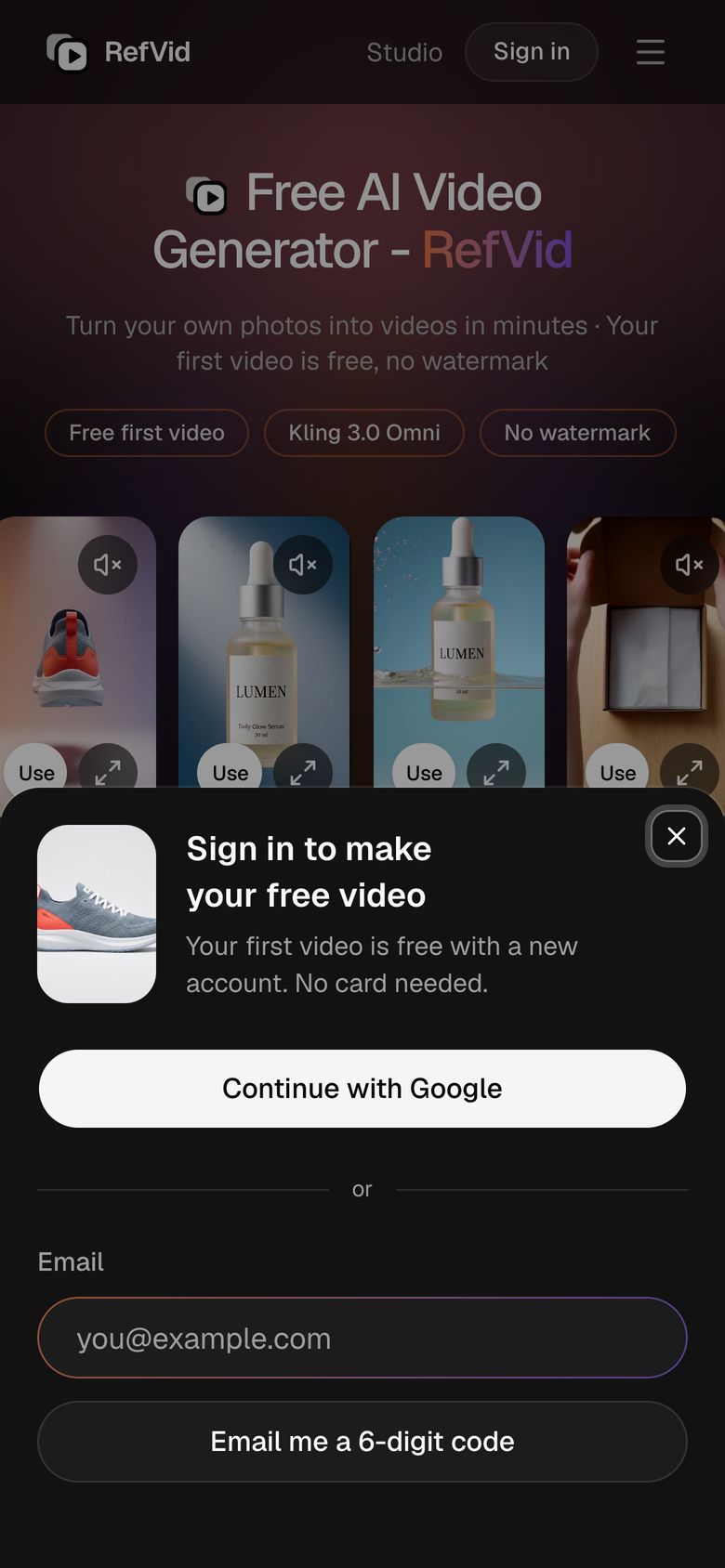
Press Generate. If you are not signed in yet, a sign-in sheet opens over the page: continue with Google or with your email, no card. You come back to the same page with your photos and prompt still in the box, and your video starts on its own.
It usually takes 2 to 10 minutes. The clip appears on the page when it is ready, and we email you as well. Pressing Generate also confirms that everyone pictured agreed to it, so if a person holds your product in the clip, use photos of someone who said yes.
Step 6: download the MP4 and check it before you post
Press Download to save the clip as an MP4. It has no watermark, logo or end card, and you can use it commercially, in ads and on your store, as long as you had the right to the photos. Open in studio keeps the product saved for the next clip without uploading again.
Before you post, watch it full size, frame by frame: the label text, the edges of the product, and hands if there are any. AI models still slip. If one frame is wrong, cut around it or make the clip again. Label realistic AI video as AI-generated where the platform asks.
How to make AI product videos free, and what comes after
- The free start is one 5-second video on Kling 3.0 Omni plus five free images to preview your product in a scene, one free start per person. Spend it on the template closest to the video you need most, at the shape you will post.
- After that you can buy a single clip, a credit pack or a plan. Credits never expire, a failed clip is refunded, and paid clips can run on Kling 4 with sound, up to 30 seconds. Current prices are on the pricing page.
Start from a template
Each one opens the studio with the shots, shape and length already set. Add your own product and generate.
More product videos
Frequently asked questions
Can I make an AI product video for free?
Yes. Your first 5-second video on Kling 3.0 Omni is free once you sign in with Google or email, with no card and no watermark. Five free images come with it.
How do I make a product video with AI from just one photo?
Add the one photo in Reference, pick a product template and press Generate. One sharp photo of the front is enough; adding a three-quarter view and a label close-up keeps the shape and text closer to the real item.
Do I have to sign up to make the video?
You sign in when you press Generate, with Google or email, so your product and clip are saved. You can add photos and write the prompt first; they are still there after you sign in, and the video starts on its own.
Does the free product video have a watermark?
No. You download the clean MP4 the model made, with no watermark, logo or end card, on the free clip and on paid ones.
Can I use the AI product video in ads and on my store?
Yes. Commercial use is allowed on the free clip too. You need the right to every photo you upload, and each ad platform has its own rules on labelling AI content.
How long does it take to make an AI product video?
Filling in the box takes a minute or two; the video itself usually takes 2 to 10 minutes. It appears on the page when it is ready, and we email you too.
By Louis Chi