How to make AI videos for YouTube Shorts as a series people subscribe to - RefVid
Turn your own photos into videos in minutes · Your first video is free, no watermark
First video free, no cardGenerating confirms everyone pictured agreed. Terms
You make an AI YouTube Short by generating vertical 9:16 clips of a character you saved once, joining them into a Short that loops, adding sound you are allowed to use, and answering YouTube's altered content question when you upload.
Shorts reward channels more than single videos, so this guide is built around a recurring character and a series, with real RefVid clips of Leo, an AI-made creator, and the prompts behind them.
What counts as a Short, and the settings to generate
- YouTube treats a vertical or square video of up to three minutes as a Short. Generate in 9:16 so it fills the phone screen, and build the Short from clips of 5 to 10 seconds: one idea per clip, cut together in any editor. Most Shorts that hold attention are well under a minute, and a short one replays sooner.
- Shorts loop. When the last frame flows back into the first, the replay looks like one continuous video, and YouTube counts a view each time a Short starts or replays. In RefVid, a clip on Kling 4 can run from 3 to 30 seconds and on Kling 3.0 Omni up to 15, so a 15 to 30 second Short is usually two or three clips.
| Setting | For YouTube Shorts | Why |
|---|---|---|
| Aspect ratio | 9:16 | Vertical or square videos count as Shorts; vertical fills the screen |
| Short length | 15–60 s | Up to three minutes is allowed; claimed music is the limit (see Sound) |
| Clip length | 5–10 s | One idea per clip; join clips in the editor |
| Last frame | Close to the first | The loop reads as one video |
| Resolution | 720p to test, 1080p to post | Re-do cheap drafts, upload the sharp final |
Step 1: one recurring character, a series of Shorts
Plan a series, not one-offs. In the Shorts player the Subscribe button sits on the video next to the channel name, and people subscribe when they expect more of the same: the same host, the same kind of joke, a numbered episode. That only works if the character looks the same every time, and AI models redraw a face a little differently on every generation.
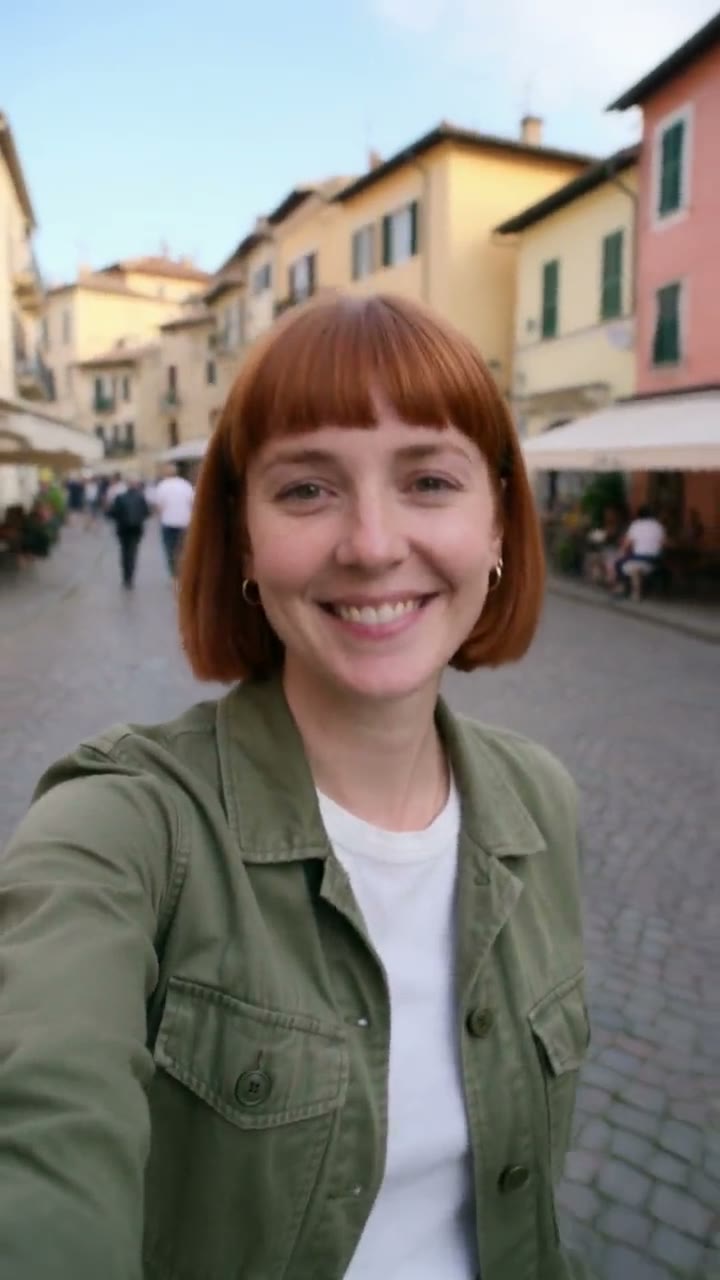
Save the character once in RefVid from 1 to 5 clear photos (straight on, three-quarter, one full body), and every clip starts from that saved subject. Up to 3 saved subjects can share a clip, so a second lead or a pet joins the cast without a new design. The three Shorts above and the drama scene below all come from the same photos of Leo.
Step 2: write the hook, one action per shot, an ending that loops
- Open on the action, not on an introduction: in the Shorts feed people swipe as fast as on any other app. Then give each shot one clear action, written as who, does what, where, and how the camera sees it.
- The two shots behind the Fitness Coach clip above, with Leo as the saved character: "A bright modern gym with large windows: Leo in black training clothes does a slow bodyweight squat seen from the side, back straight, arms forward. Gym ambience." and "Leo stands up, looks into the camera and says with an encouraging smile: 'Push the floor away, and keep your chest up.'" A tip people can use in five seconds is a format you can repeat for a whole series.
- For the loop, end where you began: the same framing, the same pose or the same line. A clip takes up to 3 shots, and the model cuts between them for you.
Step 3: sound that YouTube lets you keep
- Kling 4 always generates its own sound, Kling 3.0 Omni can, and quoted lines in a prompt are spoken, as in every clip on this page. That sound is yours to post. Songs from YouTube's audio library can only be added in the YouTube phone app; an upload from a computer in YouTube Studio keeps the clip's own audio.
- Mind Content ID. A Short longer than one minute that gets a Content ID claim on its music is blocked, so keep music-heavy Shorts under a minute or use sound you own. YouTube also adds automatic captions to speech, which helps the many people who watch with the sound off; check them for misheard names.
Step 4: upload with a title, the altered content setting and a related video
- Give the Short a title that says what happens, since it shows over the video in the feed. Keep on-screen text in the middle of the frame: the title, channel name and Subscribe button cover the bottom, and the like and comment buttons the right edge.
- When you upload, YouTube asks whether the video contains altered or synthetic content. Answer yes when the video shows something realistic that AI made or changed, such as a lifelike person, place or event that never happened. YouTube then shows a label, more prominently for sensitive topics like news or health. Never make a real person appear to say or do something they did not.
- Link a related video from each Short to a longer video on your channel if you have one. Then check every frame before posting: AI clips still slip, with an extra finger or a prop that changes between shots. Redo the shot or cut around it.
How to make AI YouTube Shorts for free
- Start with the free clip. Every new RefVid account gets one free 5-second video on Kling 3.0 Omni at 720p, silent, with no card and no watermark. Save your character, write one shot with a strong opening, generate, download the MP4 and add a sound in the YouTube app. That is a complete first Short.
- After the free clip you pay per second of video, so test ideas at 720p and 5 seconds and spend on 1080p and longer clips only for the episodes that worked. The same clips post to TikTok, Instagram and Facebook; their own rules are in the guides below. Current prices are on the pricing page.
More how-to guides

Frequently asked questions
Can you make money with AI YouTube Shorts?
Shorts can earn a share of ad revenue once a channel is in the YouTube Partner Program, AI-made or not. YouTube does not pay for mass-produced or repetitive videos, so a channel needs its own characters, stories or tips, not the same clip with a new caption.
How long can an AI YouTube Short be?
Up to three minutes, vertical or square. Most Shorts work best well under a minute, and a Short over one minute with a Content ID claim on its music is blocked. We join two or three 5 to 10 second clips.
Do I have to label AI videos on YouTube Shorts?
Yes, when the content is realistic: answer yes to the altered or synthetic content question at upload if AI made a realistic person, place or event. Clearly animated or fantastical clips do not need it, but it is the safe default for any AI clip of a person.
How do I keep the same character in every AI Short?
Save the character once from 1 to 5 photos and generate every clip from that saved subject instead of describing the face in words. All the Shorts on this page show Leo from one set of four photos.
Can I add music to an AI Short uploaded from my computer?
Not from YouTube's library: songs from it are added in the YouTube phone app. From a computer, upload the clip with its own generated sound, or with music you have the rights to.
By Louis Chi