New accounts get free credits
Halloween templates →One product. Every scene.
Upload a few photos of a product or a person once. RefVid keeps the label, the shape and the face the same in every video you make.
Real RefVid output
- ✓ No card to start
- ✓ No watermark
- ✓ Failed videos refunded
- ✓ Write prompts in your language
Watch how this one was made
1Photos




2Prompt
Mia in everyday clothes spins once in front of a tall bedroom mirror and lands facing the camera as a vampire: bare head, a high-collared black cape with red lining, small plastic fangs, face fully visible. Warm fairy lights, phone-camera feel.
3Generate
Generating…
4Video
Trending this week
Pick a clip, add one photo of your face, get your version.
Runs on Kling 4 by default, with Kling 3.0 Omni as the lower-cost option and Seedance 2.5, Wan 3.0, Vidu Q4, Gemini Omni Flash, PixVerse C1, and Happy Horse 1.1 one tap away in the studio. Free videos start on Kling 3.0 Omni.
Halloween, starring you or your pet
Ready-made Halloween videos: add a few photos of yourself or your dog or cat, and the costume, the scene and the shots are done. Every example below was made this way.
- The bedsheet ghost trend, as a video of you
- Try on three Halloween costumes in one video
- The pumpkin head photoshoot, as a video of you
- The Y2K Halloween flash look, as a video of you
- You as a zombie, walking out of the fog
- A Halloween video starring your own pet
Pick an ad format. Get the ad.
Every clip below came from the studio's ad formats — one click sets the prompt, the shape, the length and the sound.
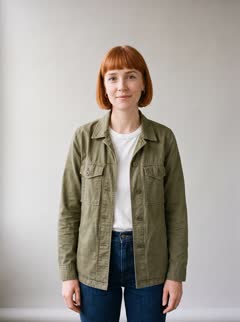
Four photos in. The same Mia in every shot.
Every clip here was generated by RefVid from the same four reference photos, with a one-line prompt each. Nothing was retouched.



Products keep their label.
Three photos of a bottle, three very different scenes. The glass, the cap and the label stay as shot.
The references
One subject, a whole series.
Make the shoe once, then shoot it shot after shot: each clip starts on the last frame of the one before, so the run reads as one story.
A whole cartoon, the same cast in every shot.
GuaPi is a cartoon we make in the RefVid studio: a bossy goose, a boy, his big sister and a dog. Each character was saved once from a few pictures, and stays the same in every shot of every episode.
- GuaPiThe goose
- HenryThe boy
- XiaobaiThe dog
- AliceThe sister
Direct the shot, not just the face.
Six things the studio does for you — each shown with real output.
One photo is enough
Start with a single shot of your product or person; RefVid draws the missing angles so every video holds the shape.
Mia holds NOIR 07 up next to her face and smiles
Write names, not tokens
Put up to 3 subjects in one shot by name — Mia holds NOIR 07 — and RefVid tells the model which photos are whose.
Add a scene photo
Drop in a photo of your shop, kitchen or set: the video happens there, in that light.
Mia が午後のにぎやかな青空市場を歩き、果物や花の屋台に目をやってから、笑顔でカメラのほうへ振り向く。手持ちカメラが前方から先導、自然光、ドキュメンタリー風。
Write in your language
Prompts in other languages are translated for the model with your subjects' names kept. This one was written in Japanese.
- 16:99:161:1
Any shape, any length
16:9, 9:16 or 1:1, from 3 to 30 seconds, with or without sound — chosen per video.
- A failed video gives its credits back, automatically.
- Unused credits carry over; pack credits never expire.
- Credits are reserved when a video starts and taken only when it's done.
Pay only for what works
Credits are simple and fair.
How it works
- 01
Upload references
One to five photos of your character or product: a clear front view, a three-quarter view, a profile, a detail. You do this once.
- 02
Mia walks through a neon-lit side street at night in light rain. The camera tracks alongside, 35mm film look.
Describe the scene
Write where it happens and what it does. Pick a length and an aspect ratio. No model settings to learn.
- 03
Get a consistent series
Every clip starts from the same references, so the face, the outfit and the logo stay the same from video to video.
Made for videos that come in series
Recurring characters
A presenter, mascot or influencer who appears in every short without changing face.
Read the guide →Product videos
The same bottle, shoe or gadget in a kitchen, on a beach and on a desk, with the label intact.
Read the guide →Ad variations
Test new hooks, settings and camera moves while the person and the product stay fixed.
Read the guide →Stories and anime
Characters stay recognizable across cuts, so a short narrative holds together.
Read the guide →
The model underneath
Default
Kling 4
Makes RefVid videos unless you pick another model: 3–30 seconds, 720p or 1080p, sound in every clip, up to 3 subjects in one shot.
Read the guide →Lower cost
Kling 3.0 Omni
The same studio and the same saved subjects for about half the credits per second, with sound optional and clips of up to 15 seconds. Free videos start on it; pick it any time in the studio’s settings.
For products
Seedance 2.5
ByteDance’s model, one tap away in the studio’s settings: 4–30 seconds, 720p or 1080p, sound optional, about three times Kling 4’s credits per second. It refuses photos of real-looking people, so characters stay on Kling.
Pricing
Basic
For trying ideas and a first series.
$10/ month
Billed monthly
Unused credits roll over · cancel any time
- Credits every month
- 2,000
- Kling 4 clips, 5 s
- ≈ 6
- Kling 3.0 Omni clips, 5 s
- ≈ 12
- Most popular
Pro
For creators who publish every week.
$20/ month
Billed monthly
Unused credits roll over · cancel any time
- Credits every month
- 4,000
- Kling 4 clips, 5 s
- ≈ 13
- Kling 3.0 Omni clips, 5 s
- ≈ 25
Max
For studios and long-running series.
$50/ month
Billed monthly
Unused credits roll over · cancel any time
- Credits every month
- 10,000
- Kling 4 clips, 5 s
- ≈ 34
- Kling 3.0 Omni clips, 5 s
- ≈ 64
Just one video
No plan, no pack: pay for the video you're making, right in the studio. Sound, 1080p and up to 3 shots included. Open the studio
- Up to 5 s$2.99
- Up to 10 s$4.99
- Up to 15 s$6.99
Your first plan payment is refunded in full within 14 days if you've used less than 10% of its credits. Refund policy
In every plan and pack
Secure checkout with Stripe
- Unlimited characters and products
- Two subjects per video, scene photos, next-shot continuation
- 16:9, 9:16 and 1:1, 3 to 30 seconds, optional sound
- 1080p and native sound
- No watermark, free or paid
- Failed videos refunded automatically
- Unused credits roll over month to month
- Cancel any time
Questions
What photos work best?
RefVid works best with one to five sharp photos of the same subject: a front view, a three-quarter view, a profile and one detail or full-body shot, in similar light on a plain background.
How is RefVid different from other AI video generators?
RefVid is built around your subject, not a single clip: you upload photos of a character or product once, and every video after that uses them, so the face, label and colours stay the same from clip to clip. Up to 3 subjects can share one shot, a clip can be continued with the next shot, and a video that fails gives its credits back automatically. Clips run 3–30 seconds on Kling 4.
Which model makes the videos?
RefVid makes videos with Kling 4 by default. In the studio’s settings you can pick any of 8 models: Kling 3.0 Omni when you want a lower price per second, plus Seedance 2.5, Wan 3.0, Vidu Q4, Gemini Omni Flash, PixVerse C1, and Happy Horse 1.1. Each one says what it is good for, and switching to one that costs more per second tells you first. Seedance 2.5 refuses photos of real-looking people, so it is for products. Until you buy credits or a plan, the studio starts on Kling 3.0 Omni, the model your free credits are counted on, with the others one tap away. Your saved characters and products carry over between models — nothing to upload again.
Can I use photos of real people?
On RefVid, upload only photos of yourself or of people who have agreed to it. Celebrities, and anyone you don't have permission to depict, are not allowed.
How is it priced?
RefVid prices videos in credits by the second: a 5-second clip is 290 credits on Kling 4 (sound included) and 155 on Kling 3.0 Omni. The first 50 accounts get 630 free credits — 4 5-second Kling 3.0 Omni videos — and every new account after that gets one free 3-second clip on Kling 3.0 Omni.
Do credits expire?
No, RefVid credits don't expire. Each month's plan credits add to your balance and stay there, and pack credits never expire.
What if a video fails?
If a RefVid video fails, its credits come back to you automatically. Credits are reserved when a video starts and only taken once it's done.
Which lengths, sizes and formats can I make?
RefVid makes clips of any length from 3 to 30 seconds on Kling 4 (up to 15 on Kling 3.0 Omni), in 16:9, 9:16 or 1:1, at 720p or 1080p, with or without sound. Up to 3 shots can go into one clip.
Can I write prompts in my language?
Yes. RefVid translates prompts in other languages for the model and keeps your subjects' names. Spoken lines in quotes are said as written; English and Chinese speech sound best.
Can two subjects be in the same video?
Yes — a RefVid video can show up to 3 subjects, such as a person holding your product. Write their names in the prompt and RefVid tells the model which photos belong to whom.
Who can see my photos and videos?
Only you. Your RefVid photos and videos become visible to others only if you create a share link for a video, and you can turn that link off at any time.
Can I delete my account?
Yes, from the RefVid account page. Deleting the account removes your subjects, videos, share links and credits for good and ends a running plan straight away.
Guides
All guides →- AI character consistency: diagnose the drift, then fix itA diagnostic guide to AI video character consistency: the six causes of drift, how to tell them apart by their symptoms, and the fix that matches each one.Read →
- Consistent AI product video: keep the product the productHow to keep a product's shape, label, logo and color correct across AI video shots: why each one drifts, the references that hold it, and what to check.Read →
- AI TikTok trend video: remake the viral one, starring your own characterMake an AI TikTok trend video with your own character: three Halloween trends, our flat first try next to the 1:1 remake, with the exact prompts. Free to try.Read →
- Consistent character AI video for free: every option comparedEvery free way to make AI videos where a character or product stays the same: doing it by hand, apps' free credits, and RefVid's free clip and stills.Read →
- How RefVid pricing works: credits, per-second rates and worked examplesRefVid pricing explained: credits per second on Kling 4 and Kling 3.0 Omni, what a clip costs, plans from $10, packs from $9.90, single videos from $2.99.Read →
- Is RefVid legit? What it is, who runs it and how paying worksYes. RefVid is a working AI video app with public terms, Stripe checkout, automatic refunds for failed clips, no watermark and a free clip to test it first.Read →
Make your first series.
Upload your references once and keep them for every video after.
Make your first video