Consistent character AI tutorial: the same face in every shot
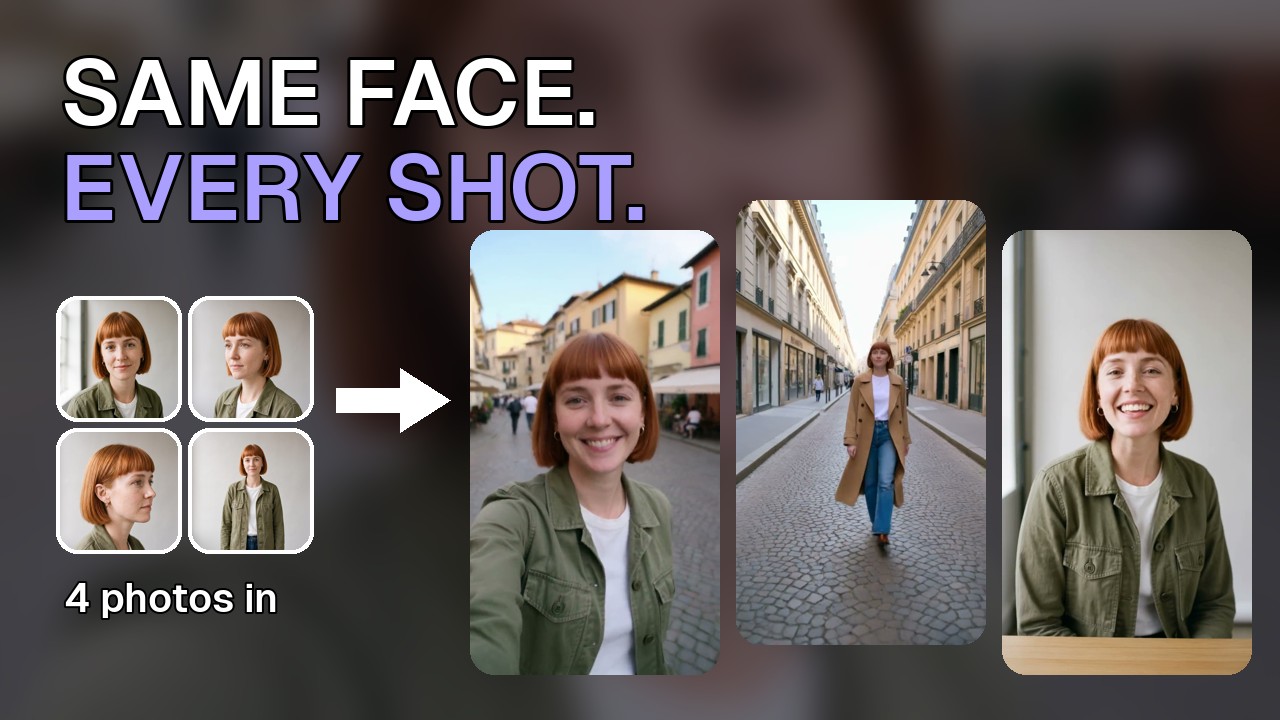
This video tutorial walks through the whole RefVid workflow with one character, Mia. Four photos of her are saved once as a subject, a three-shot travel vlog starts from a template, one shot is rewritten with Improve, and the video is generated. Her face, hair and jacket stay the same from the first frame to the last. Under the video you'll find the chapters, the full transcript and every step written out.
 3:55
3:55Chapters
How to create consistent characters with AI video
- 1
Pick the right photos
Use three or four clear photos of the same person: a front view in good light, a three-quarter view, a profile and a full-body shot. Skip group shots, blurry or dark photos and sunglasses.
- 2
Save the character once
In New subject, choose Character and drop in the photos, the front view first: the first photo is the main one. Tick the consent box and create it. Every video can use the saved subject from then on.
- 3
Start from a template
Open Templates, choose who leads the video and pick a template, such as the three-shot travel vlog. Use this template writes every shot for your character, by name.
- 4
Rewrite a shot with Improve
Type the change you want in your own words and press Improve. It comes back as a full shot: what the character does, what they say and the light.
- 5
Set the shots and generate
Give each shot its own length and subject, then choose the model, length, shape and quality in Settings and press Generate. The video shows up under My videos while it is made.
- 6
Fix drift, then download and share
If the face still drifts, use three or four angles, make the main photo a clear front view, name the character in every shot and keep each shot to one action. Download saves the MP4; Copy share link gives a public page you can send to anyone.
Transcript
Four photos in. The same Mia in every shot. A street vlog, a lookbook, morning coffee, a talking-head ad, even holding a product. Here's the whole workflow, start to finish.
First, the photos. They decide how steady the face will be. Good photos: a clear face, good light, a front view and a few angles. Skip group shots, blurry or dark photos, and sunglasses.
Now save her once. Choose Character, drop in the photos. Mia's set: front, three-quarter, profile and full body. The first photo is the main one, so make it the front view. Tick the consent box and create the character. RefVid saves Mia as a subject. You do this once. From now on, every video can use her. Edit subject shows her photos. Three or four angles keep her steadiest. And with sound on, a line in quotes is spoken in the voice you pick here.
Next, a video. Open Templates and choose who leads it: Mia. Then pick a template. This one is a three-shot travel vlog. Use template, and every shot is written for Mia, by name.
Want to change a shot? Type the idea in your own words. Then hit Improve, and it's written out as a full shot: what she does, what she says, the light.
Each shot has its own length and its own subject. Settings holds the model, the length, the shape and the quality. Here: ten seconds, vertical. Hit Generate. The video shows up under My videos while it's made. It takes a few minutes; here it's sped up. And here it is. Three shots, one Mia: the street, the fountain, the view. Same face, same hair, same jacket, from the first frame to the last.
On the left, Mia described in words only. On the right, her four photos. Words only: the face changes clip to clip. With the photos: Mia, every time. Beach, kitchen, rainy street. Same result. If the face still drifts, check four things. Use three or four photos from different angles. Make the main photo a clear front view. Name her in every shot. And keep each shot to one action.
When you like the result, open the menu on the video. Download saves the MP4. Copy share link gives you a public page you can send to anyone. And this is that page.
So: good photos, save the subject once, pick a template, improve the shots, and generate. One subject, any scene. Try it at RefVid dot com. Thanks for watching. Subscribe for the next tutorial.
Templates from this tutorial
Each one opens in the studio with your own subject in it.
Read next
- Consistent character AI video: why faces drift and the three techniques that fix itWhy AI video models change your character between clips, the three techniques that keep a face consistent, and a practical workflow for series, ads and stories.
- How to create a consistent character for AI videoA step-by-step method to design an AI video character, build a locked reference set, test it, and keep the same face and outfit across every clip that you make.
- AI character consistency: diagnose the drift, then fix itA diagnostic guide to AI video character consistency: the six causes of drift, how to tell them apart by their symptoms, and the fix that matches each one.
Questions
- How to make AI video with consistent character faces?
- Show the model the face instead of describing it: save three or four photos of the character as one subject and use that subject in every shot. In the tutorial, Mia's face, hair and jacket hold across three shots; described in words only, her face changes from clip to clip.
- How many photos do I need for a consistent character?
- One clear photo works, but three or four from different angles keep the face steadiest: a front view first, then a three-quarter view, a profile and a full-body shot.
- Why does the face still drift sometimes?
- Usually because of the photos or the shot: too few angles, a main photo that isn't a clear front view, a shot that doesn't name the character, or a shot with several actions in it. Fix those four things and generate again.