AI voiceover for product videos: from three photos to a voiced clip
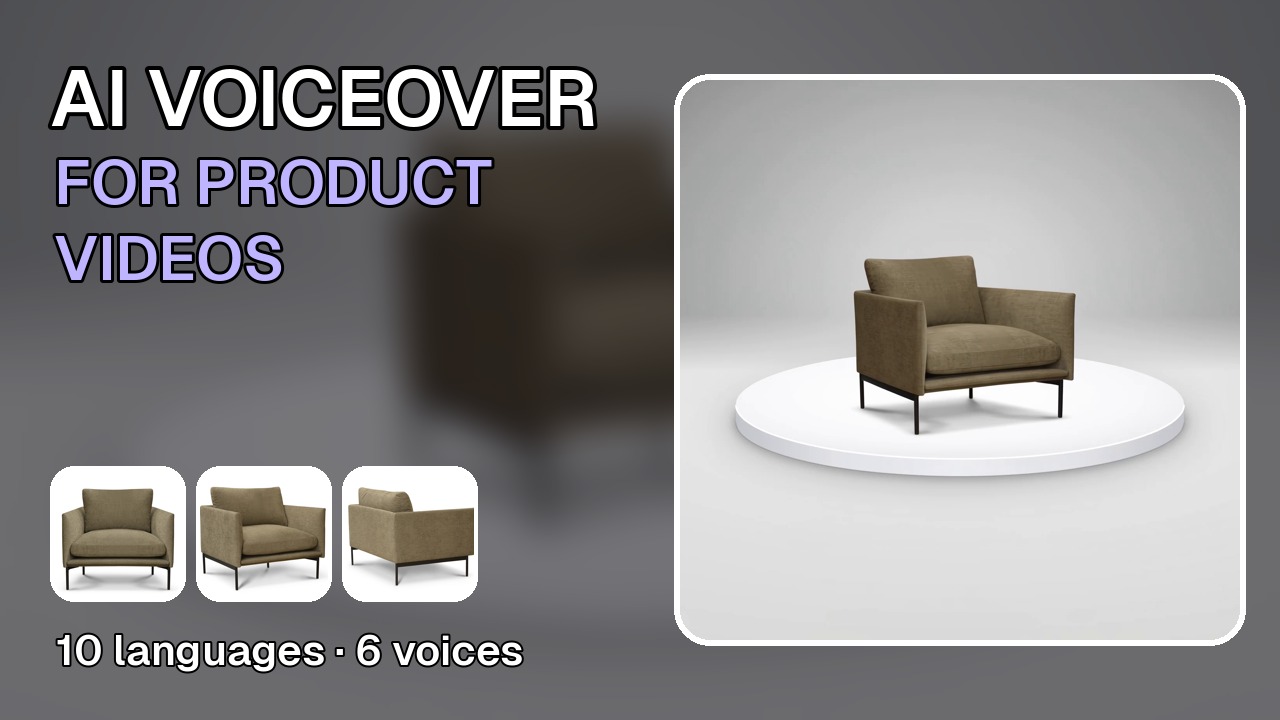
Opens the Product 360 template in the studio.
You make the product video in RefVid, then add the voice in the same place: open the clip's Voiceover tab, and a script written from the video is already there. Pick one of ten languages and a voice, click once, and about fifteen seconds later the clip comes back with that voice as its only sound, ready to download. This tutorial follows one armchair from three photos to a Polish voiceover.
How to add an AI voiceover to a product video in RefVid
- 1
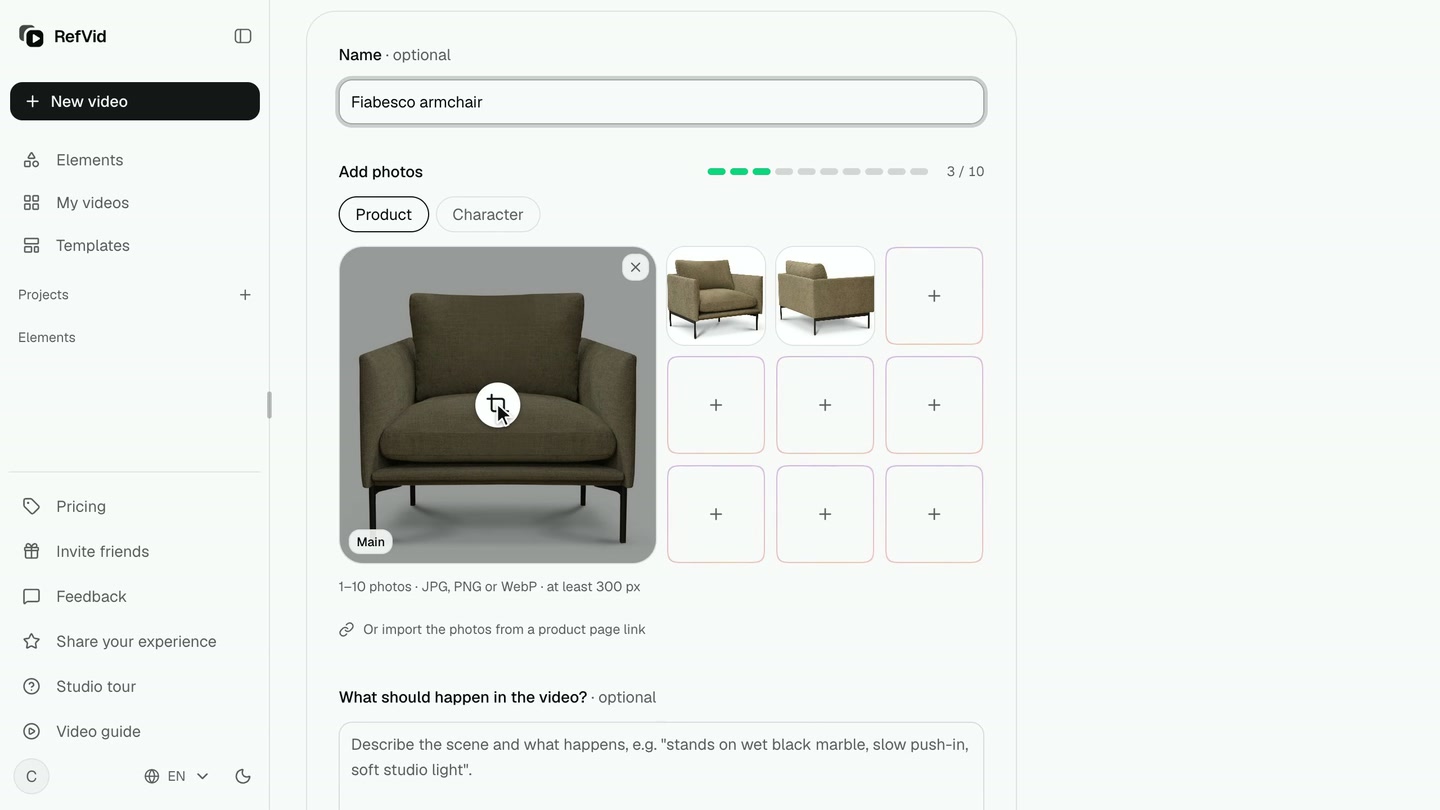
Save the product once
In Elements, click New element. Name it, keep Product, and add up to four photos of the same piece, the front view first. Use photos of one version of the product only: they become one product. Click Create product.
- 2
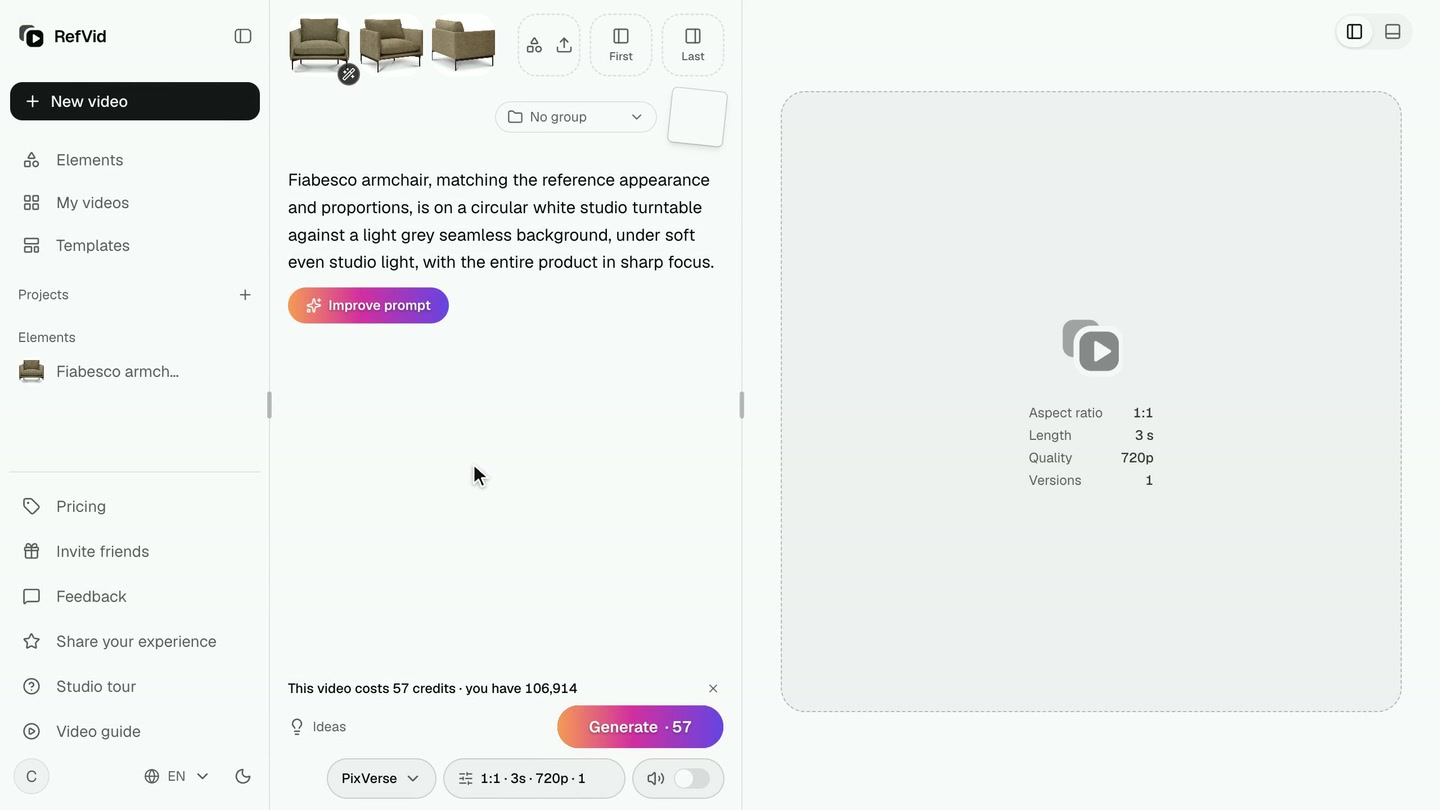
Start with the turntable template
Create product opens the composer with the armchair in it and a suggested template. Clear it, click Select template, search for turntable and choose the 360 degree product video. It writes the whole shot for you: the product on a white turntable, a fixed camera, one full turn.
- 3
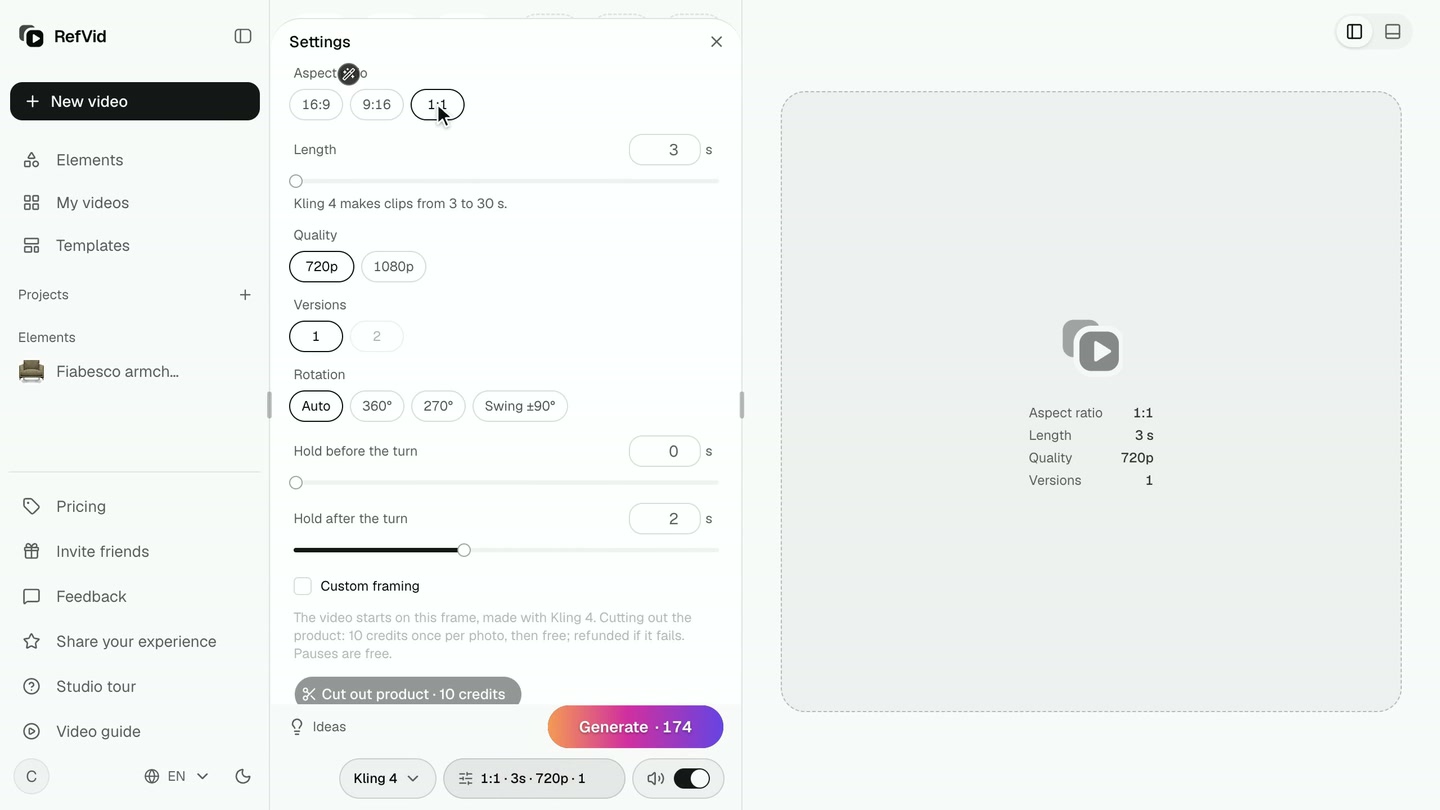
Pick the model, the shape and the length
Choose Kling 4 for the smoothest turn. In settings, pick the shape you will post (1:1 for a shop page, 9:16 for Reels, TikTok and Shorts, 16:9 for a website) and a 10-second clip for a slower, smoother turn. Each shape is generated on its own, never cropped.
- 4
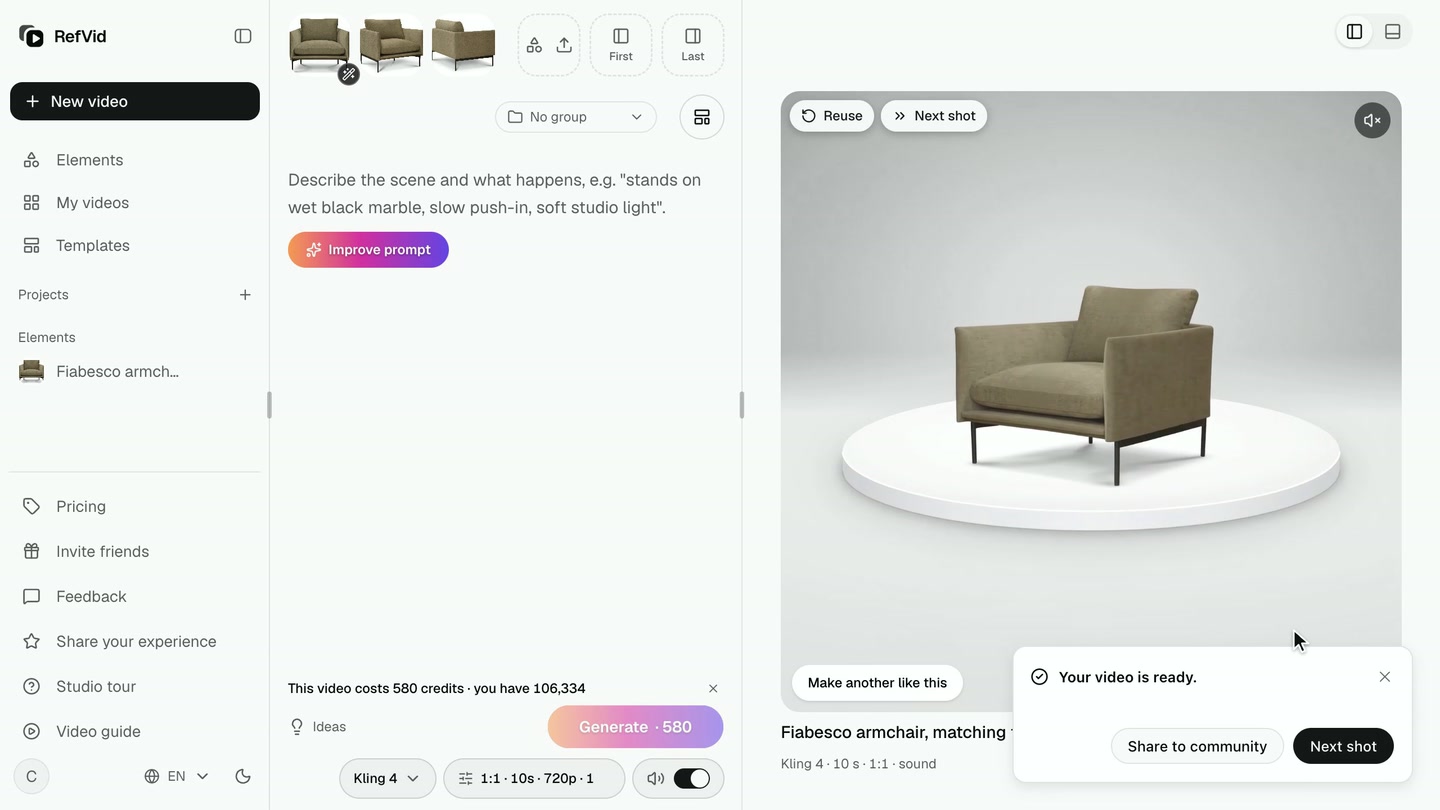
Generate the video
Click Generate. A ten-second Kling 4 clip took about four minutes here. It appears in My videos; open it to see it full size.
- 5
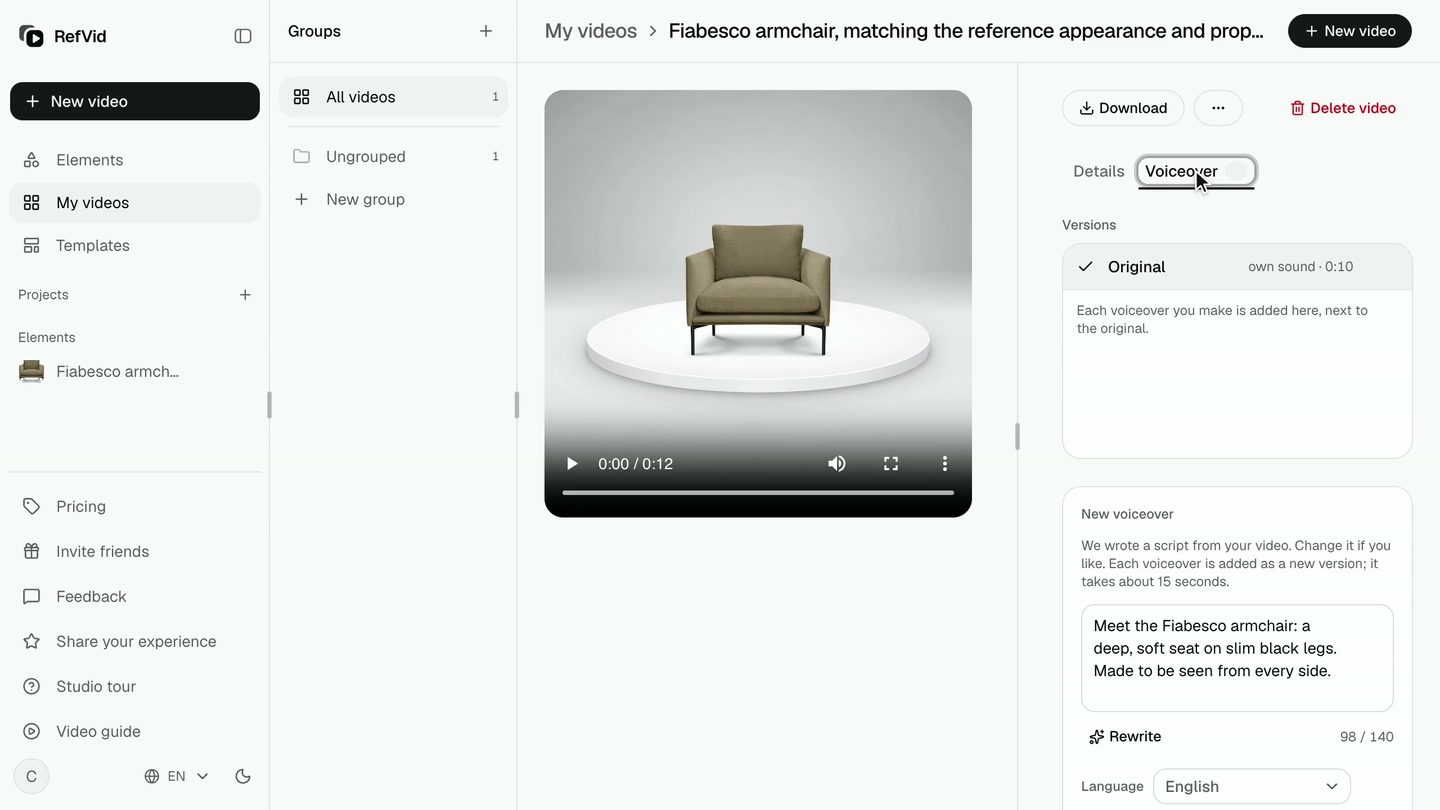
Open the Voiceover tab
Next to Details, open Voiceover. A script is already written from your video, short enough to end with the clip, and it says only what the video shows. Edit it, or click Rewrite for a new one.
- 6
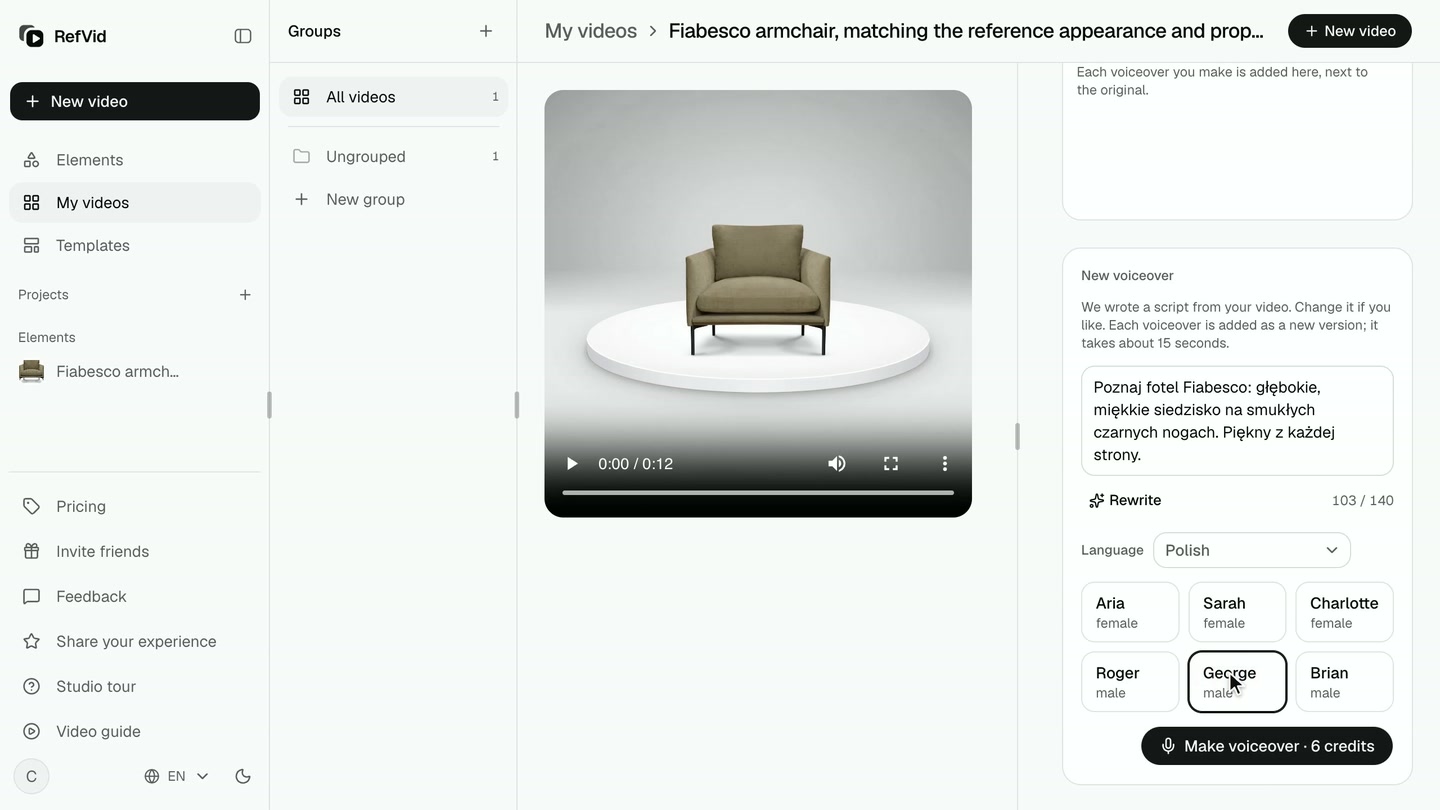
Choose a language and a voice
Pick one of ten languages: English, German, French, Spanish, Portuguese, Italian, Dutch, Polish, Japanese or Korean. The script is rewritten in that language. Then choose one of six voices; every voice speaks every language.
- 7
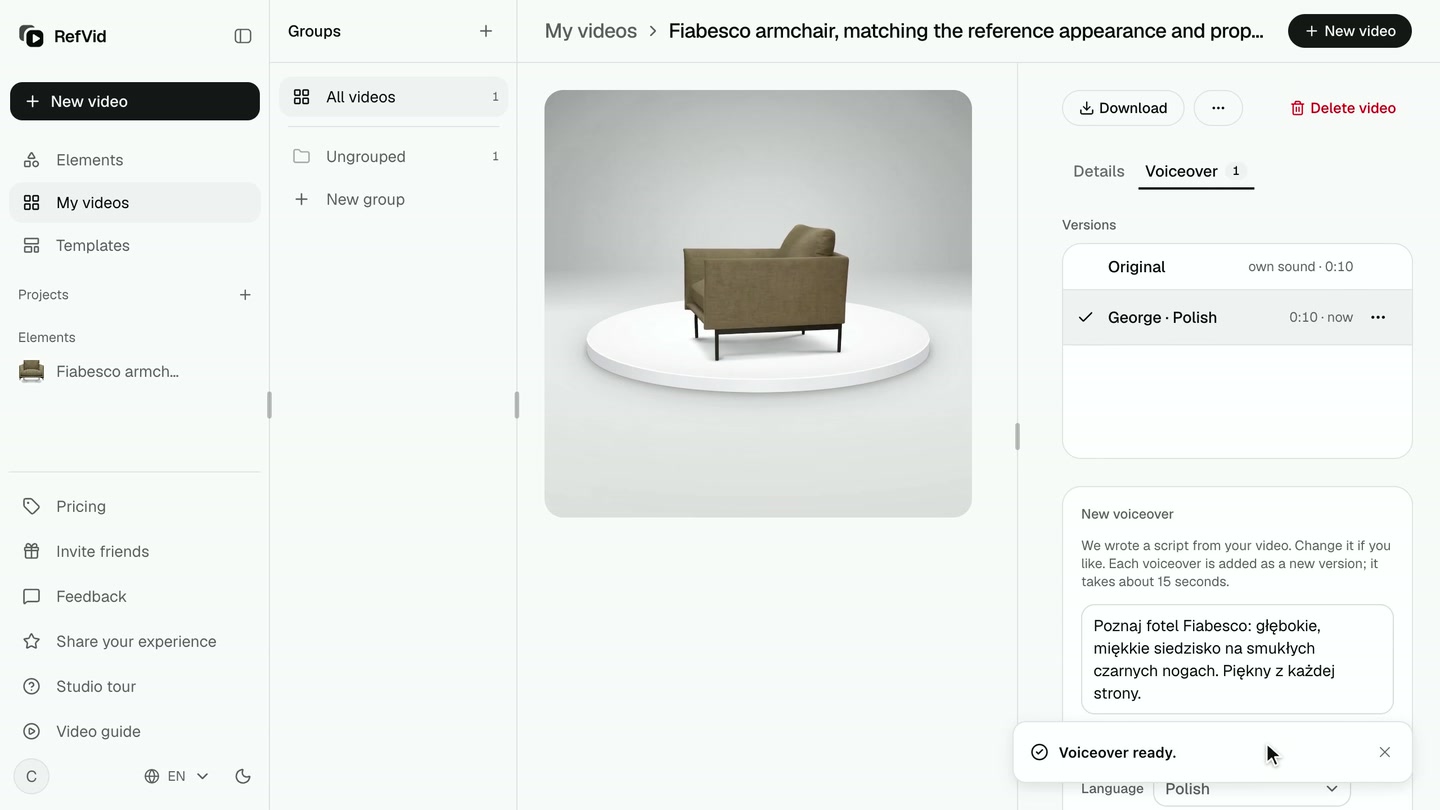
Make the voiceover
Click Make voiceover. A few seconds later a new version, George · Polish, is added to Versions under the original and is selected. The clip's own sound is replaced by the voice; the original stays in the list, and every new voiceover is kept as its own version.
- 8
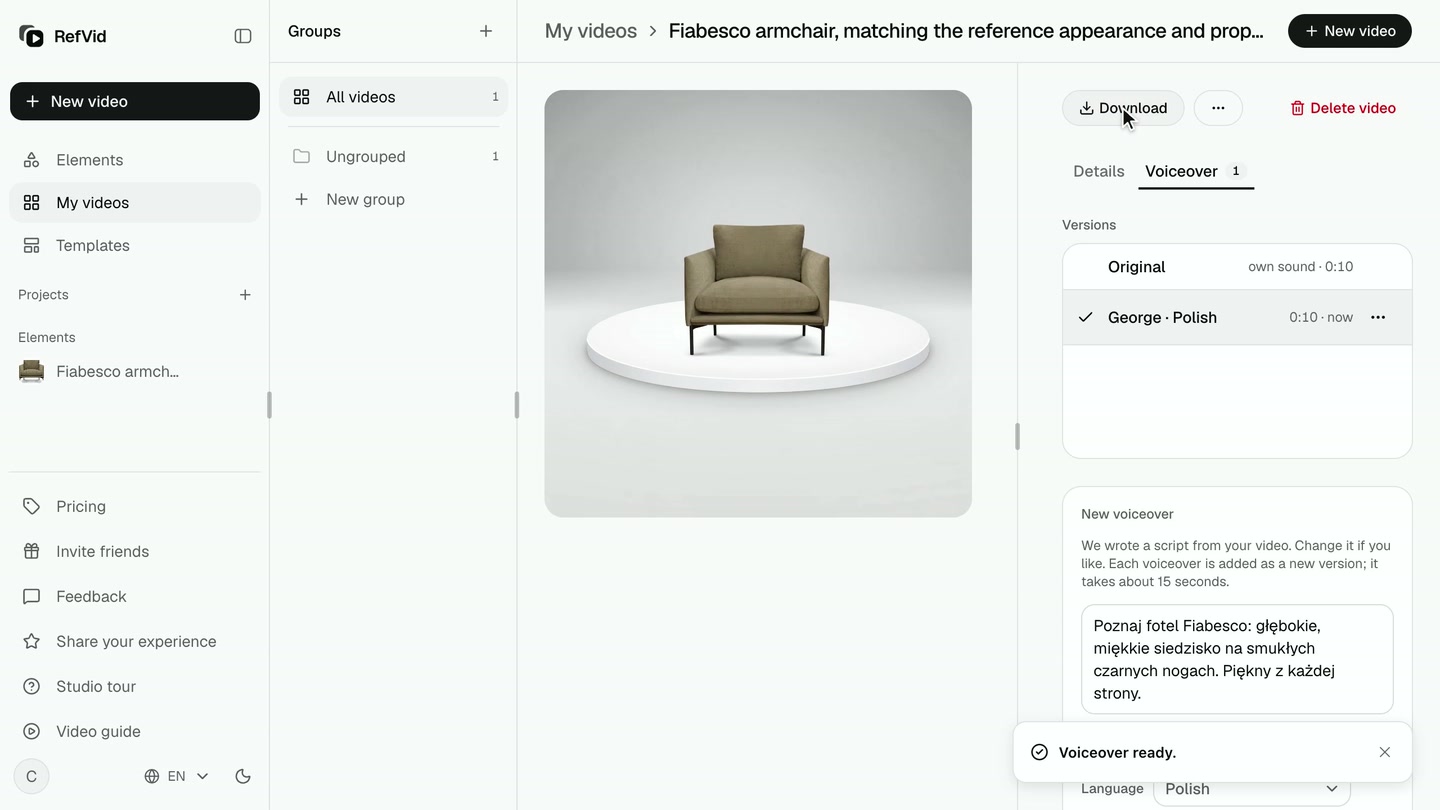
Download the version that is playing
Download saves the version you picked in Versions: an MP4 with the voice as an AAC sound track, ready for Reels, TikTok, YouTube Shorts or your product page. If you would rather add your own voice elsewhere, More → Download without sound gives the same clip with no sound at all.
Transcript
This is RefVid. Three photos of an armchair become a turntable video with a Polish voiceover. Here is how, step by step.
First, sign in to the studio. Sign in with Google, or with your email address.
Save the product once: New element. Name it, keep Product, and add the photos, the front view first. Photos of one version of the product only. They become one product.
Create it: the armchair is in the composer. Clear the suggested template, then Select template. Search for turntable, and use the 360 degree product video. It writes the whole shot: one full turn.
Choose Kling 4, the model that turns furniture most smoothly. In settings, keep the square 1:1, and set ten seconds for a slower turn.
Click Generate. A clip takes a few minutes; here the wait is sped up. Here is the armchair, turning on the turntable.
Open the video, then the Voiceover tab beside Details. A script is already written from your video. Pick a language: ten to choose from. Polish. Rewritten in Polish. Edit it, or Rewrite. Pick one of six voices. Click Make voiceover. The price is on the button. The Polish version is added to Versions. The original stays in the list.
Download saves the selected version. Under More, Download without sound gives the clip with no sound at all.
So: save the product, start from the turntable template, and generate. Then open Voiceover, pick a language and a voice, and download. Try it: open the turntable template in the studio. Thanks for watching. Subscribe for the next tutorial.
Templates from this tutorial
Each one opens in the studio with your own subject in it.
Read next
- How to make AI videos for Instagram that keep one look across your gridHow to make AI videos for Instagram Reels: 9:16 clips that survive the 3:4 grid, one product or face in every Reel, music, captions, AI label. Start free.
- How to make AI videos for TikTok that look like one creatorHow to make AI videos for TikTok: vertical 5–10 second clips, a hook in the first second, the same face in every post, sound and the AI label. Start free.
- How to make a product video using AI, freeHow to make AI product videos free: add 1–10 photos of your product, pick a template, press Generate and sign in. First clip free, no watermark, no card.
Questions
How do I add an AI voiceover for video in RefVid?
Open the finished video in RefVid, go to the Voiceover tab, keep or edit the script that is written for you, pick a language and a voice and click Make voiceover. The voiced version is ready in about fifteen seconds and downloads as an MP4.
Which languages can the AI voice over speak?
Ten: English, German, French, Spanish, Portuguese, Italian, Dutch, Polish, Japanese and Korean. Changing the language rewrites the script in it, and any of the six voices can read any of them.
What does an AI voiceover cost?
It is charged in credits by the clip's length: 4 credits for a 5-second clip, 6 for 10 seconds, 10 for 15 seconds and 18 for 30 seconds. The price is on the button before you click, and a failed voiceover is refunded.
Does the voiceover replace the video's own sound?
Yes. The voice becomes the only sound in the voiced version, so a model that always adds sound, such as Kling 4, no longer plays its own audio under the voice. The original video, with its sound, stays in the list.
Can I try different voices or languages for the same video?
Yes. Every voiceover is kept as its own version under Versions, newest first. Pick any version to play it, and Download saves the one you picked. Use this script in a version's menu makes another one with the same words.
Will the voice end before the video does?
The script is kept short enough for the clip: about 14 characters a second in alphabetic languages and 6 in Japanese and Korean. If you write a longer script, RefVid tells you the limit before you make it.
Can I add my own voice instead?
Yes. More → Download without sound gives the clip with its sound removed and the picture untouched, so you can add your own recording or a voice from another tool in any editor.