Recreate video AI: same shots, your product - RefVid
Add a clip that already works. RefVid keeps its shots, motion and timing and puts your own product, person or pet in it.

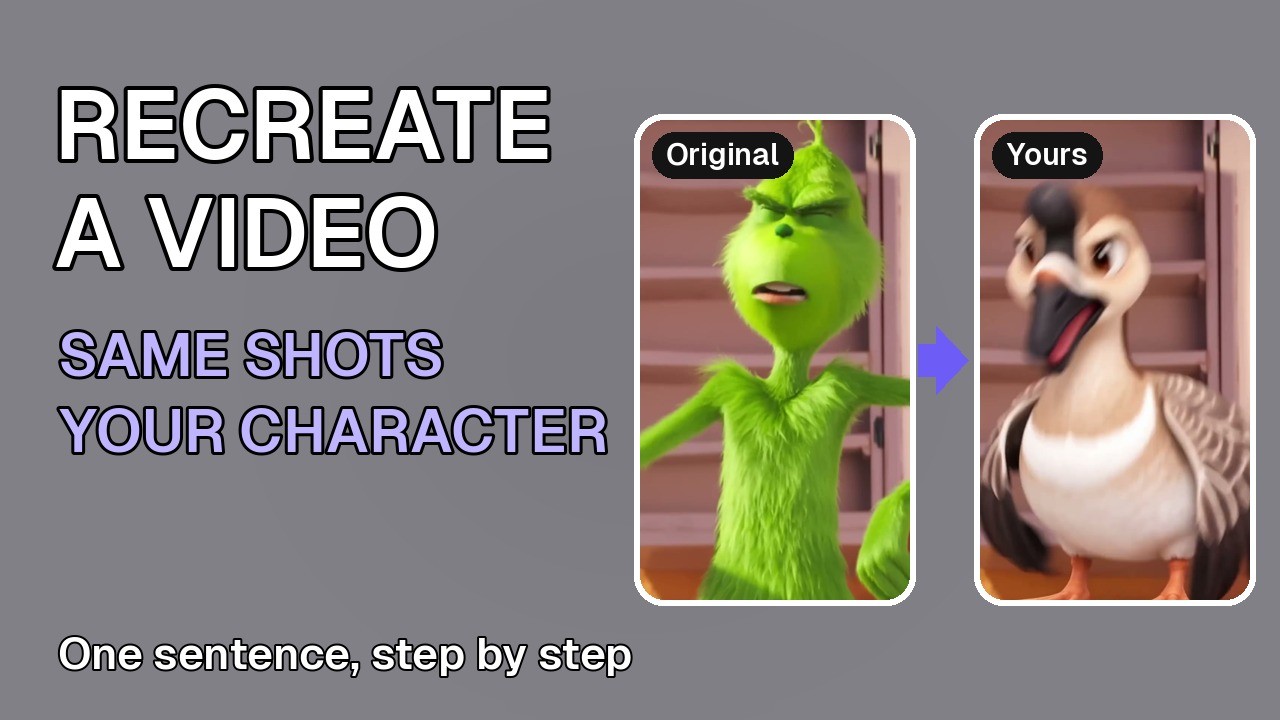
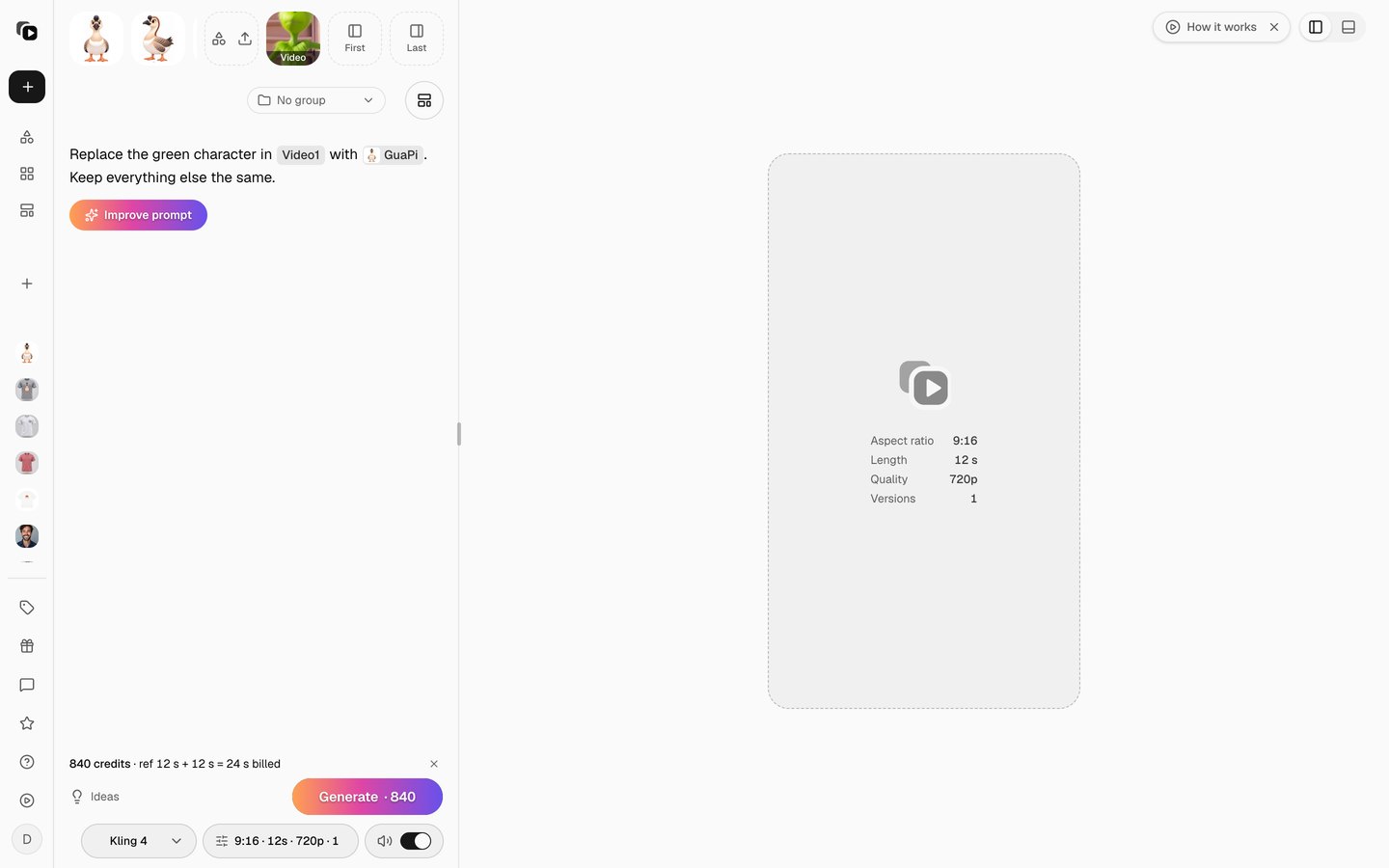
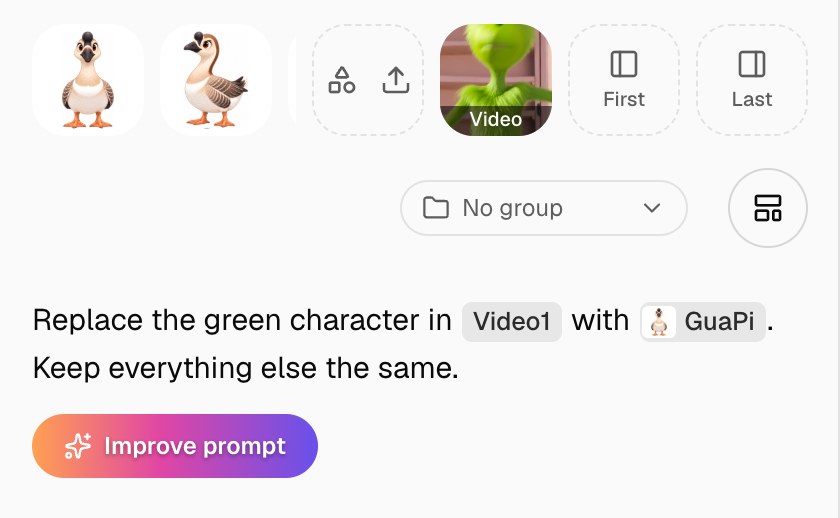
Replace the green character in @Video1 with @GuaPi. Keep everything else the same.

A video that works, remade with your subject
Yes, you can recreate a video with AI: add a clip of 3 to 30 seconds in RefVid's composer, pick your saved product, person, pet or cartoon character, keep the one sentence RefVid writes, and press Generate.
Kling 4's video edit works on that clip itself, with the instruction to keep its shots, camera and timing and put your subject in it. The clip can be one on RefVid, an MP4 or MOV you upload, or a direct link to the file. Every clip comes without a watermark.
- Kling 4 edits your clip with the instruction to keep its shots, camera moves and timing.
- Your saved product, person or pet takes the lead, from your own photos.
- One sentence does it. RefVid writes it for you; change it if you like.
Real clips on RefVid you can remake
Three steps. No reshoot, no long prompt.
The clip already holds the shots, the motion and the timing. You only say who or what takes the lead.
- 01
Add the video
Upload an MP4 or MOV of 3 to 30 seconds, paste a link to the file, or press Make one like this on a RefVid clip.
- 02
Pick your subject
Your saved product, person or pet. RefVid writes the sentence that says who replaces whom; change it if you like.
- 03
Generate
Kling 4 edits the clip itself: same camera, same timing, your subject in it. No watermark.
Watch the step-by-step tutorial
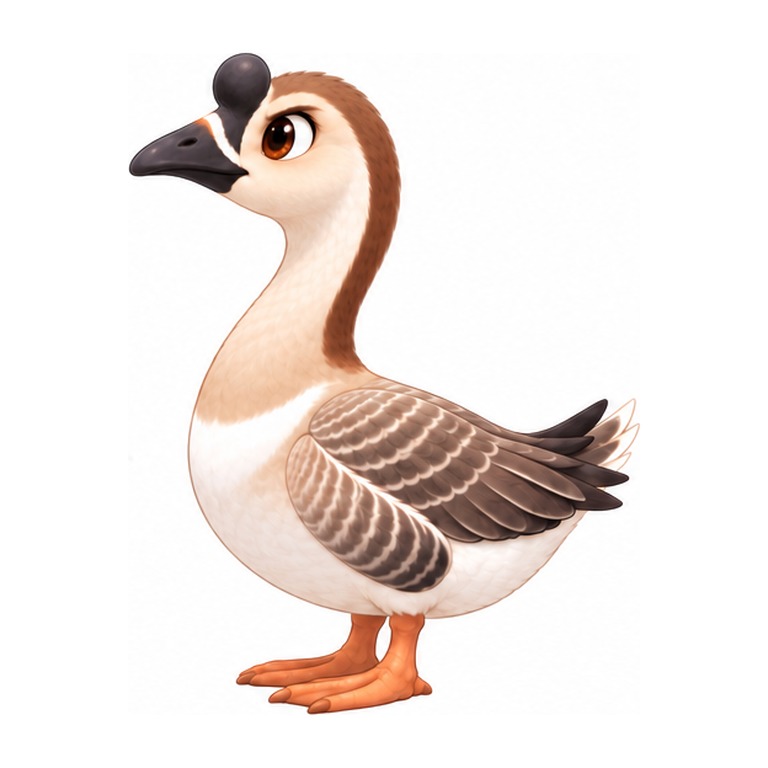
How to recreate a video with AI, step by step: one real take in RefVid, from a cartoon clip and four photos of our goose to the finished remake.
The same shots, the same timing
Kling 4 edits your clip itself, so the camera, the cuts and the pacing are the ones that already worked.
Your subject, from your photos
A product, a person, a pet or a cartoon character you saved once from a few photos.
An upload, a link or a RefVid clip
Start from an MP4 or MOV of 3 to 30 seconds, a direct link to the file, or any clip on RefVid.
No watermark, commercial use
Every clip comes without a watermark, and you can run it in ads and on your store.
How to recreate a video with AI
Three actions. In New video, add the clip with the Video tile next to your photos, pick your saved subject, and press Generate. RefVid writes the one sentence in between, "Replace the subject in @Video1 with @YourSubject. Keep everything else the same.", as soon as the clip and a subject are in; change it if you like.
Kling 4's video edit gets your clip as the video to edit and your subject as an element, drawn from your own photos, 1 to 10 of them. The recording shows one whole take. When yours is ready, watch it at full size and compare it with your photos.
What you can remake: product ads, UGC, trends and brand films
Remake videos that already work and put your own product, person or pet in them. A perfume ad that reveals a bottle is remade with your bottle in its place. A UGC-style clip of a creator holding a product is remade with your presenter. A trend video keeps its beats with your pet or cartoon character in it.
Brand films work the same way: a walk-in, a slow push-in, a hand that lifts the lid. With two or three subjects, pick a clip where they are easy to tell apart at the start.
- UGC ad: a presenter holds your product
- AI TikTok trend video: remake a trend with your character
- AI Christmas video: start from your own photos
AI character swap: replace a character in a video
An AI character swap keeps the clip and changes who is in it. On RefVid the new character is one you saved from your own photos: a person, a pet or a cartoon character. Name who to replace, such as "Replace the green character in @Video1 with @GuaPi", and the rest of the clip stays.
It is not a face swap, and not motion transfer onto a still image. Kling 4 edits the video itself, so the set, the camera and the other people in the shot come from your clip. With two or three saved subjects, each one takes a place: left, middle, right.
Original
With GuaPi
AI video recreation vs reshooting vs prompting from scratch
- An AI video remake starts from proof: a clip whose shots and timing already work. A reshoot rebuilds them by hand, and a blank prompt has to describe them again. With a clip attached you only say who or what takes the lead.
| Recreate on RefVid | Reshoot | Prompt from scratch | |
|---|---|---|---|
| You start from | A clip that already works | A crew, a set and the product | A blank prompt |
| Shots and timing | Taken from your clip | Rebuilt by hand | Described again in the prompt |
| Your product or character | From your saved photos | Filmed again | Described in words |
| What you write | One sentence | A brief and a shot list | A prompt for every shot |
RefVid vs Viggle Remake, Pollo Recast and insMind
- All four start from a video you already have. They differ in what goes in and what changes. RefVid replaces the subject you name with one saved from your own photos and leaves the rest of the clip; the table has what each tool's own page says.
| RefVid | Viggle Remake | Pollo Recast | insMind AI Video Remaker | |
|---|---|---|---|---|
| You start from | A 3–30 s clip and a subject saved from your photos | A 5–60 s clip, photos of the new character or object, and a chat | A 4–30 s clip and up to 10 images | A reference video and your own images |
| What changes | The subject you name: a product, person, pet or cartoon character | People, objects, sets, weather and style | A character, product, prop or setting | The subject; the reference guides motion and pacing |
| Original sound | Kept, or new sound | Kept | Not stated | Not stated |
| Free to try | No: a remake uses credits | No: paid plans | Yes: free credits | Trial options that vary by plan |
What you can start from: a RefVid clip, an upload or a link
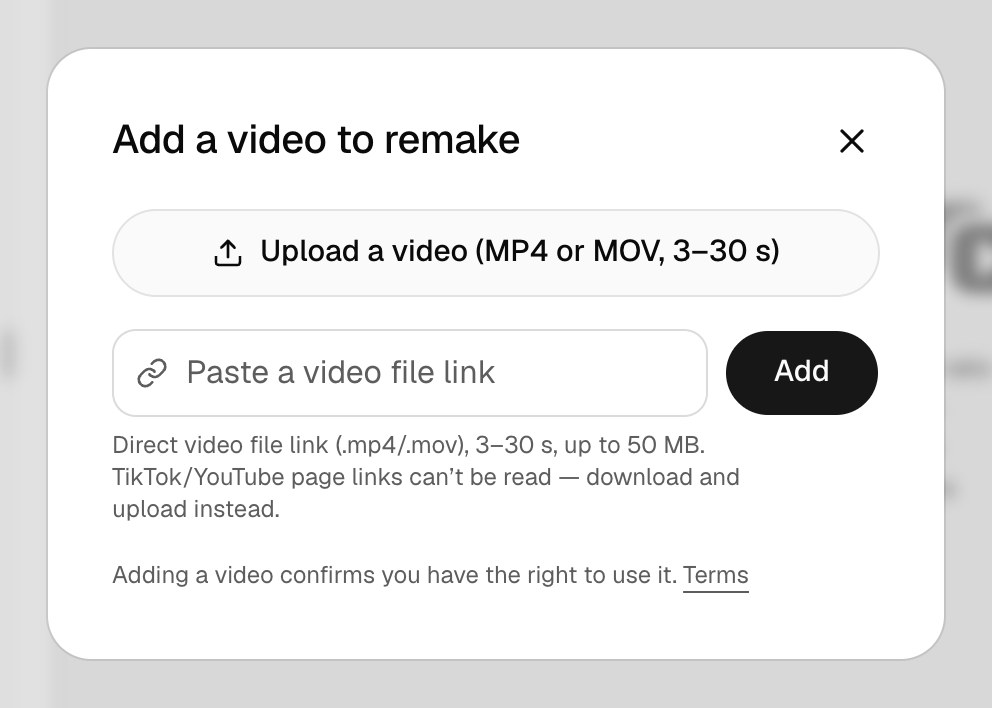
There are three ways in. On any clip on RefVid, a template's example, a gallery clip or one of your own, press Make one like this and New video opens with that clip attached. Or open the Video tile in the composer and upload a file, or paste a direct link to a video file.
A direct link is the address of the file itself, usually ending in .mp4. A TikTok, YouTube or Instagram page is a web page, not a file, so RefVid does not read those links: download your own post, or the clip you have permission to use, and upload it.
| Your clip | What RefVid accepts |
|---|---|
| File type | MP4 or MOV |
| Length | 3 to 30 seconds |
| File size | Up to 50 MB |
| Width and height | 700 to 4,553 pixels on each side |
| Shape | Between 2:5 and 5:2 |
| Frame rate | 24 to 60 frames per second |
Recreate video prompts: one sentence each
With one subject the sentence reads "Replace the subject in @Video1 with @YourSubject. Keep everything else the same." With two or three subjects it names the one on the left, in the middle and on the right, in their order in the composer. Each @name shows as a chip with the subject's photo.
The sentence is yours to change: name what to replace, such as "the bottle", "the dog" or "the green character", keep a red jacket, or replace only one of two people. RefVid adds the rest of the instruction for you: keep the replacement through the whole clip and leave everything else as it is.
| What you want | The sentence |
|---|---|
| Swap the lead | Replace the subject in @Video1 with @YourSubject. Keep everything else the same. |
| Name who to replace | Replace the green character in @Video1 with @GuaPi. Keep everything else the same. |
| Swap a product | Replace the bottle in @Video1 with @MyBottle. Keep everything else the same. |
| Replace one of two people | Replace the person on the left in @Video1 with @Mia. Keep everything else the same. |
| Keep a detail | Replace the subject in @Video1 with @Mia. Keep the red jacket and everything else the same. |
What a recreated video costs
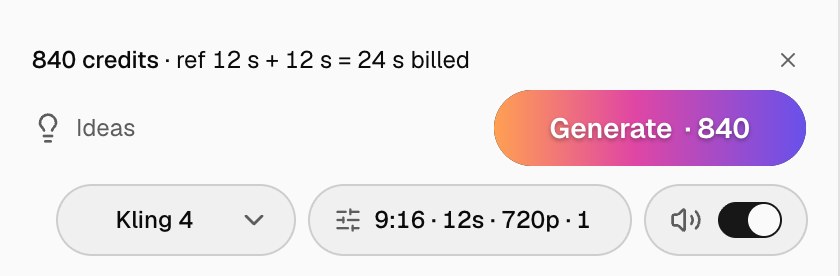
A recreated video is billed on the seconds of your clip going in plus the seconds of the new clip coming out, at a lower rate per second than a normal clip: a 5-second clip bills 10 seconds. The line above Generate shows the exact credits before you press it, and a clip that fails gives its credits back.
Credits come as a single video from $2.99, a one-time credit pack from $9.90 or a monthly plan from $10, and they never expire. A shorter clip costs less, so trim a long one to the part you want before you add it.
Check these before you press Generate
Use a clip you made yourself or have permission to use: your own ad, a clip on RefVid, or footage you licensed. Check that what you want replaced is visible in the first frame, and that your subject's photos are sharp and show the sides the clip shows, such as the back of a bottle that turns.
Keep original sound is on when you add a clip, also when your subject has a voice: switch Sound to New sound in the settings when the music or voice isn't yours to use, and Kling 4 makes new sound. When the clip is ready, watch it at full size and compare shapes, labels, faces and markings with your photos.
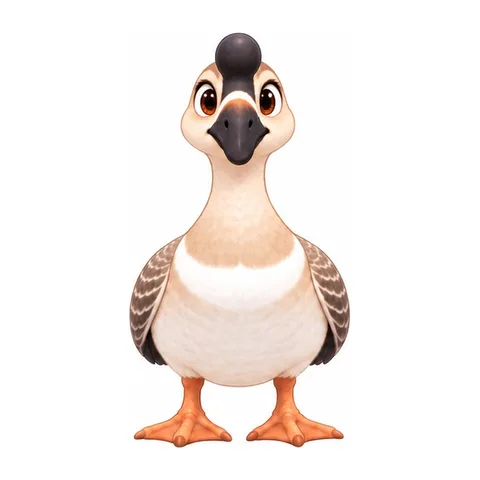
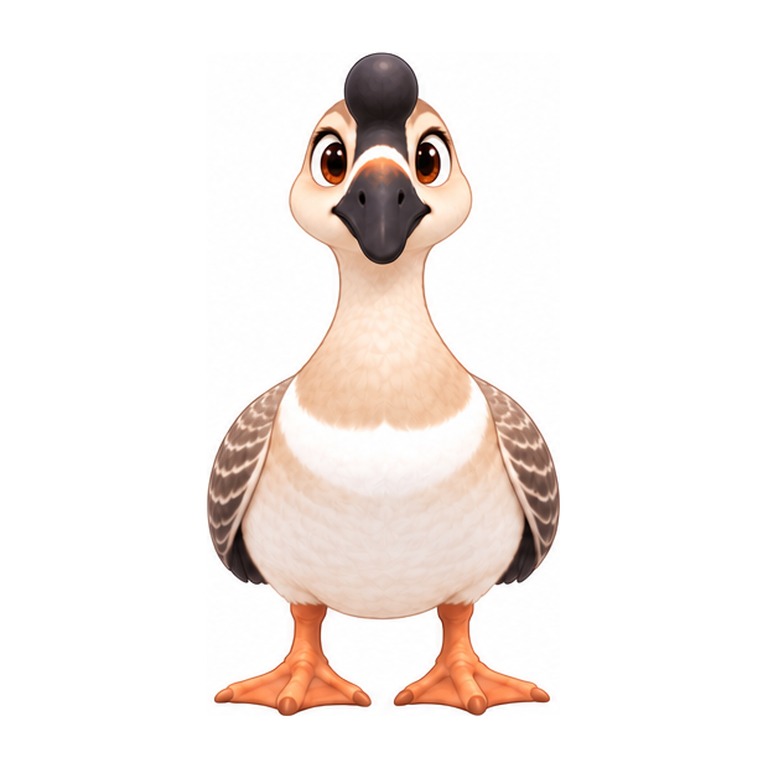
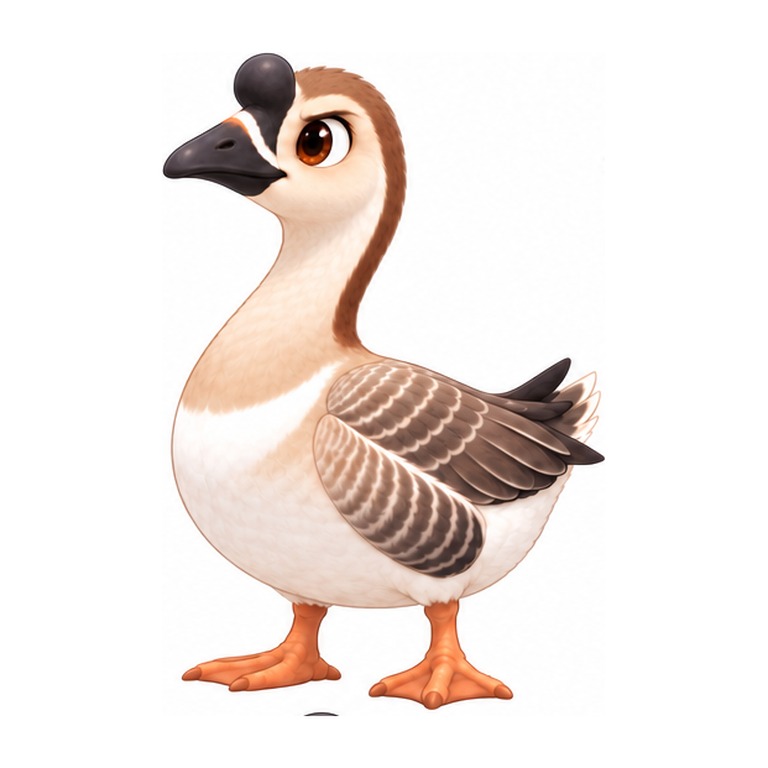
GuaPi's 4 reference photos

Start from a template
Each one opens the studio with the shots, shape and length already set. Add your own product and generate.
More how-to guides
Reference to video →

Frequently asked questions
Can I recreate a video with AI for free?
Recreating a clip runs on Kling 4 and uses credits: a single video costs from $2.99, a credit pack from $9.90 and a plan from $10 a month. New RefVid accounts also get one free 4-second clip on Kling 3.0 Omni, with no card and no watermark, which is a way to check your saved subject first.
Can I recreate any video with AI?
Not any video: the clip must be an MP4 or MOV of 3 to 30 seconds, up to 50 MB, and one you have the right to use. Upload it, paste a direct link to the video file, or open a RefVid clip with Make one like this. Links to TikTok, YouTube or Instagram pages are not read, so download the clip and upload it.
What is an AI video remaker?
An AI video remaker makes a new video from one you already have: it keeps what the clip holds, such as its shots, motion and timing, and changes what you choose. On RefVid you choose the subject: your saved product, person, pet or cartoon character takes the place of the one in the clip, and Kling 4 edits the clip itself.
Can I replace a character in a video with AI?
Yes. Add the clip, pick your saved character, a person, a pet or a cartoon character, and keep the sentence RefVid writes, or name who to replace, such as "Replace the green character in @Video1 with @GuaPi". Kling 4's video edit works on the clip itself and swaps the character. You save a character once from 1 to 10 photos.
Can I swap a product in an existing video with AI?
Yes. Save your product once from a few photos, add the clip, and the sentence reads "Replace the subject in @Video1 with @YourProduct"; write "the bottle" in place of "the subject" when the clip shows more than one thing. Pick a clip whose product has a shape close to yours, and check labels and logos in the result against your photos.
Is this motion transfer or an AI character swap?
A character swap. Motion transfer puts a clip's movement onto a still image of your character and draws a new scene around it. RefVid edits your clip itself with Kling 4's video edit, so the set, the camera and everyone else in the shot stay, and only the subject you name is replaced. It also works for products, which have no motion to transfer.
How do I recreate a viral video with AI?
Download the viral clip you have permission to use, or your own version of the trend, trim it to the 3 to 30 seconds that matter and add it with the Video tile in the composer. Pick your product, person or pet, check the sentence and press Generate.
Can I recreate a TikTok video with AI?
Yes, from the video file. RefVid does not read a TikTok page link, so save your own post from the app, or a clip you have permission to use, as an MP4, trim it to 3 to 30 seconds and upload it with the Video tile. The new clip keeps the shape and the length of yours.
Can I recreate a Christmas video with AI?
Yes. A Christmas clip works like any other: add the video file, 3 to 30 seconds, pick your saved person, pet, product or cartoon character, and keep the sentence RefVid writes. The cartoon example at the top of this page is a Christmas cartoon clip remade with our goose GuaPi. To start from photos instead of a clip, use the Christmas templates.
Is recreating a video the same as video to video AI?
Close. With a clip attached, RefVid edits the clip itself with Kling 4's video edit, so the setting, camera and timing come from the clip and the subject changes. Restyling tools change the look of the same subject; here it is replaced by your own saved product, person or pet, drawn from your photos.
Will the remade video copy the clip frame by frame?
No. The shots, the camera and the timing follow your clip, but Kling 4 redraws every frame it changes, so small things can differ: an object the subject held, a colour, the exact moment of a cut. Watch the result at full size next to the original before you use it.
Is recreating a video the same as copying it?
It makes a new clip, but the rights to the original stay where they are. Recreating changes who or what is in the video; it gives you no rights to footage, music, characters or logos that belong to someone else. Use clips you made, clips on RefVid or footage you have permission to use, and switch Sound to New sound when the music isn't yours.
Can I keep the original sound?
Yes. Keep original sound is on when you add a clip, also when your subject has a voice, and Kling 4 keeps the clip's soundtrack instead of making new audio. Switch Sound to New sound in the settings to get new sound.
Does RefVid use Kling's video edit for creative recreation?
Yes. Your clip goes in as the video to edit, @Video1, and your saved subject as an element, the setup Kling's own guide shows for creative recreation ("Replace the subject in @Video1 with @Image1"). RefVid opens the prompt with "Edit @Video1.", adds your sentence, and adds the instruction to keep everything else the same.