How to recreate a video with AI: an AI video remaker tutorial
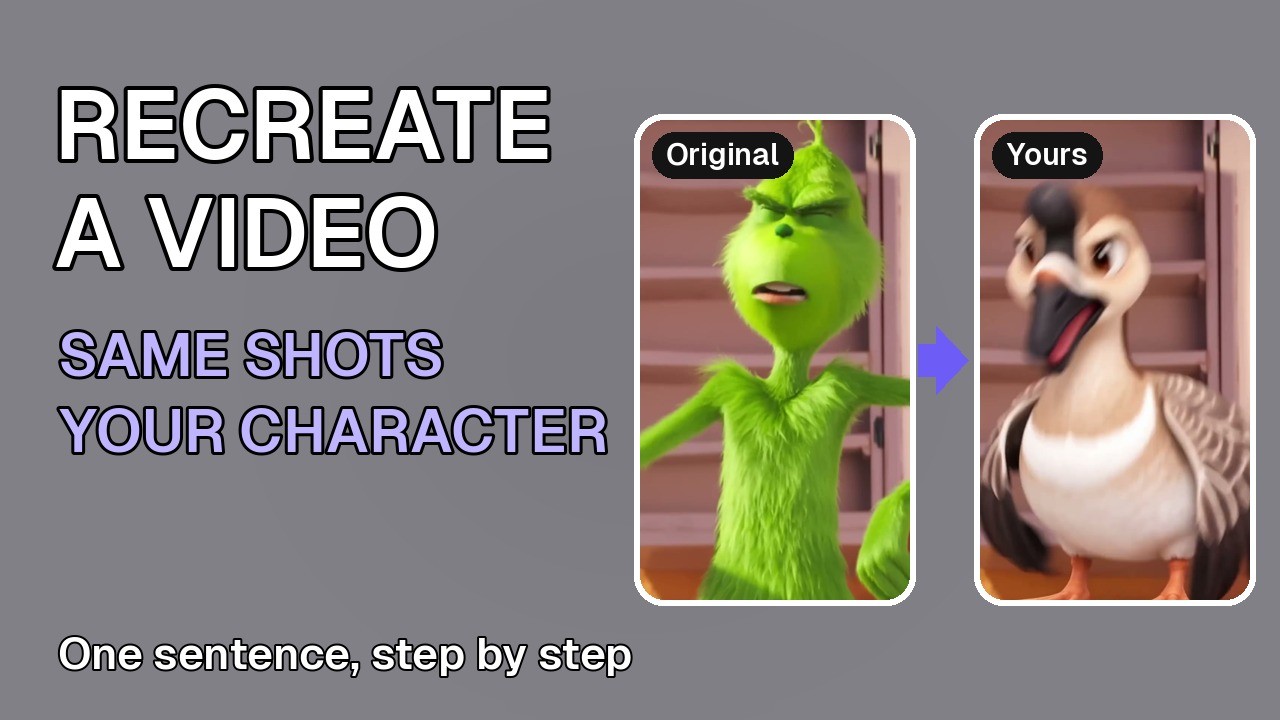
To recreate a video with AI you need three things: a clip of 3 to 30 seconds, a subject saved from your own photos, and one sentence that says who replaces whom. This ninety-second tutorial records one real take from start to finish: a cartoon clip, our goose GuaPi, and the remake Kling 4 made from them. Every step is written out below with its own screenshot.
AI video remaker, step by step
- 1
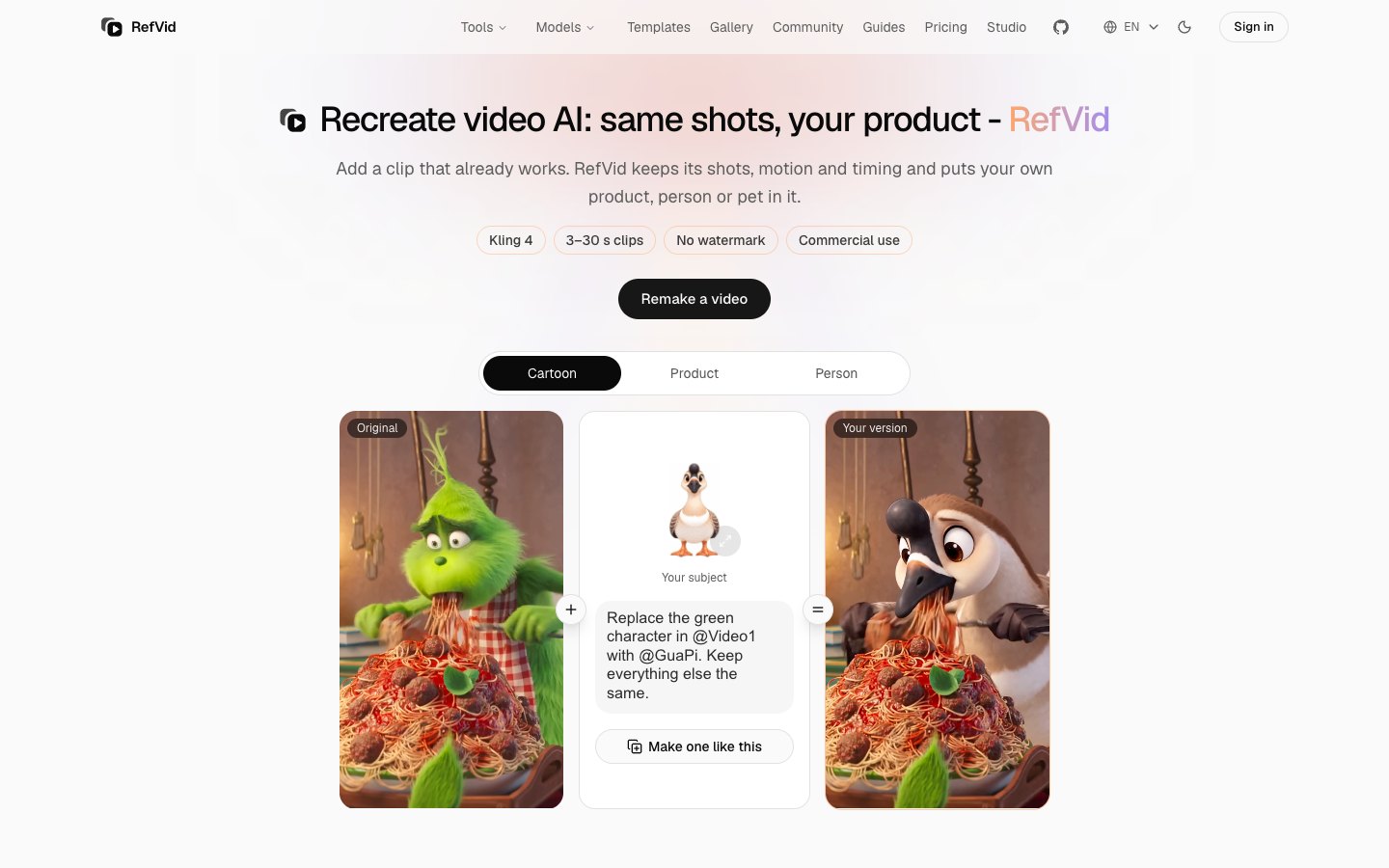
Open an example, or bring your own clip
On the Recreate video page, each example shows the original clip, the subject and the one sentence. Press Make one like this and the studio opens with all three in place. To use your own clip, see the last step.
- 2
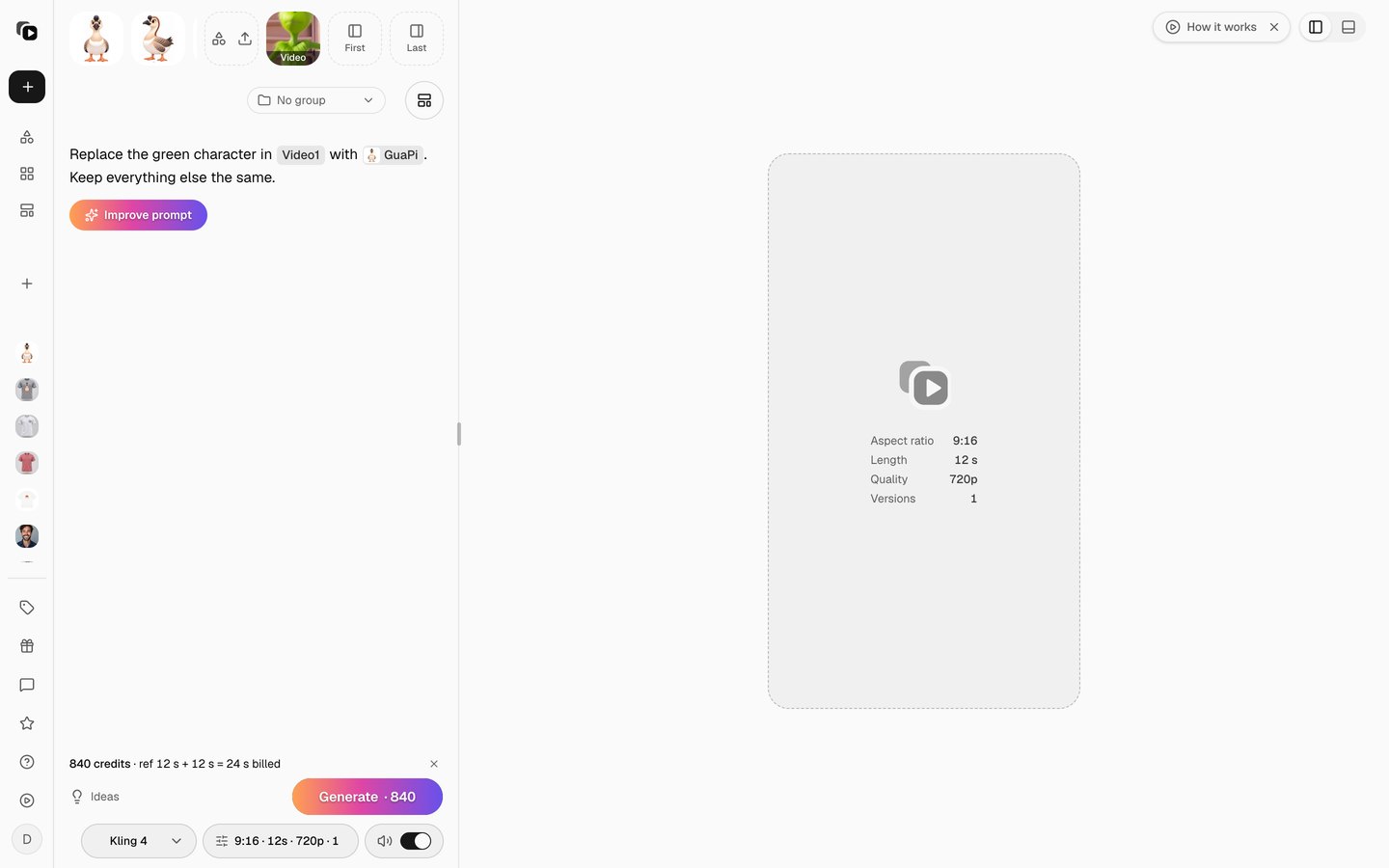
Check what the composer holds
The photo row has your subject's photos and the clip as a Video tile. Under it is the sentence: "Replace the green character in @Video1 with @GuaPi. Keep everything else the same." Change the words to name who or what to replace. The length and the shape come from the clip.
- 3
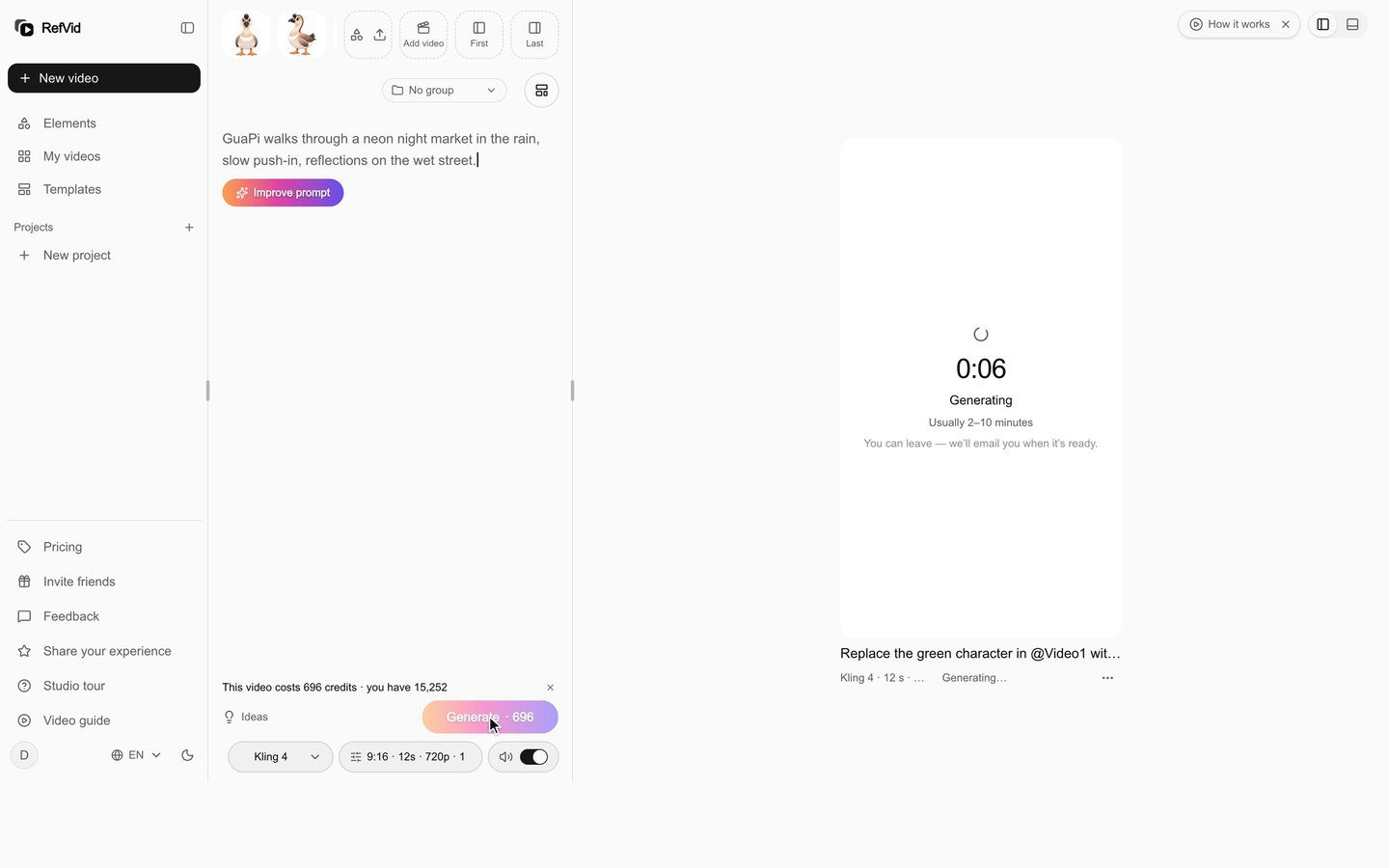
Read the price, then press Generate
The line above Generate shows the credits and how they add up: the seconds of your clip going in plus the seconds coming out. Sound is set to keep the clip's own; switch it to New sound when the music isn't yours. Then press Generate. A clip that fails gives its credits back.
- 4
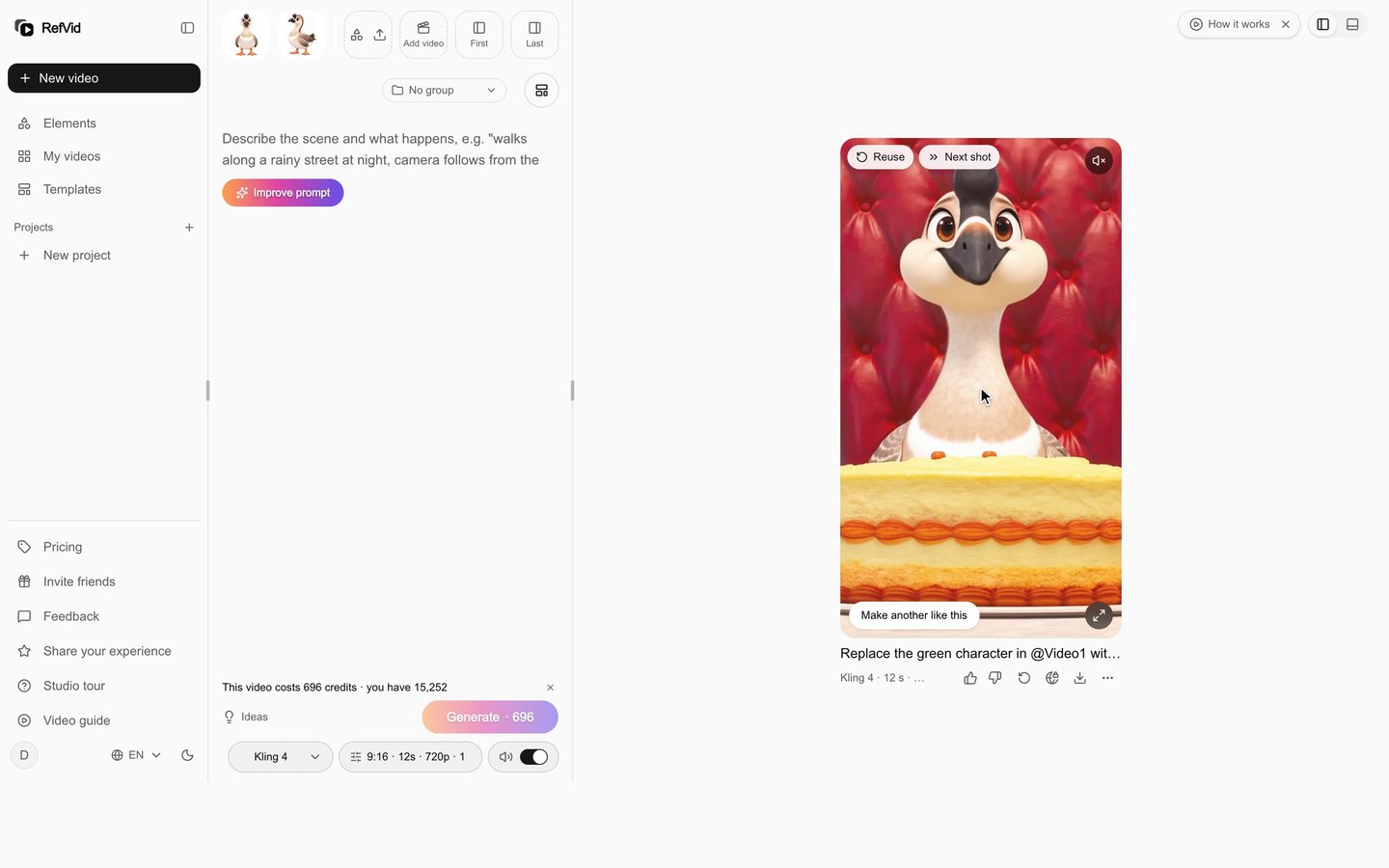
Watch the result next to the original
The take in the video was ready in about two and a half minutes. Open it at full size and compare it with the original: the character, what it holds, colours, the moment of each cut. Small things can differ, so check before you use it.
- 5
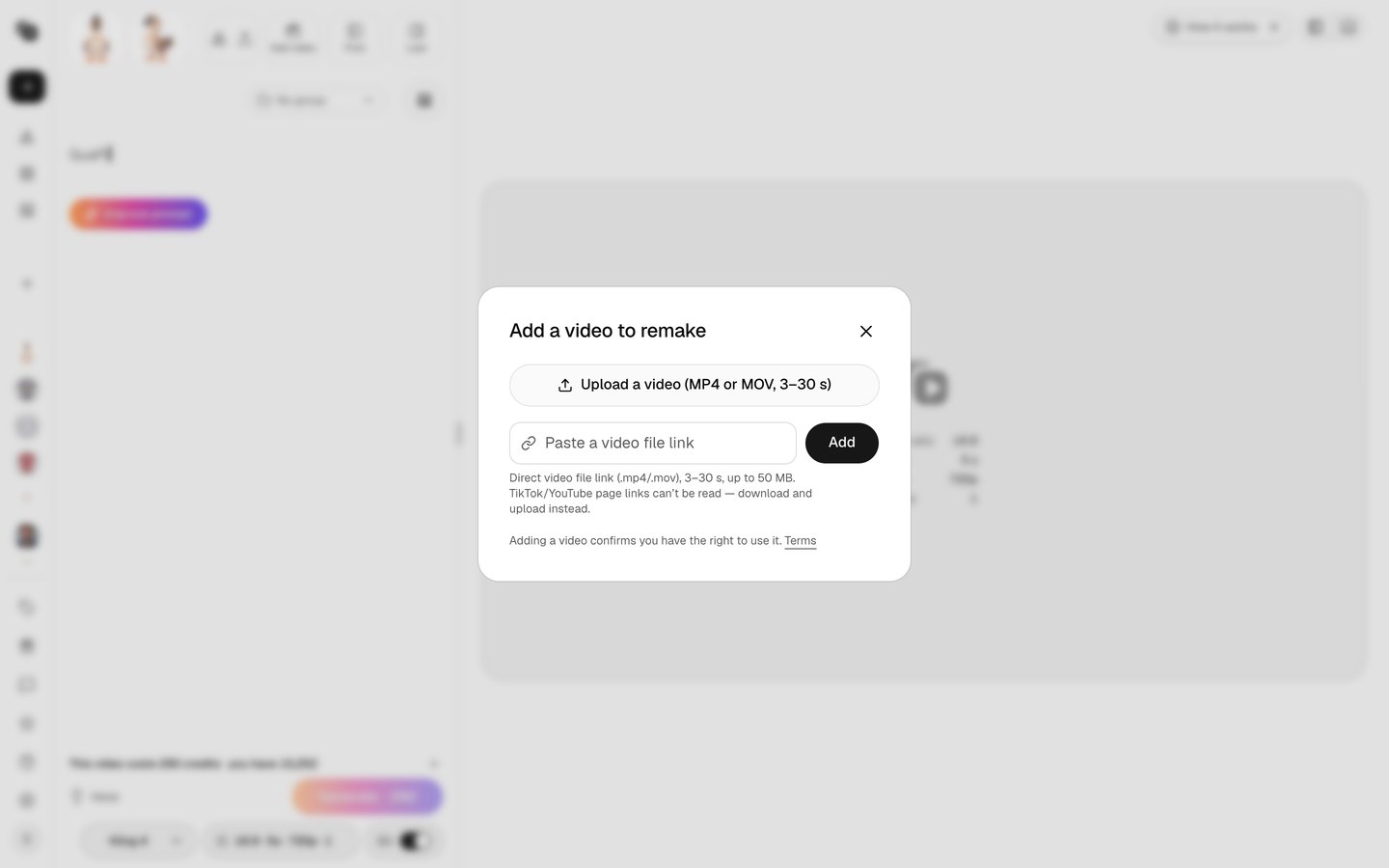
Use your own video
In New video, click the Video tile in the photo row. Upload an MP4 or MOV of 3 to 30 seconds, up to 50 MB, or paste a direct link to the file. A TikTok or YouTube page link is not a file: download the clip you have the right to use and upload it. Then pick your saved subject.
Transcript
This is the Recreate video page on RefVid. You bring a clip that already works, and put your own subject in it. On the left, the original clip. In the middle, our goose, GuaPi, and one sentence that says what to replace.
Make one like this opens the studio with all of it already filled in.
The four photos of GuaPi, the clip as Video one, and the same sentence. Nothing to type.
The format and the twelve seconds come from the clip, and its original sound is kept. The price shows before you start.
Press Generate. Kling 4 edits the clip itself: same shots, same timing, a new character. The edit takes a few minutes. The wait is sped up here.
And here is the finished clip.
Templates from this tutorial
Each one opens in the studio with your own subject in it.
Read next
- Recreate video AI: same shots, your productRecreate a video with AI: add a 3–30 s clip in RefVid's composer, pick your own characters, pets or products, write one sentence, and Kling 4 edits the clip.
- How to choose reference images for AI videoHow to pick the best reference images from photos you already have: the five tests each image must pass, how to fill missing angles, and how many to keep.
- Consistent character AI video: why faces drift and three techniques that stop itTo keep a character consistent in AI video, show the model photos instead of describing the face, use several at once and keep one photo set for every clip.
Questions
What is an AI video remaker?
A tool that makes a new video from one you already have. It keeps what the clip holds, its shots, motion and timing, and changes what you choose. In RefVid you choose the subject: a product, person, pet or cartoon character saved from your photos.
How long does it take to recreate a video with AI?
The take in this tutorial, an 11-second clip at 720p, took about two and a half minutes. RefVid shows 2 to 10 minutes while it works, and emails you when the clip is ready if you leave the page.
Is this a character swap video AI or a face swap?
A character swap. The whole character is replaced, body and all, by the subject you saved, and the rest of the clip stays: the set, the camera and the other people in it. It is not a face pasted onto the original body.
How many photos of my character do I need?
One is enough to start; three or four views work better: front, three-quarter, side and a close-up of the face. The goose in this tutorial was saved from four.
Can I use a video from TikTok or YouTube?
Only as a file, and only one you have the right to use. RefVid does not read page links from TikTok, YouTube or Instagram. Save your own post or a clip you have permission for as an MP4, trim it to 3 to 30 seconds and upload it.