How to make AI drama video episodes with the same characters every time
Turn your own photos into videos in minutes · Your first video is free, no watermark





First video free, no cardGenerating confirms everyone pictured agreed. Terms
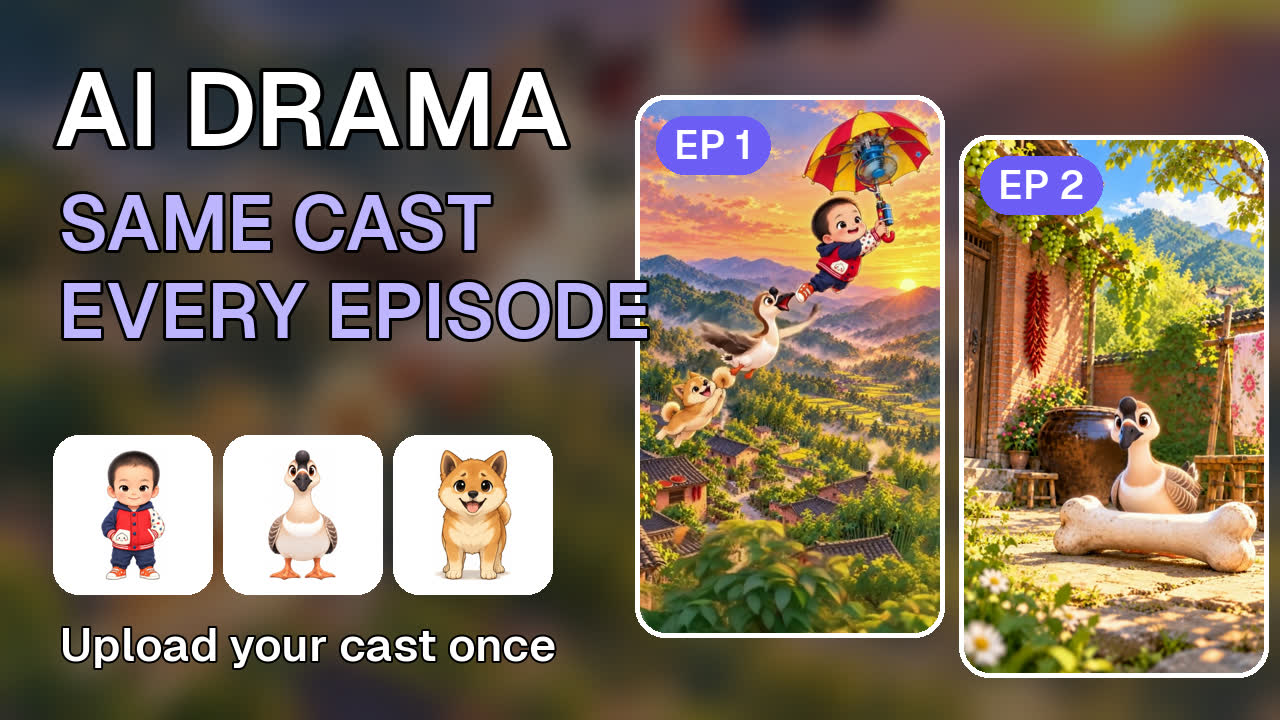
An AI drama falls apart when the faces drift between episodes. This four-minute tutorial shows the fix in RefVid with the cast of GuaPi, our own cartoon series: each character is saved once from a few photos, an episode starts from the Mini Drama template with up to three characters in one clip, the episode is written as one prompt and generated, and the next episode keeps the same cast. Only the words change.
Chapters
How to make AI drama series in RefVid, step by step
- 1
Save each character once, from photos
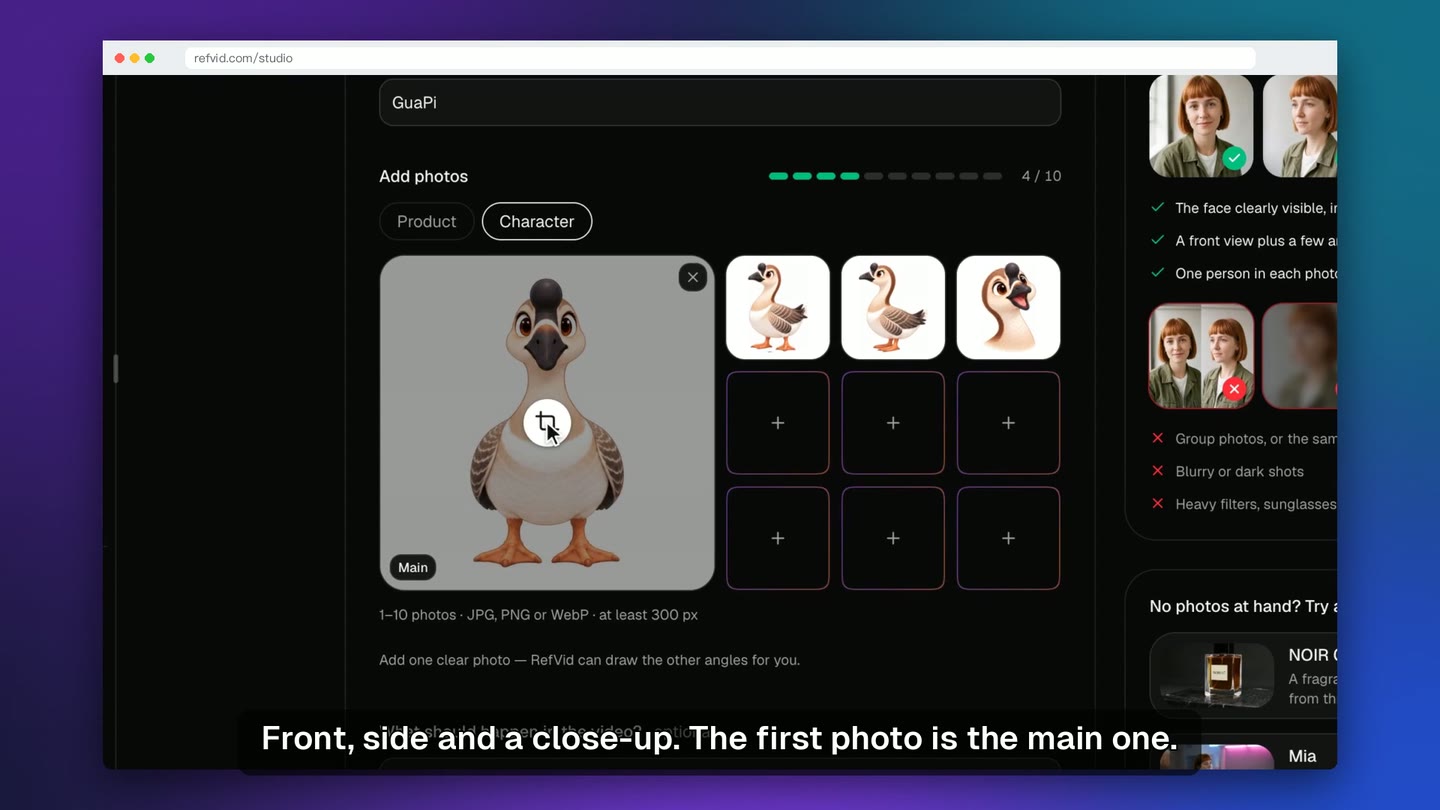
In Elements, click New element, give it a name and choose Character. Add three or four views: front, side and a close-up. The first photo is the main one. Tick the consent box and create the character.
- 2
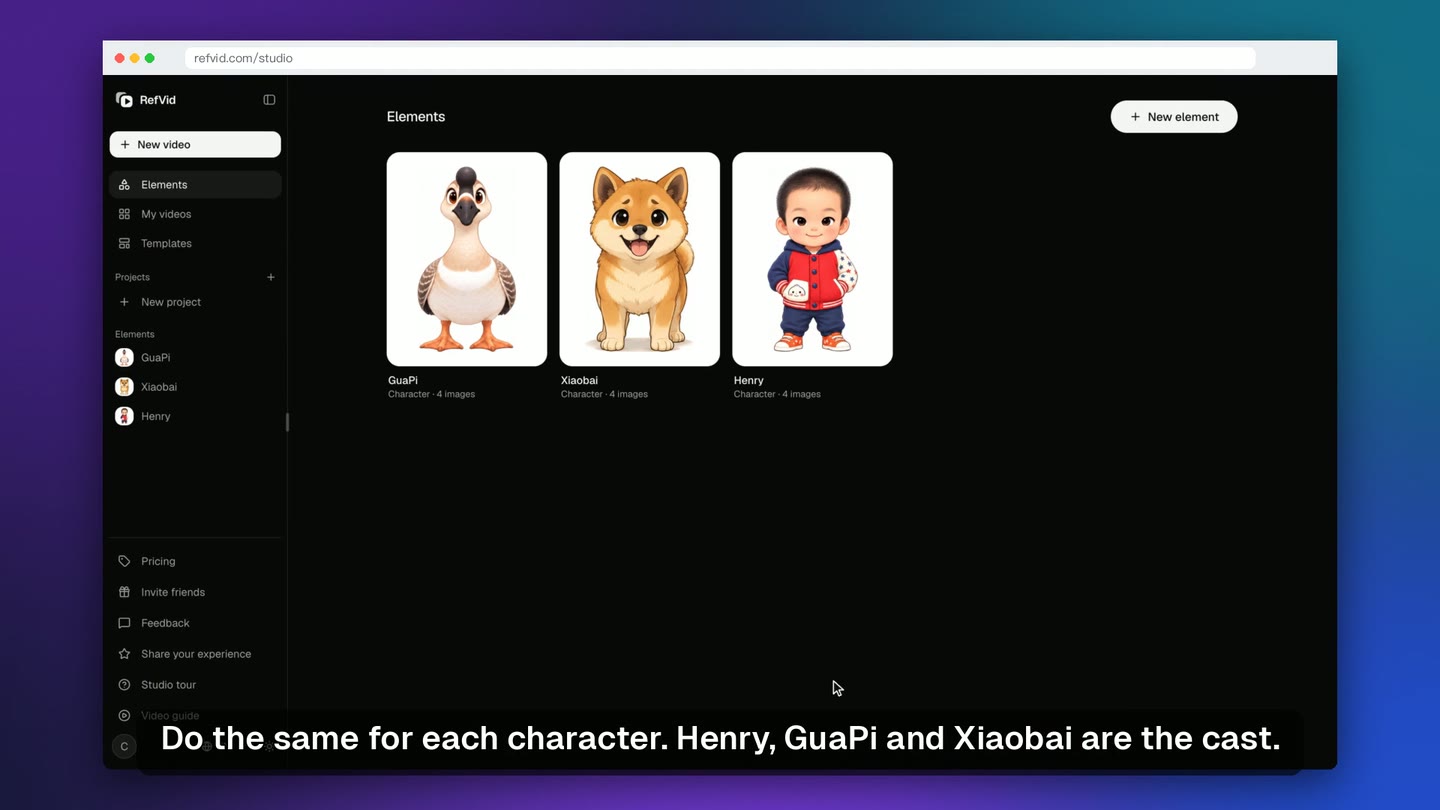
Do the same for the whole cast
Every character is its own element. Here the cast is Henry the boy, GuaPi the goose and Xiaobai the dog, four photos each. You never upload them again: every episode starts from these photos.
- 3
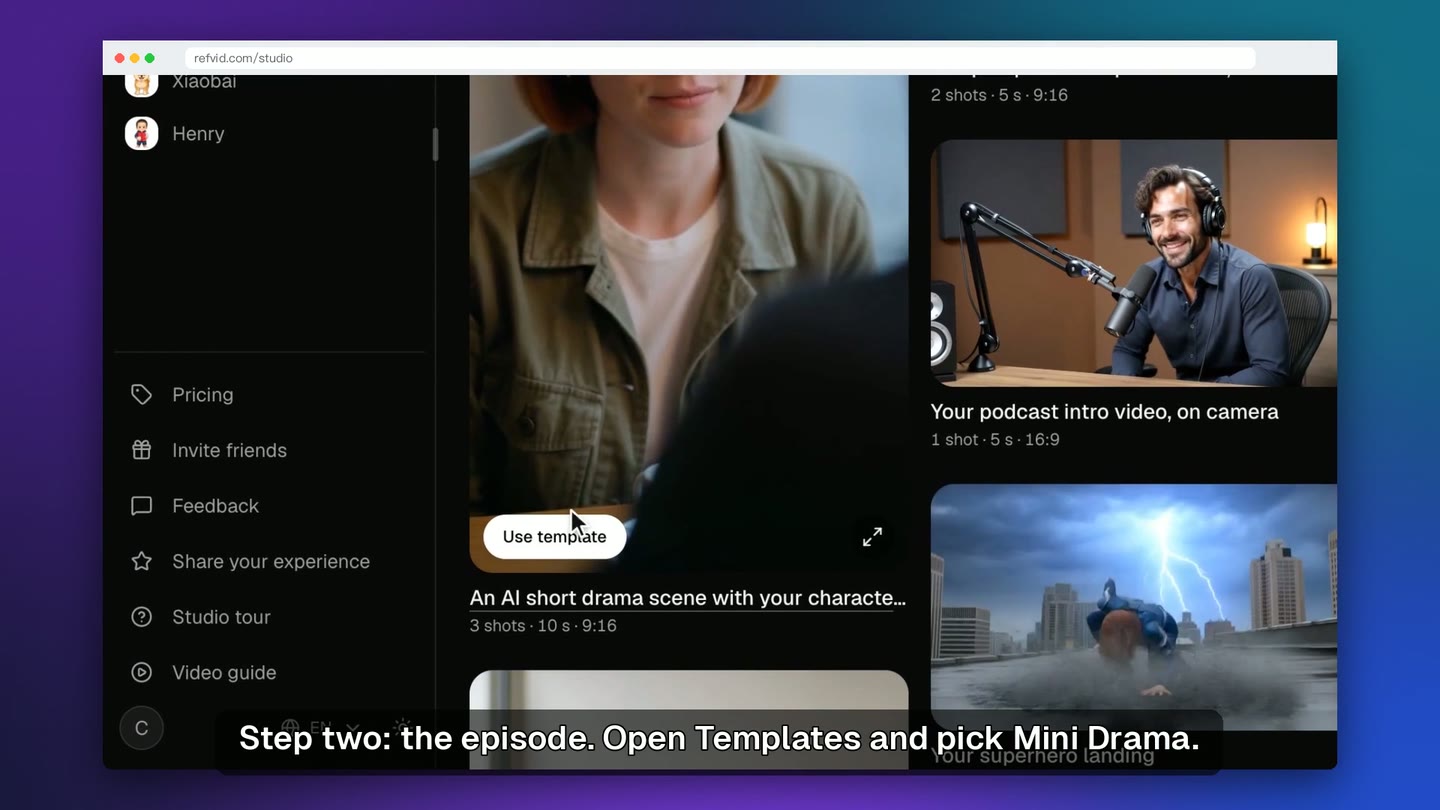
Start the episode from the Mini Drama template
Open Templates and click Use template on the AI short drama scene: three shots, 10 seconds, vertical 9:16. You start from a working drama beat with a lead and a second lead, not an empty box.
- 4
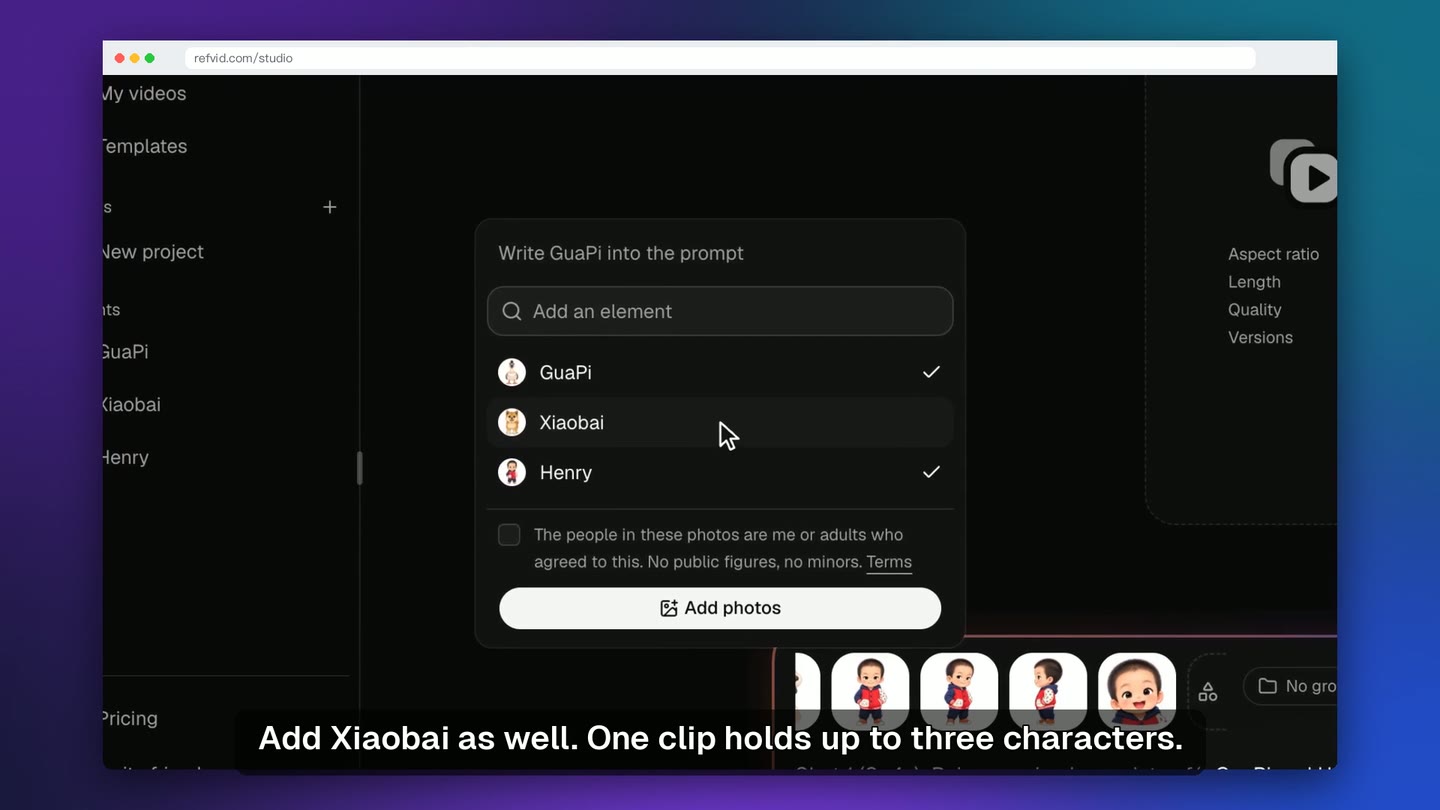
Add the second and third character
Click the plus beside the photos and pick a saved element: Henry takes the second lead, then add Xiaobai. One clip holds up to three characters, each drawn from its own photos.
- 5
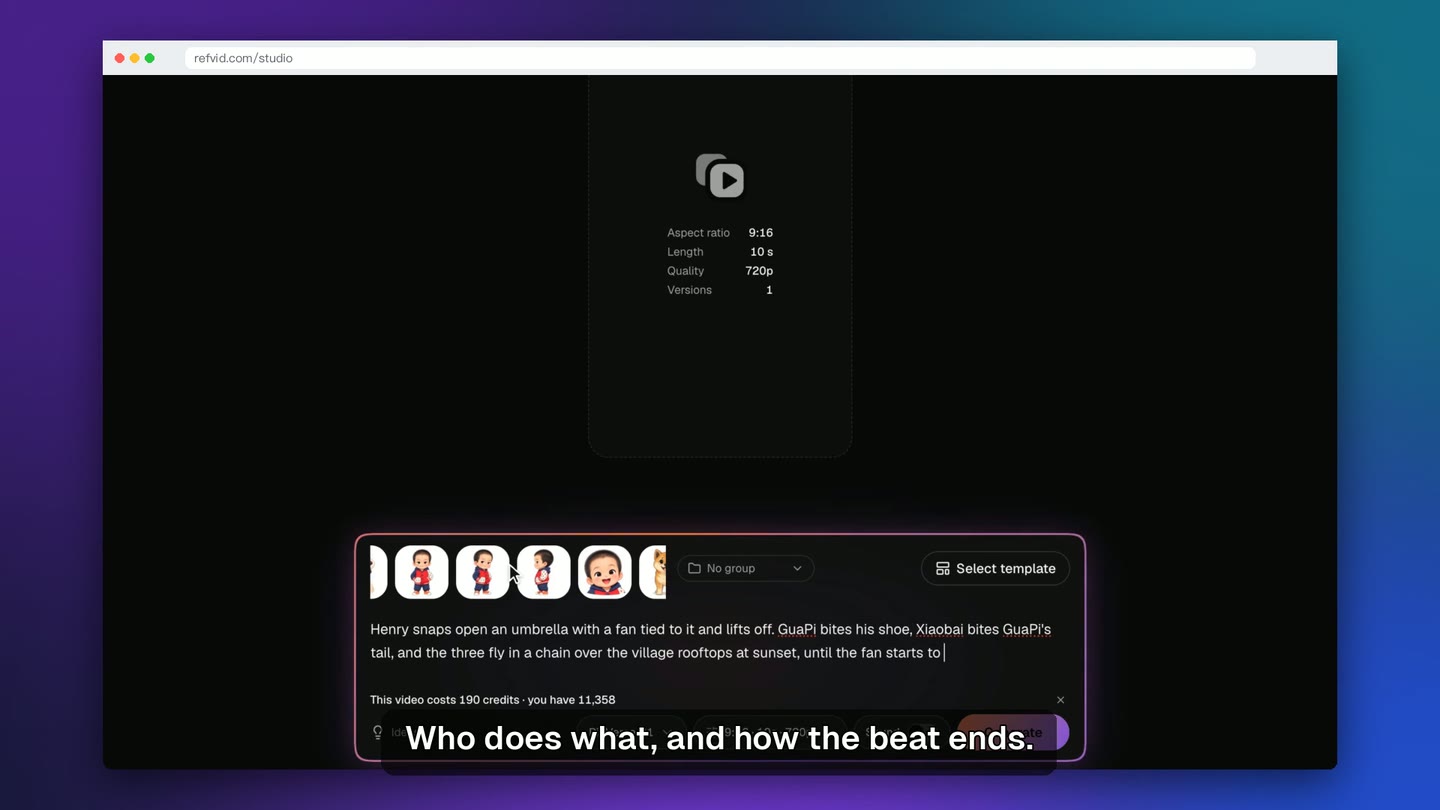
Write the episode as one prompt
Write the episode in your own words, as one prompt: who does what, and how the beat ends. Use the names you saved. Here Henry lifts off under an umbrella with a fan tied to it, GuaPi bites his shoe and Xiaobai bites GuaPi's tail.
- 6
Pick the model, the length and 9:16
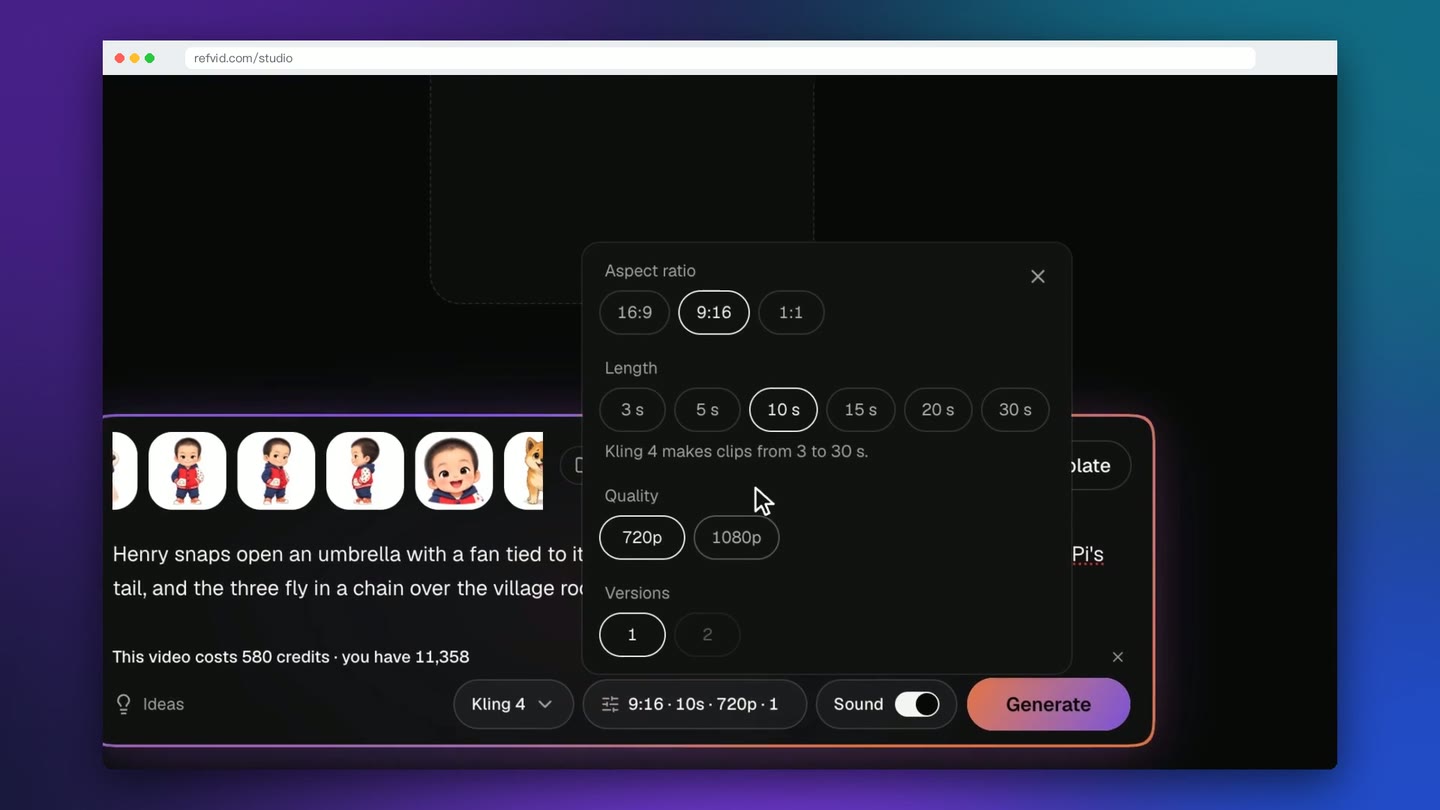
Choose a model, then open the settings. The video uses Kling 4, 10 seconds, vertical 9:16 and 720p; Kling 4 makes clips from 3 to 30 seconds. The cost shows above Generate before you click.
- 7
Generate the first episode
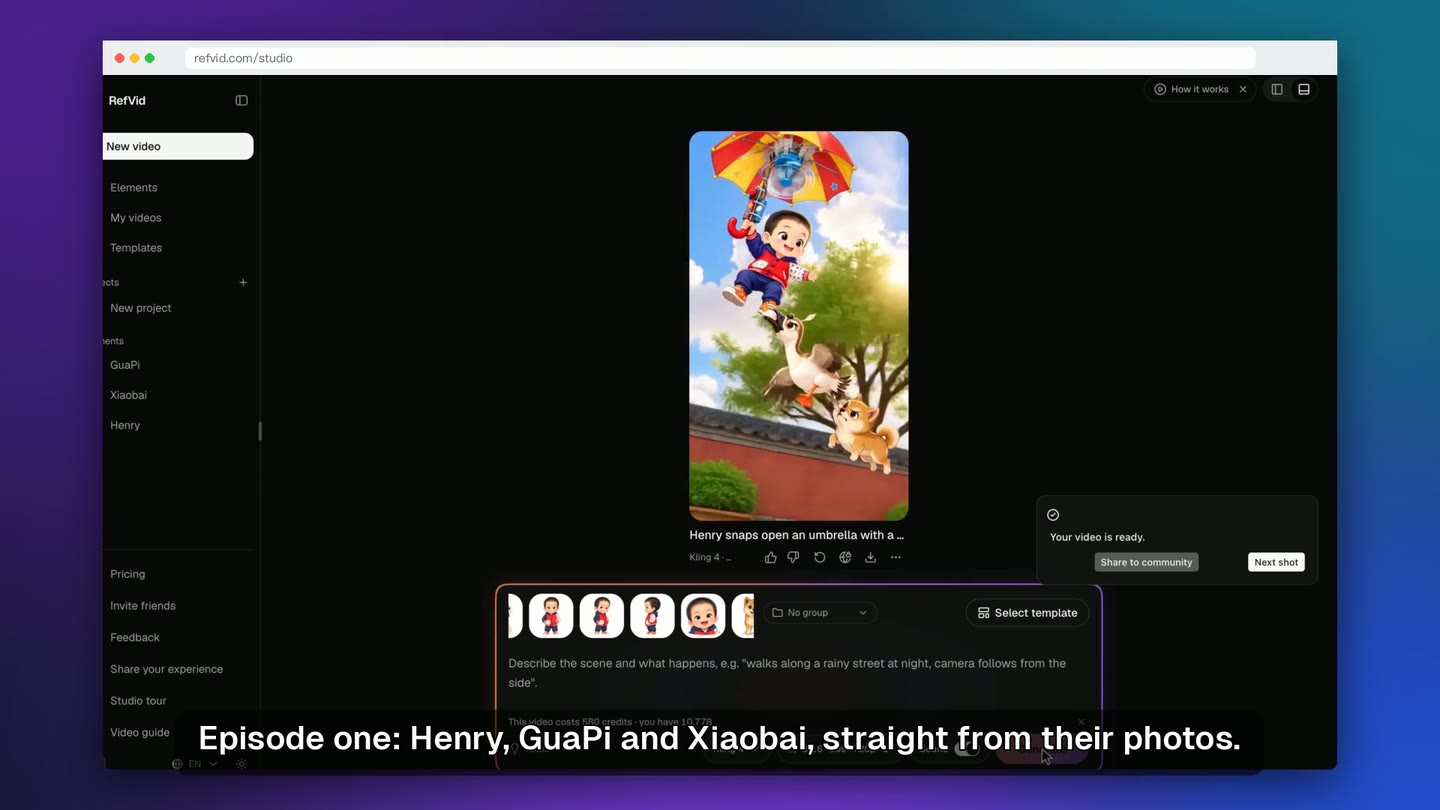
Click Generate. A clip takes a few minutes and appears above the composer. One clip is about ten seconds; an episode is a few clips, joined in any editor.
- 8
Next episode: same cast, new words
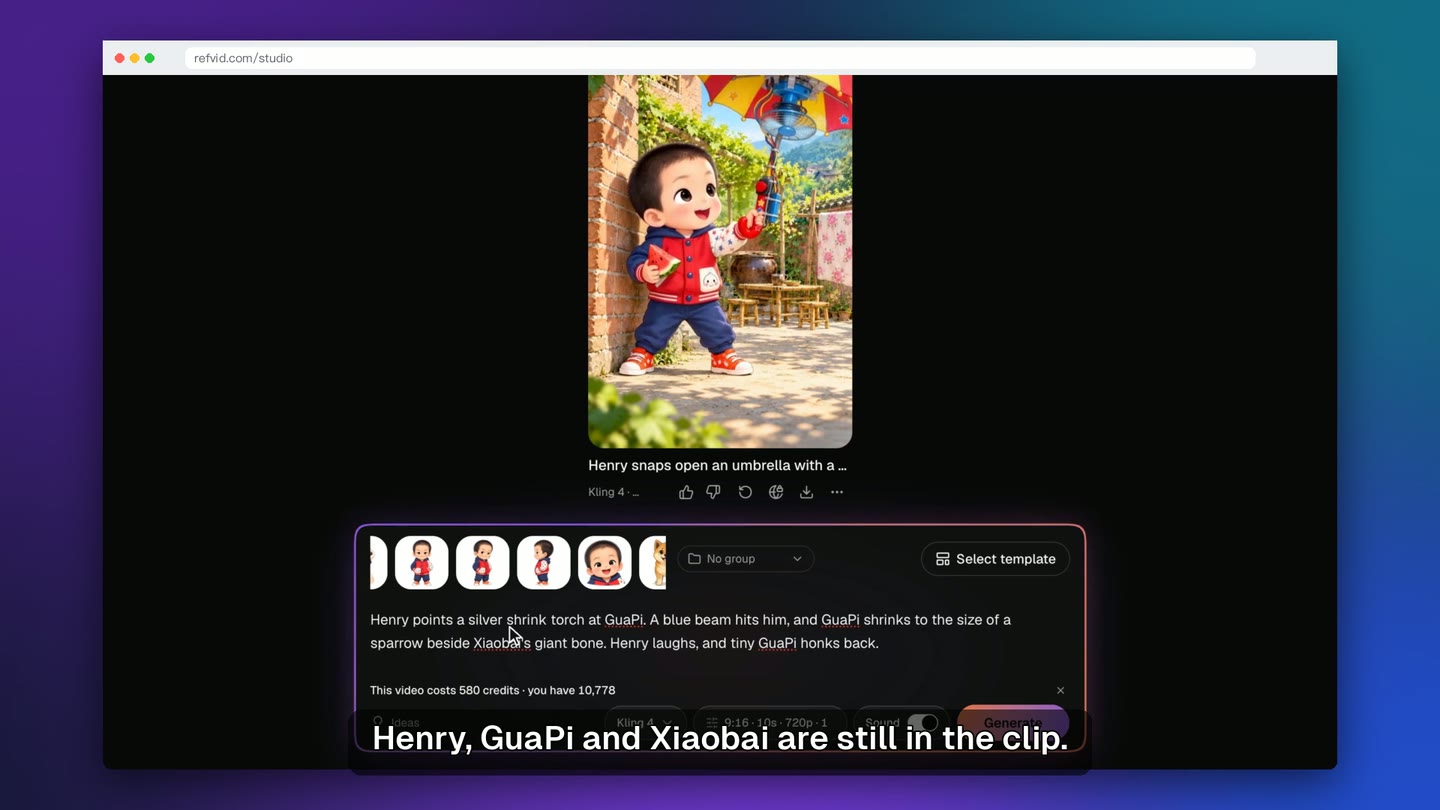
Leave Henry, GuaPi and Xiaobai in the composer, write only the new beat and generate again. In episode two Henry points a silver shrink torch at GuaPi, who shrinks to the size of a sparrow.
- 9
Two episodes, one cast
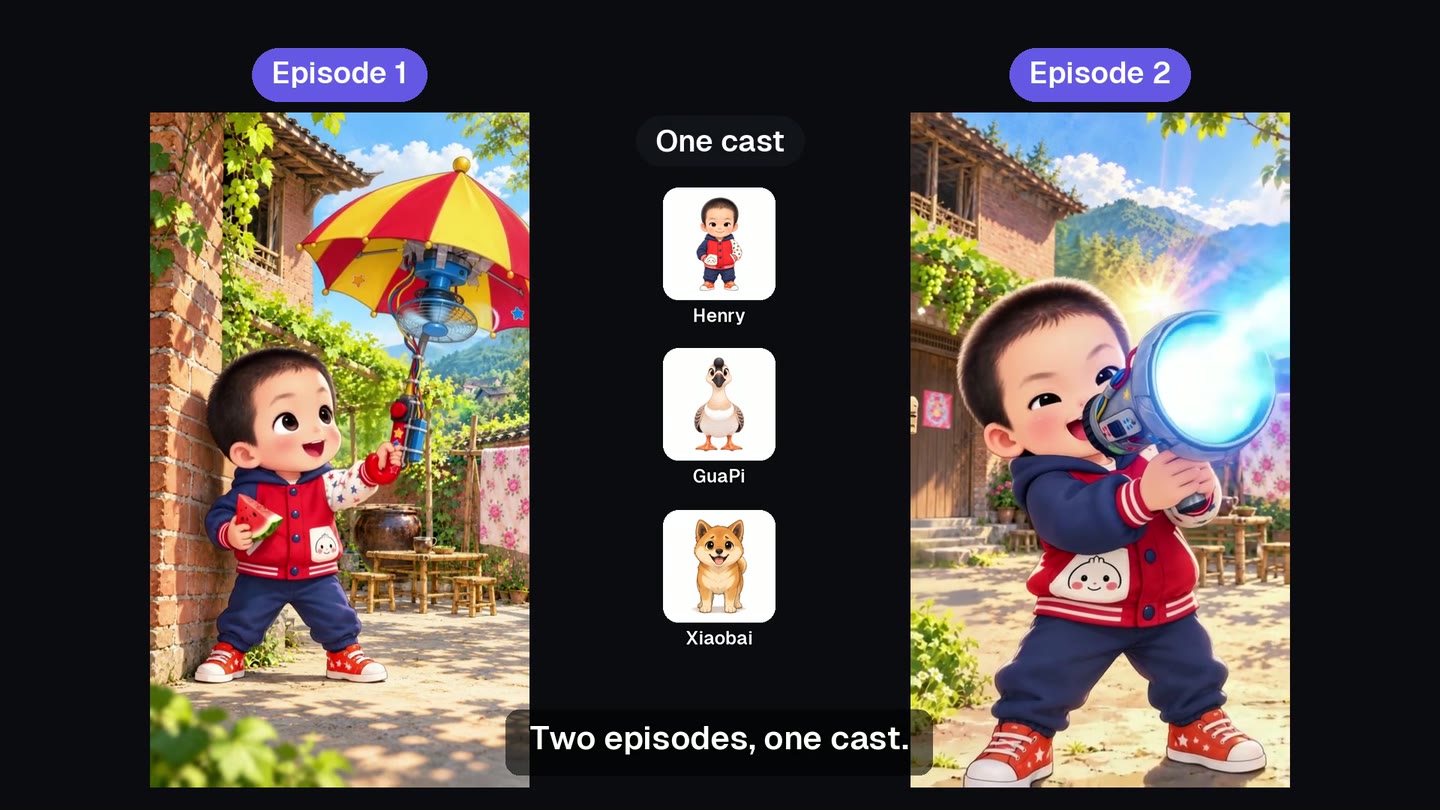
Side by side, it is the same boy, the same goose and the same dog, because every clip starts from their saved photos. Before you post: export 9:16, switch on the platform's AI label, keep it fast and end on a cliffhanger.
Transcript
This is GuaPi, an AI drama. Same boy, same goose, same dog. Episode two, and nobody's face has changed. Here's how to make an AI drama like this.
Describe a character in words only, and the face changes every clip. With saved photos, the face stays the same. So save each character once, from photos.
Step one: save your cast. Each character is saved once, as an element. Give it a name, choose Character, and add three or four views: front, side and a close-up. The first photo is the main one. Tick the box and create the character. Do the same for each character. Henry, GuaPi and Xiaobai are the cast. You never upload them again. Every episode starts from these photos.
Step two: the episode. Open Templates and pick Mini Drama. GuaPi leads. The second lead is still a placeholder. Click plus, then Add an element: Henry takes the second lead. Add Xiaobai as well. One clip holds up to three characters. Now write the episode in your own words, as one prompt. Who does what, and how the beat ends. Pick a model and a length. Here: Kling 4, ten seconds, vertical.
Hit Generate. A clip takes a few minutes; here it is sped up. One clip is about ten seconds. An episode is a few clips, joined in any editor. Episode one: Henry, GuaPi and Xiaobai, straight from their photos.
Step four: the next episode. Keep the cast; only the words change. Henry, GuaPi and Xiaobai are still in the clip. Write the new beat, and generate again. Episode two: the same goose, the same boy, the same dog.
Two episodes, one cast. The same goose, the same boy and the same dog, because every clip starts from their photos.
Before you post, three checks. Export in nine by sixteen, vertical. Switch on the platform's AI label. Keep it fast, and end on a cliffhanger.
So: save your cast once, write the episode, generate, and make the next one with the same cast. Try it at refvid.com/ai-drama. Thanks for watching. Subscribe for the next tutorial.
Templates from this tutorial
Each one opens in the studio with your own subject in it.
Read next
- Make an AI drama with the same cast in every episodeMake an AI drama with the same actors in every episode: save each character once from a few photos, then shoot scene by scene. Free to try, no watermark.
- AI drama series: the same actors in every episodeMake an AI drama series with the same actors in every episode: save each one once from a few photos, write scenes with dialogue. Free to try, no watermark.
- How to make an AI anime seriesMake a short AI anime series: lock one art style, build a model sheet for each character, storyboard episodes, handle two-character shots, and edit it together.
Questions
Why do AI drama characters change between episodes?
A character described in words only is drawn from scratch in every clip, so the face drifts. When every clip starts from the same saved photos, the model draws the same face, outfit and proportions each time, episode after episode.
How many characters can be in one clip?
Up to three saved characters in one clip. A bigger cast works across clips: keep every character saved as an element and bring in the two or three each scene needs.
What photos does each character need?
Three or four clear views of one character: front, side and a close-up. Each element takes 1 to 10 photos (JPG, PNG or WebP, at least 300 px), and the first is the main one. Drawn and cartoon characters work too; real people must be you or adults who agreed, never public figures or minors.
How long is one AI drama episode?
One clip in the video is 10 seconds; Kling 4 makes clips from 3 to 30 seconds. An episode is a few clips joined in any video editor. Short drama episodes do best when they move fast and end on a cliffhanger.
What does the AI drama maker cost?
Clips are paid in credits by model, length and quality, and the price is shown above Generate before you click. Credits are held while the clip is made and refunded if it fails.
What should I check before posting an AI drama?
Three things: export vertical 9:16 for TikTok, Reels and YouTube Shorts; switch on the platform's label for AI-generated content; and keep each episode fast, ending on a cliffhanger so viewers come back for the next one.