Make My Character Talk - RefVid
Turn your own photos into videos in minutes · Your first video is free, no watermark






First video free, no card
To make your character talk with AI, add 1 to 10 pictures of it in the box above, write what it says in quotes, turn sound on and press Generate: the model makes a new clip in which your character says the line. Cartoons, mascots, plush toys, figures, pets and drawn characters all work.
Give it a fixed voice once and it sounds the same in every video. Talking needs sound, which the free clip does not include; a clip of up to 5 seconds with sound costs from $2.99 as a single video.
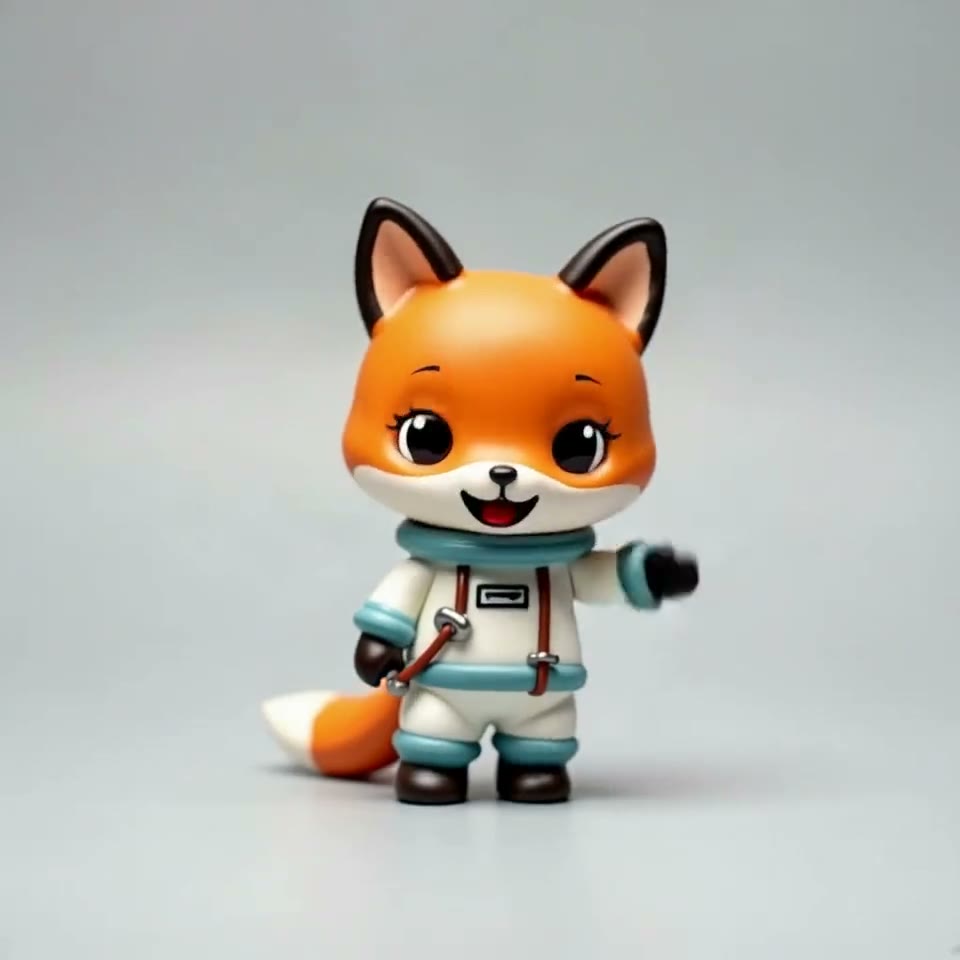
Pip: 4 pictures


Make my character talk AI: how it works
- A reference video model reads your pictures as a description of the character and generates a new scene with it. With sound on, it also generates the audio: lines you put in quotes are spoken, together with the sounds of the scene. There is no separate audio track to record or lip-sync afterwards.
- Because the pictures are saved once as a character, the next clip draws the same character, so a mascot or a cartoon can say a new line every week and still look like itself.
Make your character talk in 3 steps
- 1. Add 1 to 10 pictures of the character in the box at the top of this page: front, side and a close-up of the face work best. RefVid saves them as one character.
- 2. Write the scene and the line in quotes, for example: Pip waves at the camera and says: "Hi there, welcome in!" Keep it to one or two short sentences for a 5-second clip.
- 3. Turn sound on and press Generate. If you are not signed in, you sign in first and the clip starts right after. A clip usually takes 2 to 10 minutes, and we email you when it is ready.
The same voice in every video
- Without a fixed voice, the model picks one for each clip, so your character can sound different every time. In the character's settings, choose one of the preset voices or upload 5 to 30 seconds of one clean voice (mp3, wav, m4a or mp4), yours or one you have permission to use. With sound on, lines in quotes are then spoken in that voice on Kling 4 and Kling 3.0 Omni.
- Two characters can talk to each other in one clip: add both, name each in the prompt and give each its own line in quotes.
Make my cartoon character talk: what works
- Drawn characters keep their style best when the prompt starts with it ("2D cartoon, flat colours") and the pictures show the character on a plain background. Short, clear lines come out better than long speeches; for a longer message, make several clips with the same character.
- A character with no mouth, such as a plush or a logo figure, still speaks the line in the audio; how much its face moves depends on the design.
What it costs
- Your first clip is free: 3 seconds on Kling 3.0 Omni, silent, no card. It shows how your character looks; talking needs sound. A single video of up to 5 seconds costs from $2.99 with sound included, a one-time credit pack from $9.90 and a monthly plan from $10; credits never expire, and a failed clip gives its credits back.
More character videos
Reference to video →


Frequently asked questions
Can I make my character talk with AI for free?
Not with the free clip: it is 3 seconds on Kling 3.0 Omni without sound, so it shows the character moving but not speaking. A talking clip of up to 5 seconds costs from $2.99 as a single video, sound included.
Do I need to record the voice myself?
No. With sound on, the model speaks the lines in quotes. To keep one voice in every clip, pick a preset voice for the character or upload 5 to 30 seconds of a voice you may use.
Can I make my cartoon character talk from one drawing?
Yes, one picture is enough to start. Front, side and a close-up of the face hold the design better when the character turns; one character takes up to 10 pictures.
Can two of my characters talk to each other?
Yes. Add both characters to the box, name each in the prompt and write each line in quotes after its name. One clip takes up to 3 saved subjects.
Which languages can my character speak?
Write the line in quotes in the language you want it spoken in. Our example clips are in English, so for another language, try one short clip before a long series. On RefVid, lines in quotes are spoken when sound is on.