Reference Image to Video - RefVid
Turn your own photos into videos in minutes · Your first video is free, no watermark

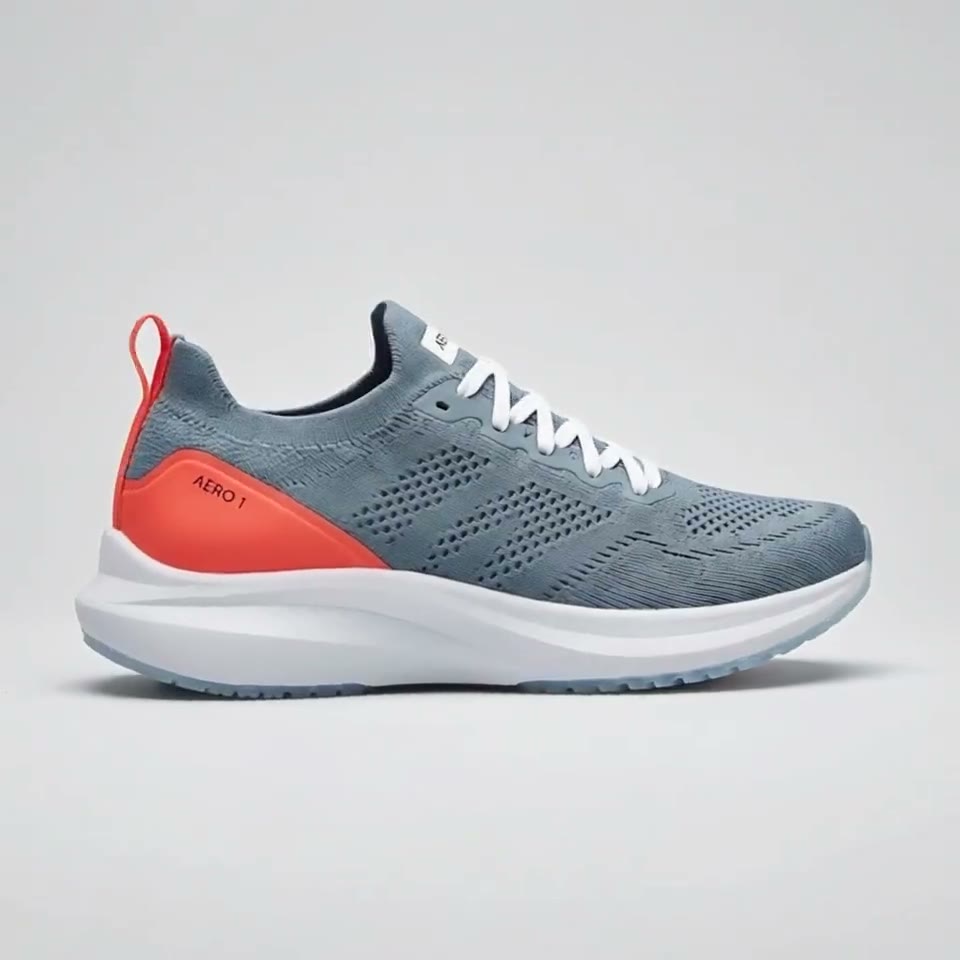
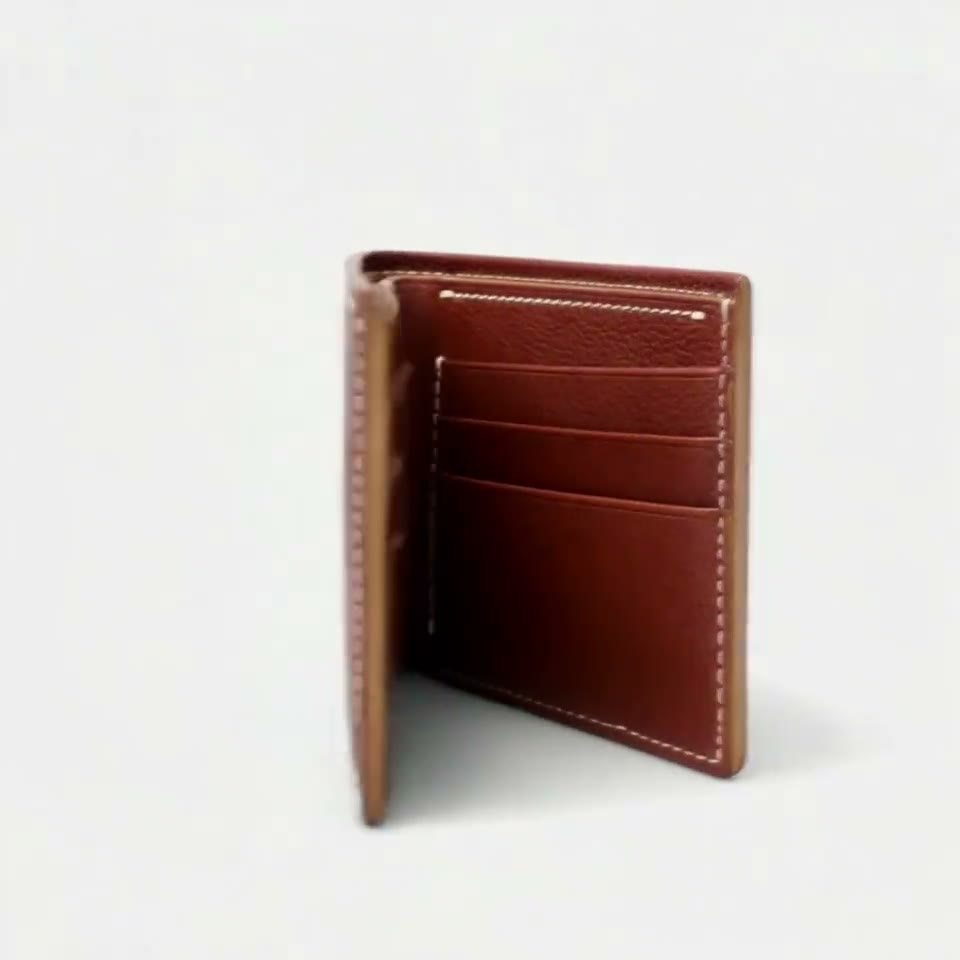


First video free, no cardGenerating confirms everyone pictured agreed. Terms
Reference image to video turns photos of a person, product or pet into a new clip in which that same subject appears, in a scene you describe. Add 1 to 10 photos in the box above, write where the subject is and what happens, and press Generate.
The photos decide who or what is on screen; your words decide the place, the action and the camera. Your first 5-second clip on Kling 3.0 Omni is free, with no card and no watermark; after it, a single video costs from $2.99, a credit pack from $9.90 and a plan from $10 a month.
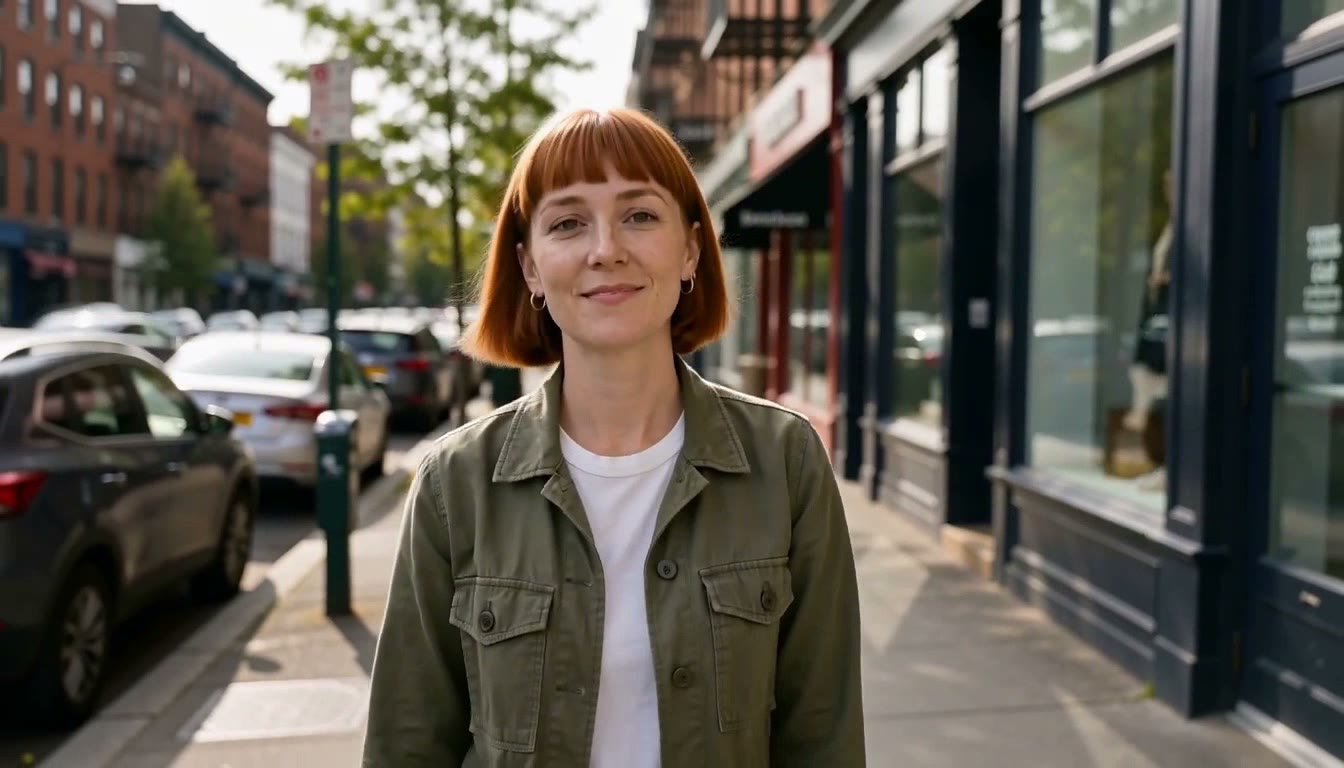
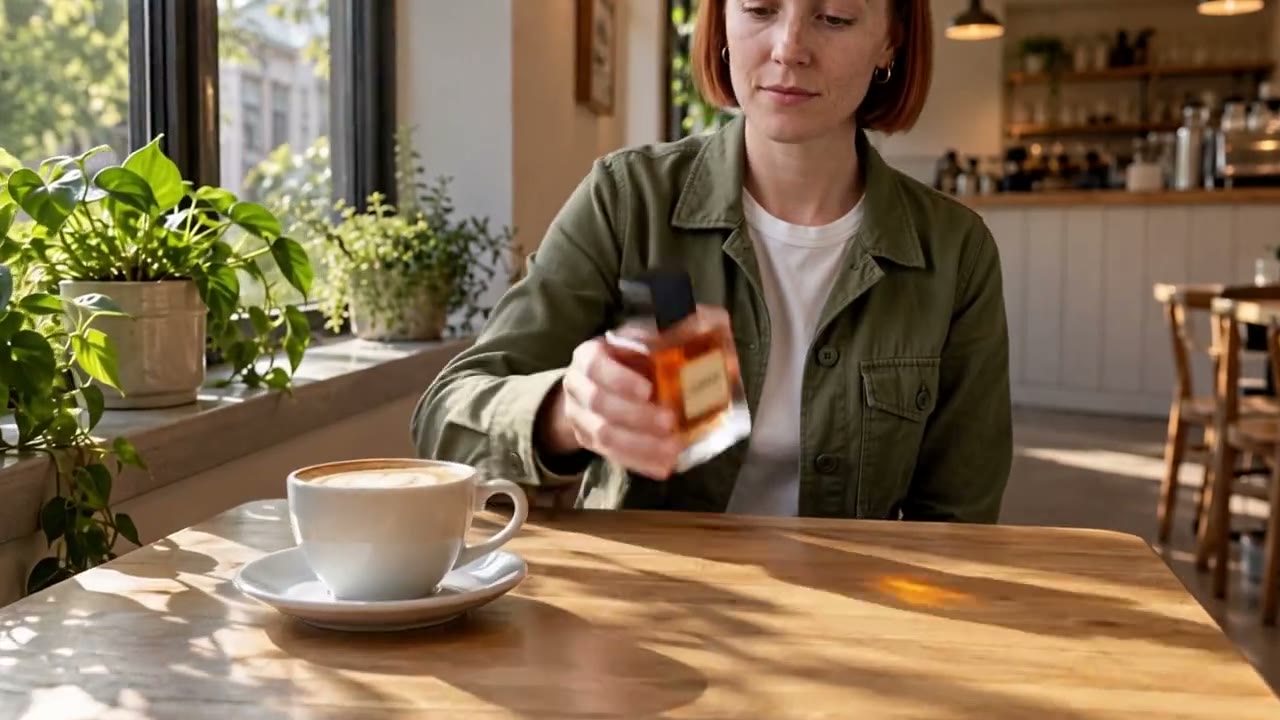
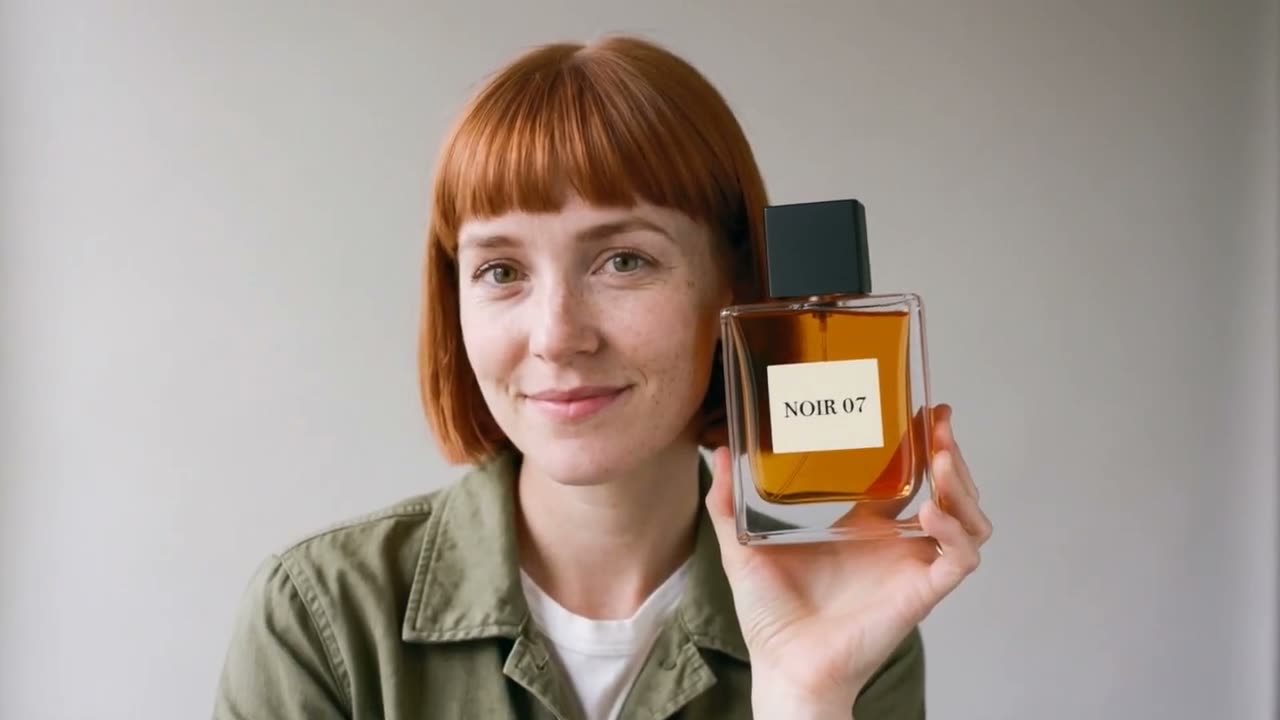
Mia: 4 reference images
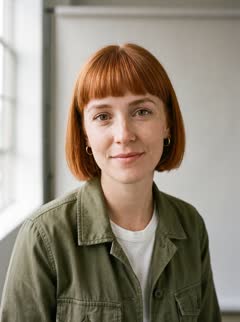
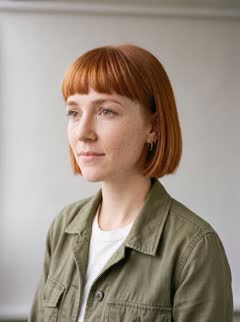
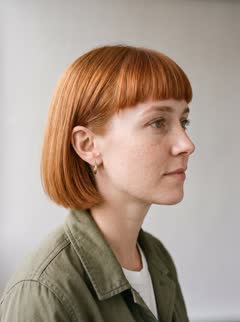
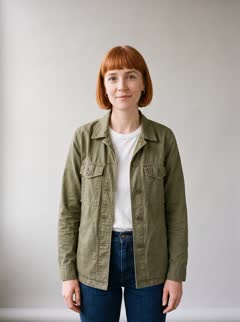
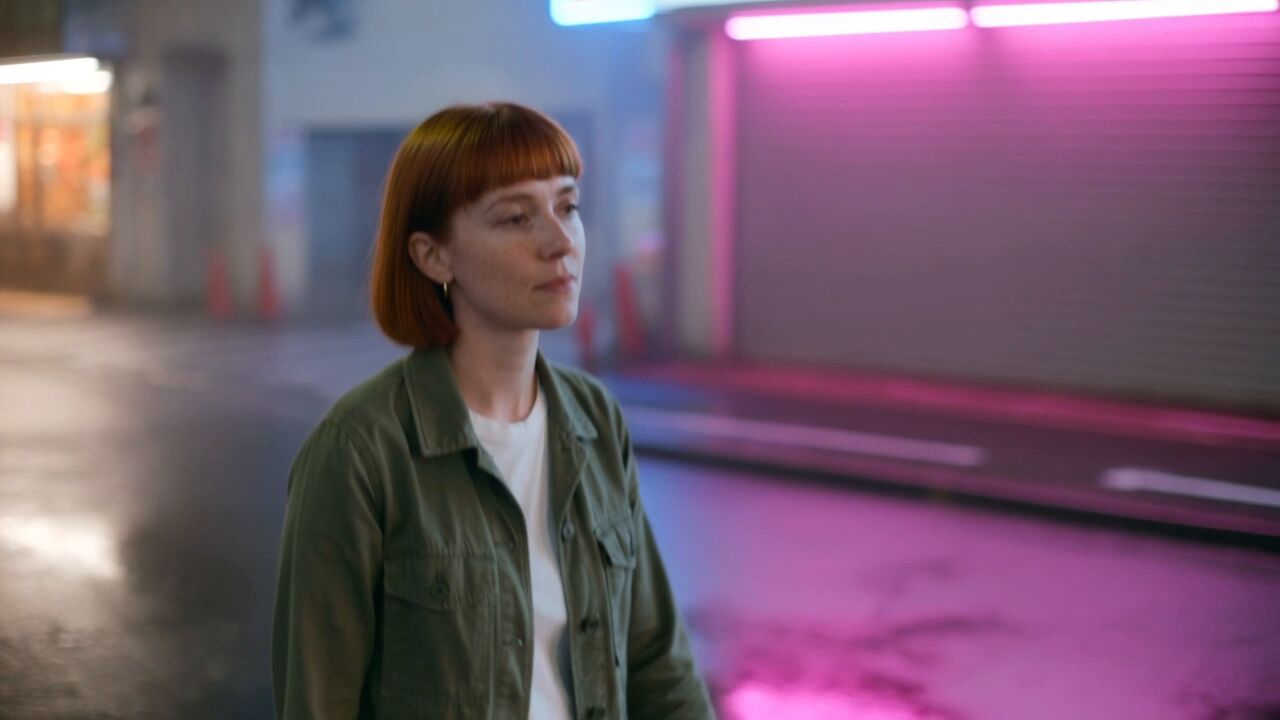
What it means
- A reference model reads your photos as a description of the subject, not as the first frame. It then generates a new scene around that subject: a street the photos never showed, a different angle, a new action. Image to video is different: it animates one picture, which stays the first frame of the clip.
- That is why reference images keep the same face or the same product across many clips. Every clip starts from the same photos, so the model draws the same subject each time, whatever the scene.
How to make one in 3 steps
- 1. Add 1 to 10 photos of one person, product, pet or mascot in the box at the top of this page. RefVid saves them as one subject, so the next clip reuses them without uploading again.
- 2. Write the scene in one or two sentences: the place, what the subject does and how the camera moves, for example "She walks through a rainy neon street at night; the camera tracks beside her." Leave out what the photos already show, such as hair colour or the label.
- 3. Press Generate. If you are not signed in, you sign in with Google or an email code first and the clip starts right after. A clip usually takes 2 to 10 minutes, and we email you when it is ready.
Which model runs it
- The box opens on RefVid's default model, and Settings switches to any of the 9 models RefVid runs through fal.ai, all of them reference models: Kling 4, Kling 3.0 Omni, Wan 3.0, Seedance 2.5, MiniMax H3, Vidu Q4, Gemini Omni Flash, PixVerse C1 and Happy Horse 1.1. The same saved photos work on every one of them.
- They differ in how many photos they take and how long a clip can be. Kling 4, Kling 3.0 Omni, Wan 3.0 and Seedance 2.5 take up to 10 photos; PixVerse C1 takes 7, Happy Horse 1.1 takes 9 and MiniMax H3 takes 5 in RefVid. Kling 4, Wan 3.0 and Seedance 2.5 reach 30 seconds. Seedance 2.5 refuses photos of real-looking people, so use it for products, pets and illustrated characters.
Free to start
- Your first clip is free: 5 seconds on Kling 3.0 Omni, with no card and no watermark, from your own reference images. After it, a single video costs from $2.99, a one-time credit pack from $9.90 and a monthly plan from $10; credits never expire, and a failed clip gives its credits back.
Which reference images work best
- Three to five sharp photos from different angles: front, three-quarter and profile for a person; the hero angle, the back and a close-up of the logo for a product. Even light, plain background, no filters, no text on top.
- Keep the set the same from clip to clip. A new face photo or a different outfit in clip two gives the model a new subject to draw. One photo is enough to start, but more angles hold better when the subject turns.
More on AI video models
Reference to video →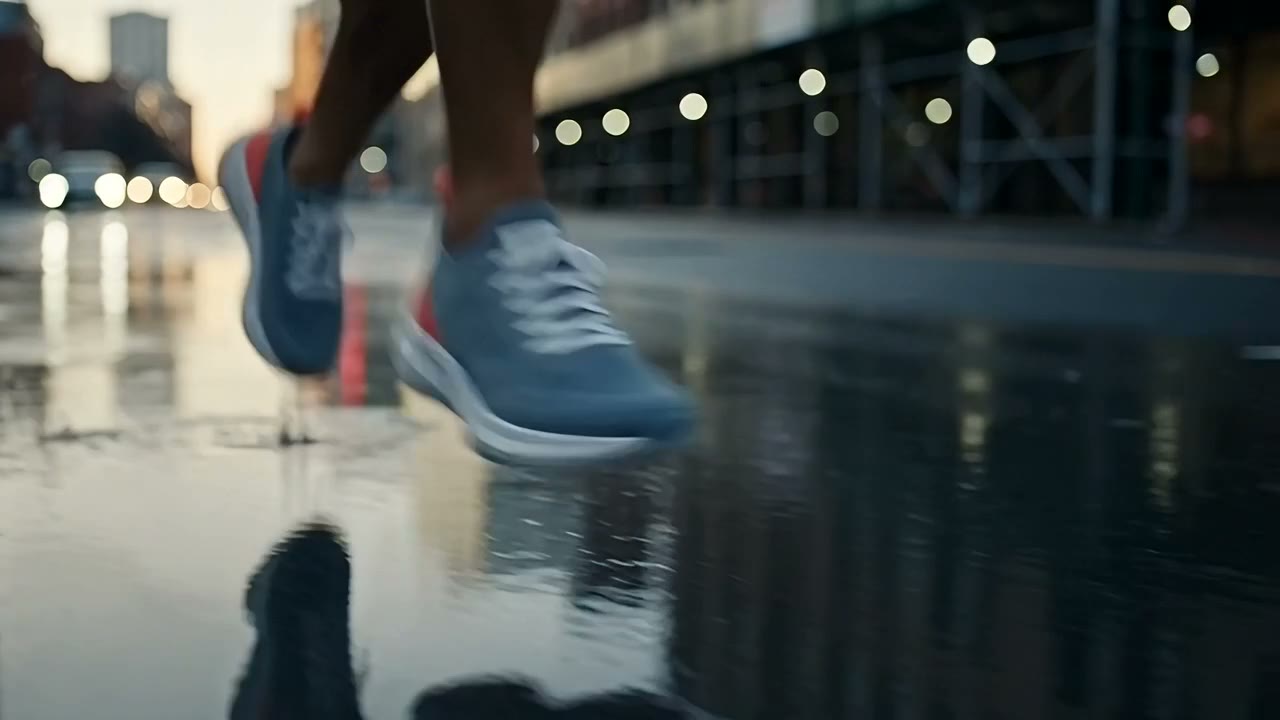
Frequently asked questions
Can I use reference image to video AI free?
Yes, for your first clip: 5 seconds on Kling 3.0 Omni, no card, no watermark. You sign in first so your photos and clips are saved to you. After that, a single video costs from $2.99, a credit pack from $9.90 and a plan from $10 a month.
Reference image to video vs image to video: what is the difference?
Image to video animates one picture, which becomes the clip's first frame. A reference model reads one or more photos as a description of the subject and builds a new scene around it, so the subject can appear in places and at angles the photos never showed.
How many reference images can I upload?
Up to 10 photos of one subject on RefVid. Most models take all of them; PixVerse C1 takes 7, Happy Horse 1.1 takes 9 and MiniMax H3 takes 5. Three to five clear angles are usually enough.
Which reference image to video generator keeps the face the same?
One that reads several photos of the face and reuses the same set for every clip. On RefVid the photos are saved once as a subject and go with every prompt, on whichever model you pick. Kling 4 and Kling 3.0 Omni take up to 10 photos of a person.
Can I use a reference image of a product instead of a person?
Yes. A product is saved the same way, from 1 to 10 photos. Small printed text is still the weakest point of current models, so plan shots where fine print is not the focus.